Importing Media Into Final Cut Pro |
Episode Desktop
83
74-0085-05
Video Panel
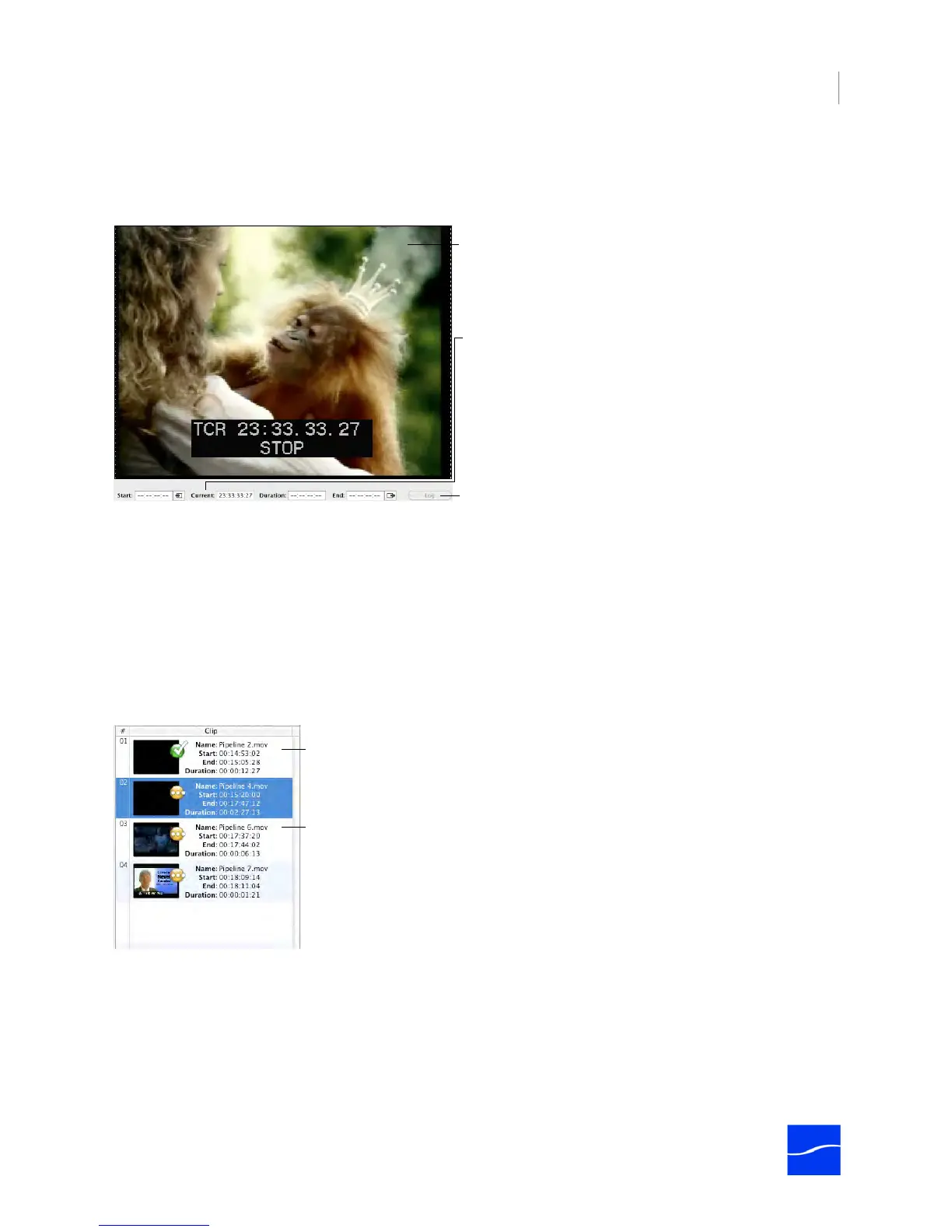
The video panel displays the encoded video stream in real time.
Figure 6–11. Pipeline Import dialog’s video panel.
At the bottom, the video panel displays start, current, duration and end timecodes and mark in/out buttons,
and a log button for adding a clip to the clip list. The Log button is disabled unless both timecode values
are entered. If the start value is less than or equal to the end value, an error is displayed.
Non-drop-frame timecode separators are all colons. Drop-frame notation applies a semi-colon between the
second and frame values. For example: 00:29:30;16 is a drop-frame timecode.
Clip List Panel
The Clip List panel displays a list of clips you’ve created.
Figure 6–12. The Clip List panel allows you to work with and import clips.
To create a clip entry, you play video, then click the Start button to mark the start timecode (at right of start
time code value field). Click the End button to mark the end timecode (at right of end timecode value field).
When you have a start and end timecode value (and the start timecode is previous to the end time code)
you can click Log to add the clip to the list. Optionally, enter a start timecode and a duration – the end
timecode will be calculated for you.
You can also delete, import, and preview clips using the Clip List buttons displayed directly below the Clip
List panel, in the control panel below.
Video preview region displays video, bars & tone, or black,
depending on state of Pipeline.
Click Log to add the clip to the clip list.
Start: Timecode of next clip to be added to the list. Click icon
at right to update.
Current: Real-time timecode of stream.
Duration: Calculated length of next clip, when available.
End: End point of next clip to be added. Click icon at right to
update.
Clips with a green check icon have already been
captured, and the file is saved on disk in the
scratch location.
Clips with a yellow icon have not been captured.



 To Next Page