Creating Clip Lists for Log and Capture
Pipeline User’s Guide
139
74-0085-05
Using the Log and Capture Window
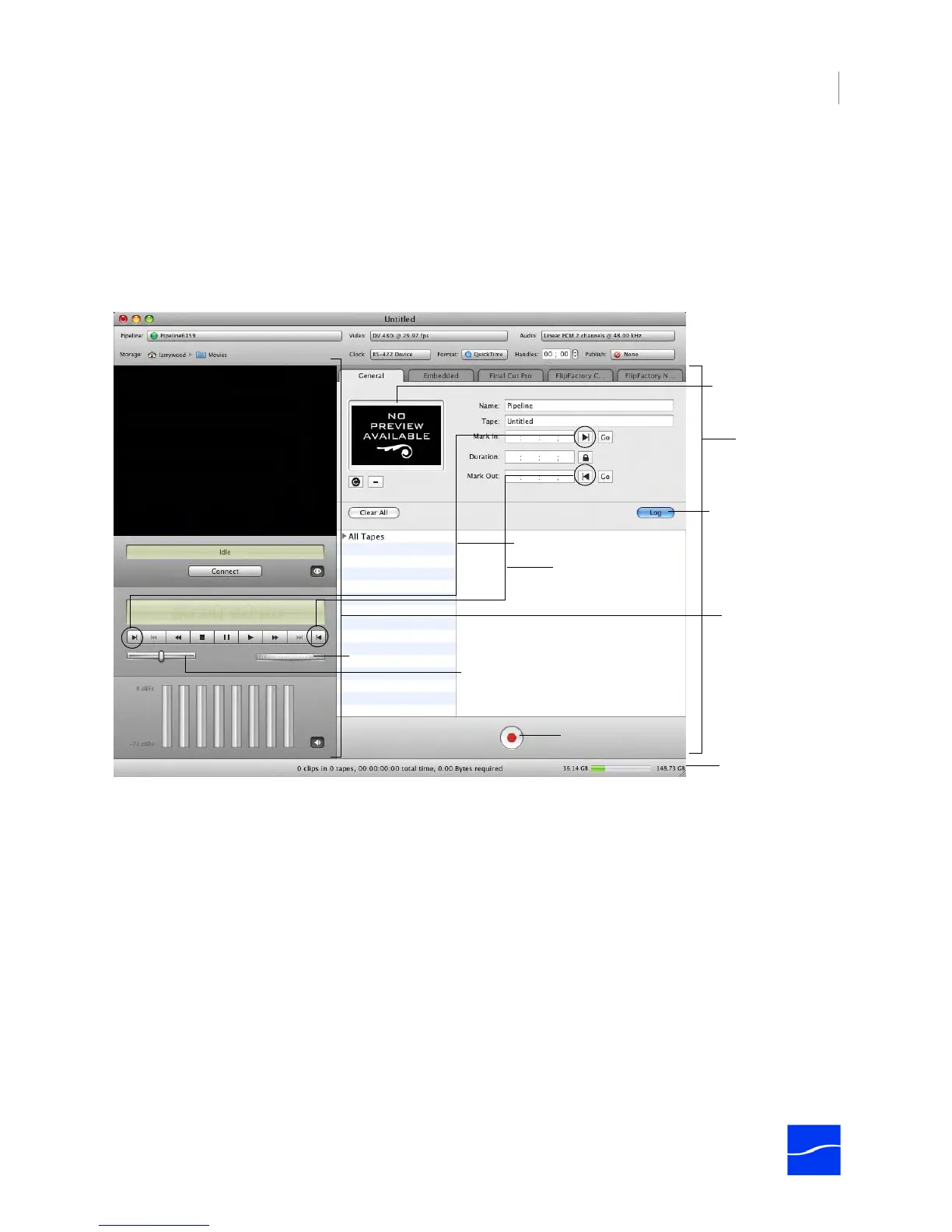
The log and capture window is similar to the schedule window: at the top is the Pipeline Settings toolbar,
and to the left side is the Preview panel with connection, status, and timecode. VTR controls have added
Mark In and Out buttons on either side, and Shuttle and Jog controls are directly below.
The right side has tabs for general values, and metadata values. Below the tabs is the clip list, including
tape names when logging clips from multiple tapes.
Figure 9–1. Use the Log and Capture window to create clip lists and capture media from Pipeline.
At the bottom center is the red Capture button. For details, see (The Preview Panel (page 116)).
Clip List Panel
Preview Panel
Space available
Mark In Buttons
Mark Out Buttons
Shuttle Control
Jog Control
Click to add clip to
clip list.
Click to begin
capturing clips.
Thumbnail Preview
& Controls



 To Next Page