Chapter 9
Using Log and Capture
142
March, 2009
Editing a Clip’s Metadata
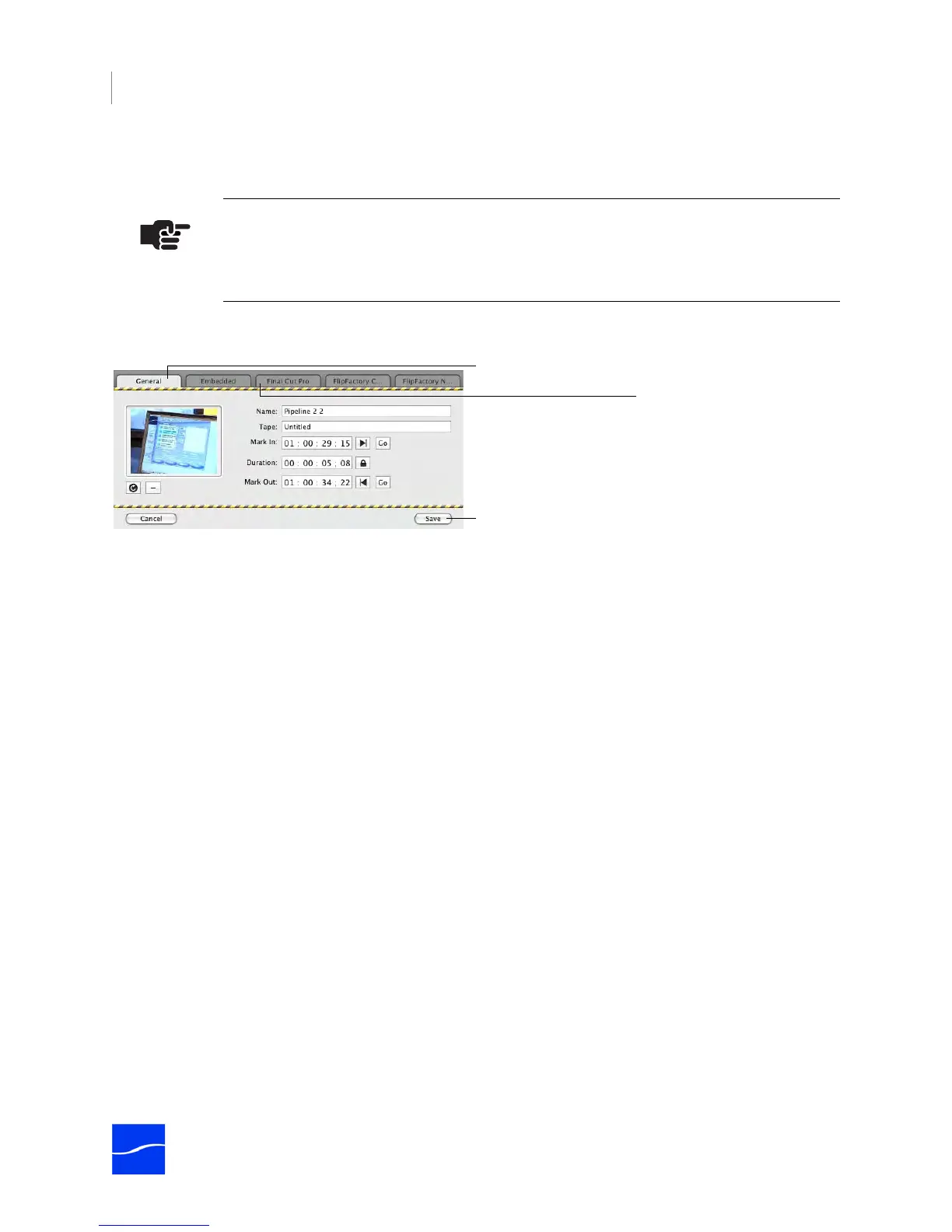
To edit the metadata of an existing clip, you must double-click the clip (or click a clip and select Clip > Edit).
Pipeline Control displays caution tape at the top and bottom, to indicate that you’re in edit mode:
Figure 9–4. The Clip List panel allows you to work with and capture clips.
Click on the target tab, and edit the values for each metadata tag.
Click Save to save the metadata with the clip and return to view mode.
LOADING AND SAVING CLIP LIST FILES
Pipeline Control enables you to load the clip list from an EDL or an XML file. You can also save a clip list
you’ve made, in XML format. Loading and saving clip lists via files promotes interchange between
applications and systems, without manually re-creating them. These interchange files can be used for
time-shifting your work, to avoid performing the same actions multiple times, or to participate in workflow
tasks with others.
For example, one person can define a list of clips, save the list as an XML file, and then pass the file on to
someone else on the network who performs the actual capture.
You can load the Clip List with entries from an EDL file, or from a Final Cut Pro XML Interchange Format
file. To load a clip list, use the following menu items:
File > Import Pipeline EDL. Select to populate the clip list with entries from a Pipeline EDL file.
File > Import Final Cut Pro XML. Select to populate the clip list with entries from an EDL file in Final Cut
Pro XML Interchange Format.
Pipeline Control displays an open dialog. Navigate to the location where the file you want to open is stored,
select it, and click Open to load the clip list.
You can also save clip list entries as a file in Final Cut Pro XML Interchange Format.
File > Export Final Cut Pro XML. Select to save the clip list in Final Cut Pro XML Interchange Format.
Pipeline Control displays a Save dialog. Enter the name of the file to save, and select the location where
you want to save the file. Click Save to save the clip list in XML Interchange Format.
Note
When not in edit mode, any data entry or edits you perform in any tab is for the next clip
you may create.
General tab for basic
data defining clip.
Metadata tabs.
Click to save new metadata



 To Next Page