Setting Preferences
Pipeline User’s Guide
77
74-0085-05
Import Preferences
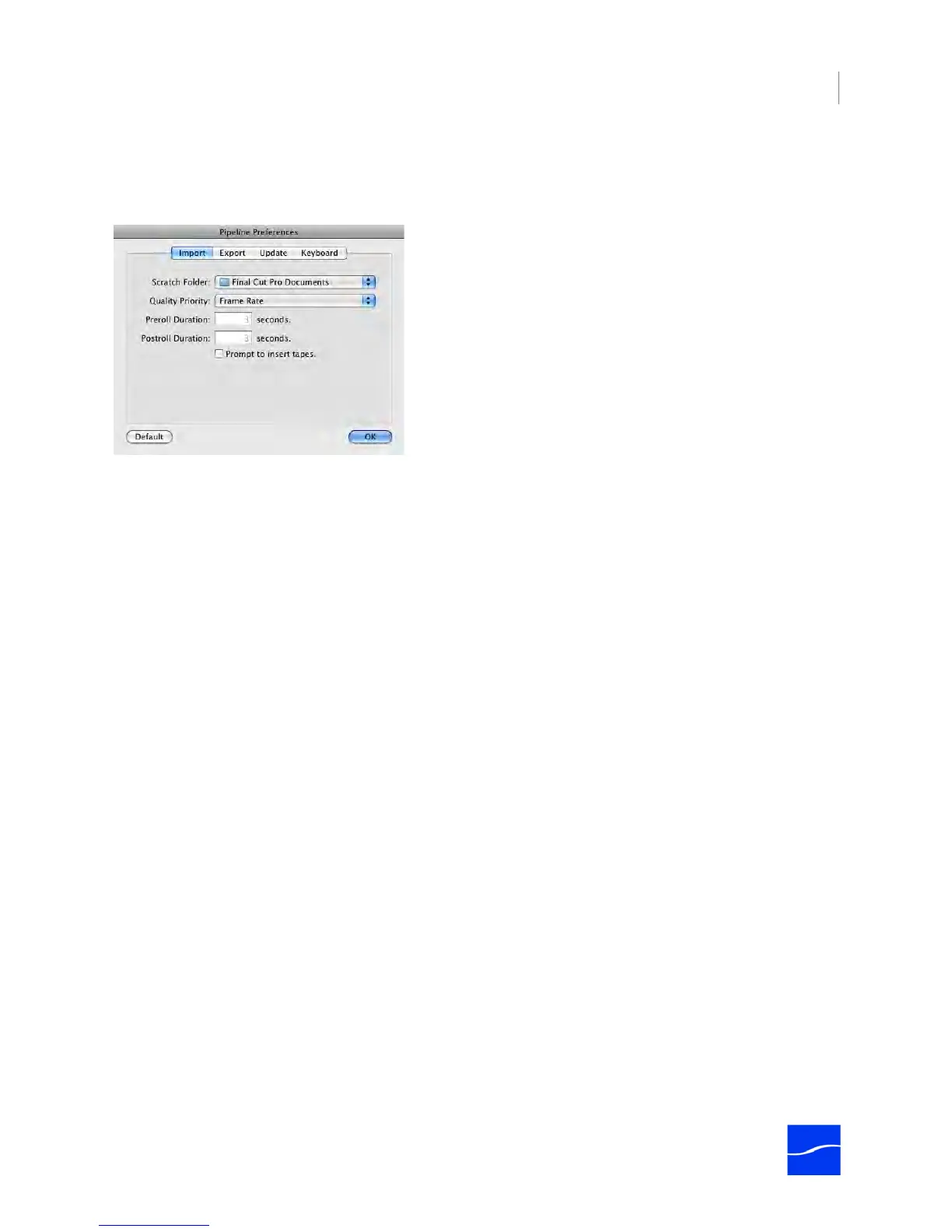
In the Pipeline Preferences dialog, click Import to display the Import Preferences panel:
Figure 6–3. Import Preferences.
Scratch Folder. Click to select the directory where you want Pipeline Plugin to create the scratch folder.
Default: same scratch folder as Final Cut Pro’s default scratch folder. Pipeline Plugin can not automatically
detect and take advantage of changes that have been made to Final Cut Pro’s scratch folder preferences.
Quality Priority. Select Image Quality to turn on the High Quality bit in the movie, and preserve image
quality when playing the movie, dropping frames if necessary – this setting is best for presenting detail
when video contains less action or movement. Select Frame Rate to preserve frames and reduce picture
quality if necessary during play – this choice is best for preserving smoothness of motion. The Quality
Priority setting does not affect encoding, only playback. (You can display a QuickTime movie’s properties
and alter this setting if you choose.)
Preroll Duration. Specify the number of seconds to pre-roll video from start timecode during import
operations.
Postroll Duration. Specify the number of seconds to post-roll video past end timecode during import
operations.
Prompt to Insert Tapes. Check to have the Pipeline plugin sort the clips by tape or reel, and then notify
the user when to insert the tape or reel and import all clips from the inserted reel, then proceeding to the
next one in order.
Default. Click to return all preferences to default settings.
OK. Click to save changes and close the dialog.



 To Next Page