Chapter 6
Using Pipeline in Final Cut Pro & Episode Desktop
92
March, 2009
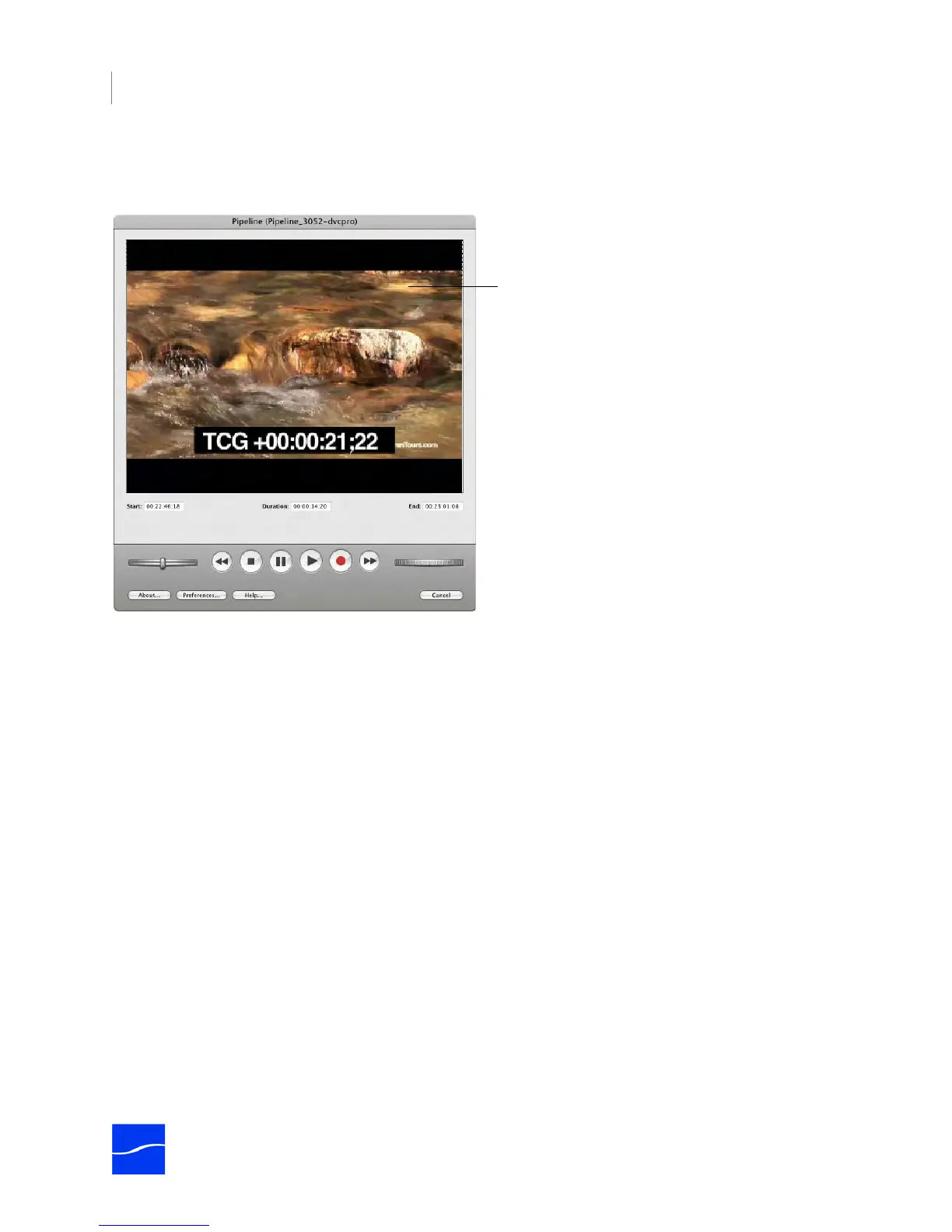
8. Export your media. Final Cut Pro must render the media first, if not already rendered. The Pipeline
Plugin displays the Pipeline Export window:
Figure 6–22. Use the Pipeline Export dialog to stream media to your Pipeline.
When you connect, video from the VTR connected to Pipeline SDI In (if available) displays in the video
preview panel. VTR controls and preferences display at the bottom of the panel.
If you have a VTR and it is in Remote mode, you can queue up the tape or jog to a specific point on your
tape (or other media) by using the VTR controls before capturing your media.
If the VTR is in Local mode, you can’t queue the tape using the VTR controls in the Pipeline Export
window. You’ll have to queue the tape manually and press Capture on the VTR simultaneously with playing
out the media (selected clip or sequence) in Final Cut Pro.
With a monitor or other real-time system connected, just click Capture when you want to start exporting.
During the time that Final Cut Pro is playing out media, the Pipeline Export dialog displays “Exporting clip
or sequence name” and displays the progress bar until export is complete.



 To Next Page