Chapter 6
Using Pipeline in Final Cut Pro & Episode Desktop
82
March, 2009
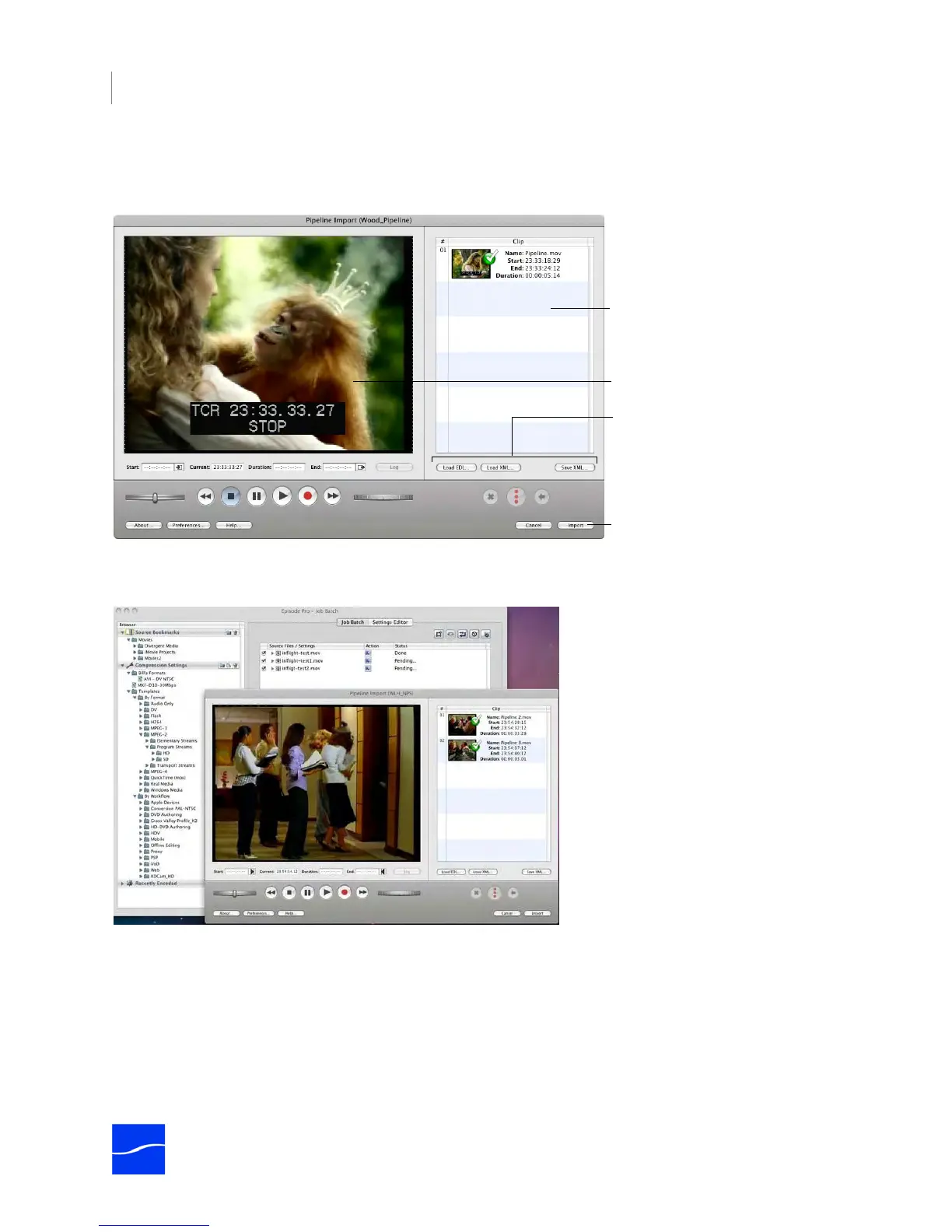
3. Create Clips. Use the Import dialog to create clips and encode and import your media into the Final
Cut Pro bin or the Episode job batch window (following, in Final Cut Pro).
Figure 6–9. Use the Pipeline Import dialog to stream encoded media from your Pipeline.
In the figure following, the Pipeline Import dialog is depicted in Episode Desktop:
Figure 6–10. Pipeline Plugin Import dialog in action in Episode Desktop.
When you connect, streaming media (if present) displays in the video preview region. A clip list displays on
the right. VTR and Clip List controls, preferences and Import commands display at the bottom of the panel.
If you have a VTR and it is in Remote mode, you can control your video using the VTR controls and
produce clips to be encoded and imported, or the video can be crash recorded. (If you’re viewing a live
feed, you can only crash record media.)
Click Import to add these clips to
the currently selected project in
Final Cut Pro.
Video preview region
Clip List Panel
Click to load a clip list from an EDL
file or XML file, or to save a clip list
as an XML file.



 To Next Page