Pipeline Capture Editor
Pipeline User’s Guide
65
74-0085-05
PIPELINE CAPTURE EDITOR
The Pipeline Capture Editor provides functionality similar to Pipeline Direct (the embedded Web
application in Pipeline), directly accessed from FlipFactory’s Submit Job window.
To access the Pipeline Capture Editor in FlipFactory, click Submit Job on the main FlipFactory console,
select Stream as your source and Pipeline as the stream type, then click Pipeline Control. The Pipeline
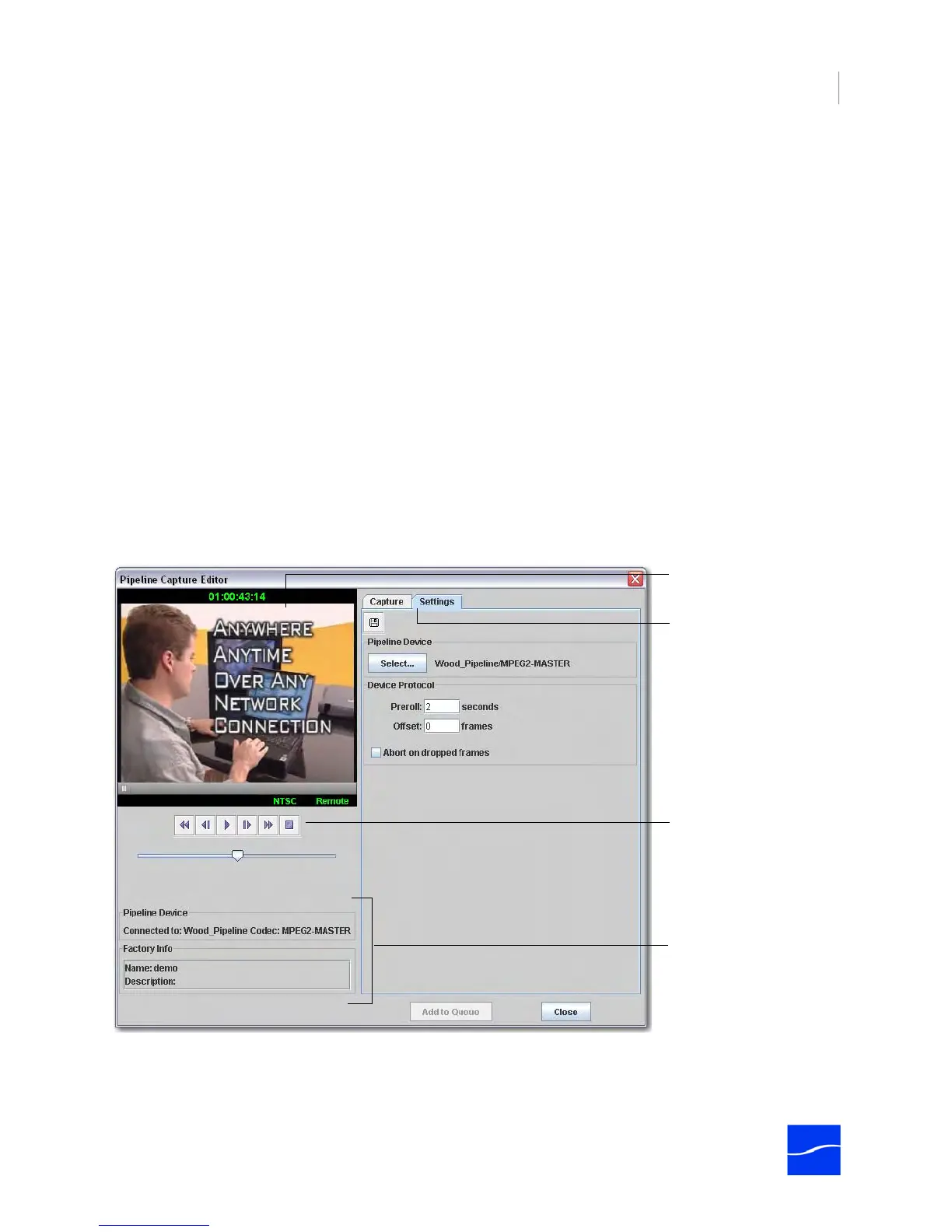
Capture Editor window displays. The Capture Editor extends the functionality of the Submit Job window by
adding metadata and Pipeline controls.
You can operate the Pipeline Capture Editor in manual mode to directly control the VTR when submitting
media, or you can operate it in automatic mode, when you want to create one or more clips and have
FlipFactory and the Pipeline with VTR produce the clips for you, based on the clip entry timecodes.
When you use the Pipeline Capture Editor, notice that the Flip It! button at the bottom of the FlipFactory
Submit Job window is de-activated, and is replaced by the same button (in manual mode) or Add to Queue
and Close (in automatic mode) in the Pipeline Capture Editor, to submit Pipeline jobs.
Using the Capture Editor’s Main Panel
The main panel (left side of window) displays the video preview panel at the top, and which Pipeline and
FlipFactory factory you’re using display at the bottom.
Figure 5–5. Pipeline Capture Editor window.
Directly below the video preview on the left is the name of the Pipeline you’re connected to, and the codec
you’ve selected. The selected factory is also displayed (select the factory from the Submit Job window).
To the right are two tabbed regions (described following), for settings and capture control.
Capture and Settings tabs
for setting up the Pipeline
and capturing media.
Preview panel displays
video streaming from
Pipeline.
VTR controls are active
when a VTR is connected
and it is in Remote mode.
Details about which
Pipeline, codec, and factory
you’re using.



 To Next Page