Launching Pipeline Direct
Pipeline User’s Guide
37
74-0085-05
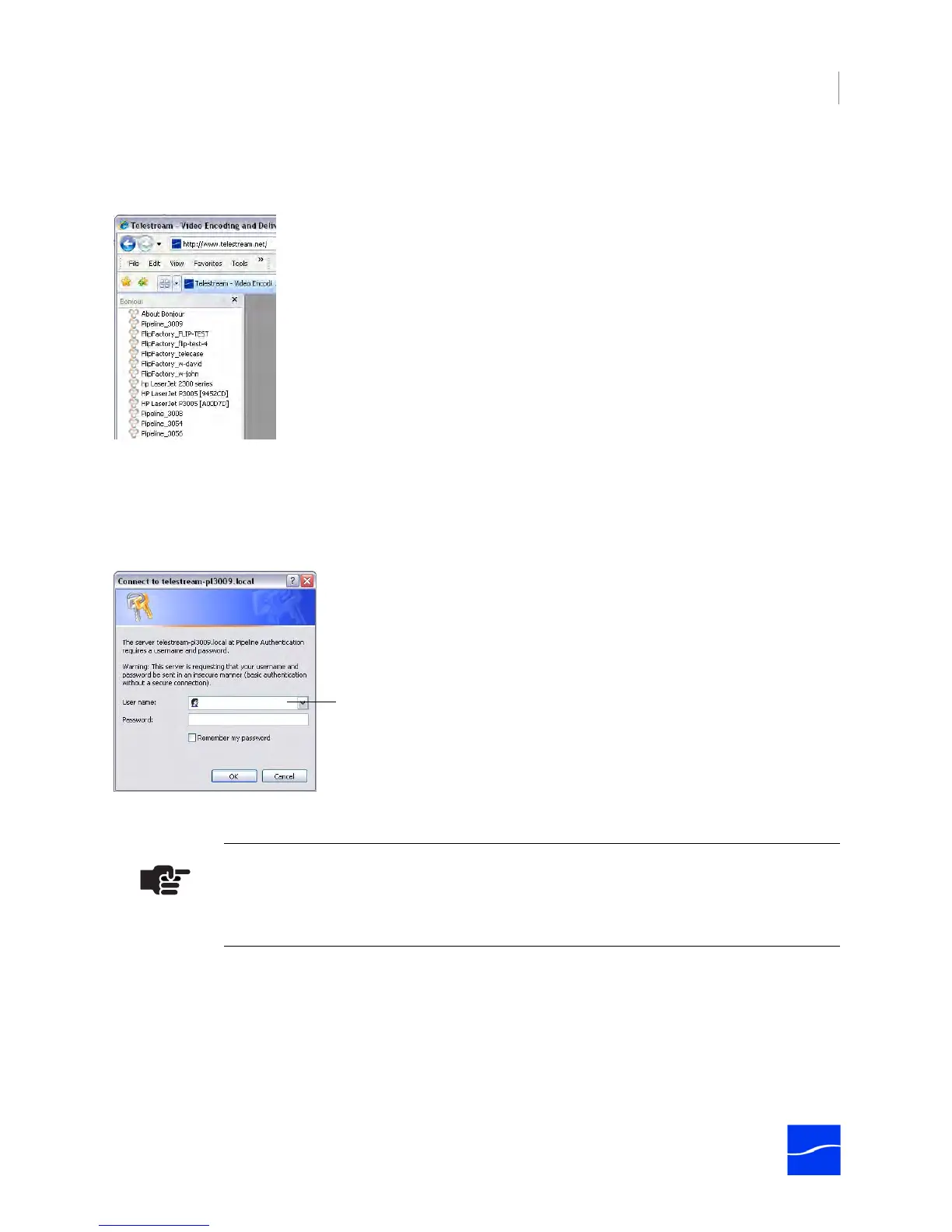
Safari (Mac OS X). Open Safari and select Bookmarks > Show All Bookmarks. In the Collections panel,
click Bonjour. Select the Pipeline (under Web pages) from the list, to log on and display Pipeline Direct.
Figure 4–1. Bonjour panel displays Pipelines on your LAN
3. To connect using the IP address, enter the IP address of the Pipeline in the URL field – http://
209.254.12.254, for example – and press Enter to display Pipeline Direct:
4. The first time you connect to this Pipeline since starting the browser, if the Pipeline is password-
protected (configure panel > Security), the browser displays a Pipeline Authentication dialog:
Figure 4–2. Connect dialog – enter your username and password to connect
5. Enter the username (always administrator) and password if you added one, to connect to the Pipeline
and display Pipeline Direct.
Note
The first time you connect to a Pipeline, a Pipeline Active-X control must be installed.
Depending on your settings, you may or may not be required to OK this installation
Enter the username (administrator) and password if
you added one, and click OK to connect.



 To Next Page