Chapter 6
Using Pipeline in Final Cut Pro & Episode Desktop
78
March, 2009
Export Preferences
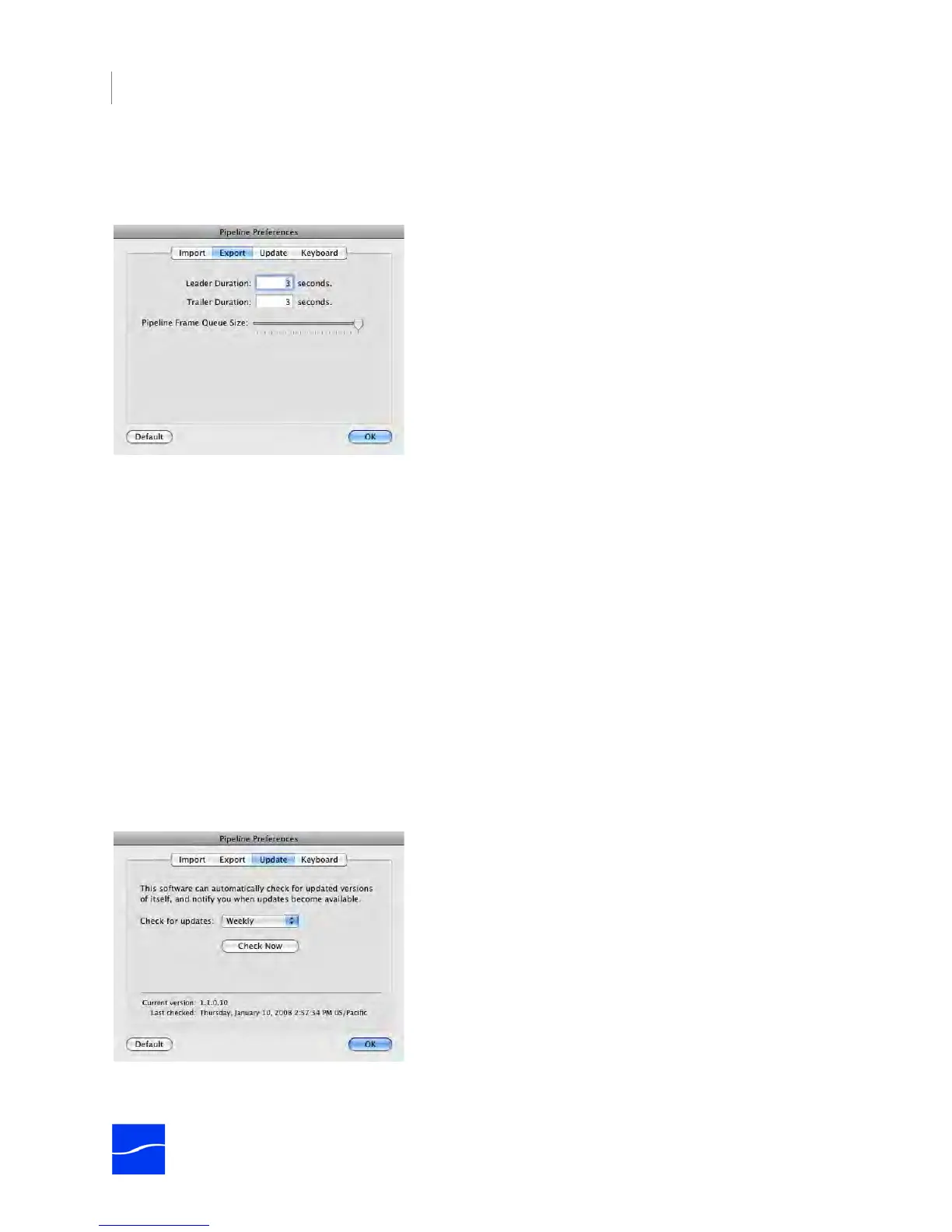
In the Pipeline Preferences dialog, click Export to display the Export panel:
Figure 6–4. Export Preferences.
Leader Duration. Specify the number of seconds of time to write blank media to the file before encoding.
Trailer Duration. Specify the number of seconds to write blank media to the file after encoding.
Pipeline Frame Queue Size. Set the queue size (in number of frames). The minimum is 8 frames and the
maximum is 22 frames. The default is 22 frames, in order to provide the most reliability.
During playout, Pipeline keeps a queue of frames in memory to compensate for network latencies. If queue
size is set for a large number of frames, the Pipeline can ‘ride out’ higher transient latencies in the network.
However, a large number also introduces a longer delay between the time the frame is emitted on the
network and the time that the frame appears on the SDI connection (roughly 1/4 second for 8 frames, up to
about 3/4 second for 22 frames).
If you are concerned with latency between the time video is exported from the computer and the time it is
sent out the Pipeline device, you should adjust the value lower. However, lowering this value will make the
export connection more susceptible to errors due to insufficient CPU power or network bandwidth.
Update Preferences
In the Pipeline Preferences dialog, click Update to display the Update panel:
Figure 6–5. Update Preferences.
Check for Updates. Select how often Pipeline Plugin should check for updates, or select never.



 To Next Page