Chapter 3
Implementing Pipeline & Installing Software
28
March, 2009
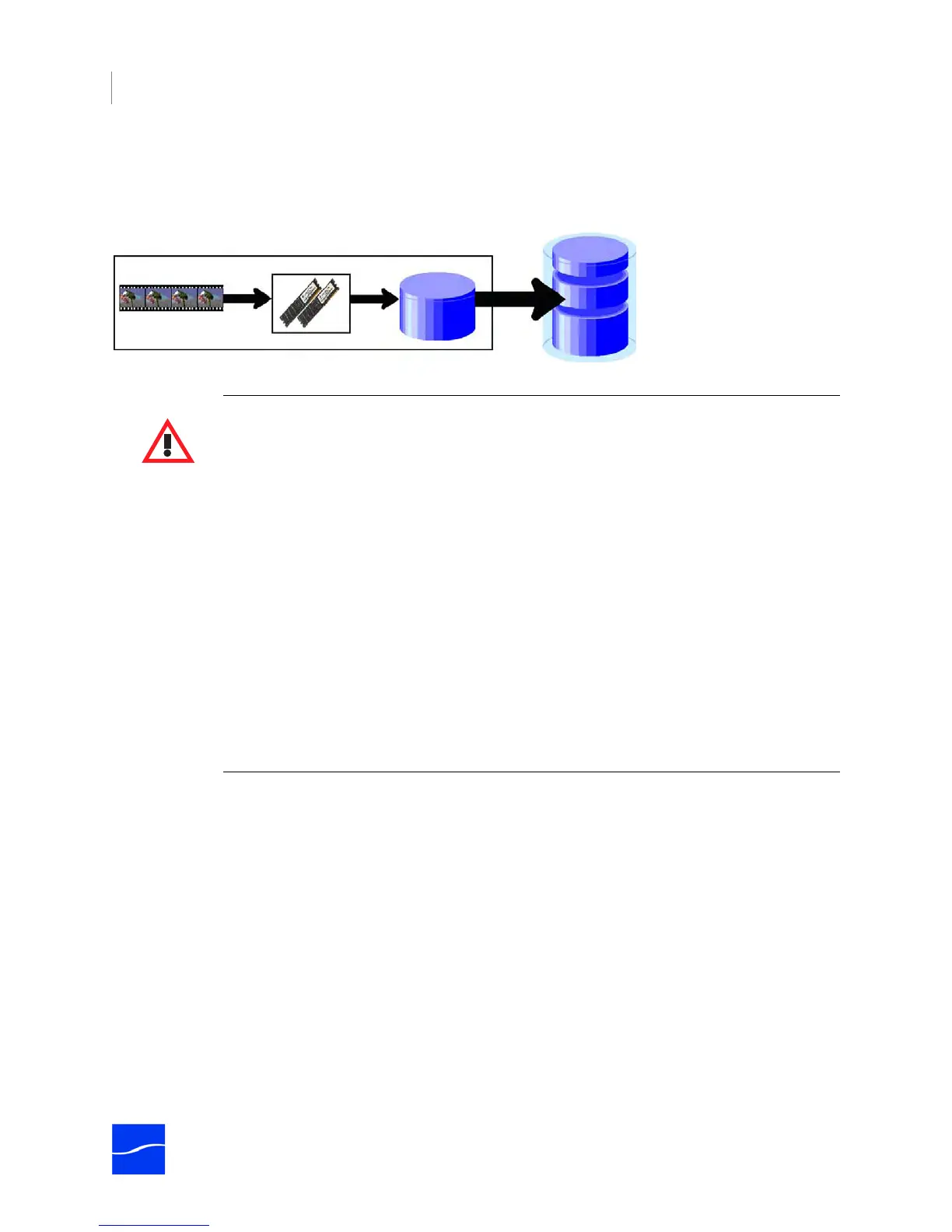
Enable Disk Buffering when your media file destination is not a local drive or array – such as a NAS, SAN,
or shared network folder, and your workflow requires transcoding or editing of the media files while they
are being captured.
Figure 3–6. Pipeline buffering process
Caution
The disk selected for buffering should be used exclusively for Pipeline video/
audio data buffering. Using the disk buffer drive for other read/write processes
may cause unpredictable results.
Never write to a disk buffer that does not meeting the minimum performance
requirement for the number of channels and media format being captured. See
Network and Hard Disk Performance Requirements (page 29).
The disk buffering drive must never be the same as the media file destination
drive. This will result in doubling the amount of read and writes operations to
this drive and will severely degrade overall disk performance.
When schedule events are touching (one file stops and the other starts at the
same moment) and there is a handle setting of more than zero, the amount of
data being processed and written to disk doubles for the duration of the handle.
Double capturing may result in data loss in workflows on slow computers, or in
workflows with multiple simultaneous ingests, since the application may be
pushing the limits of CPU capacity or disk write speed.
Incoming media stream RAM buffer Disk buffer
Pipeline Host Computer
Media file destination system



 To Next Page