Chapter 6
Using Pipeline in Final Cut Pro & Episode Desktop
88
March, 2009
Loading the Clip List from an XML File
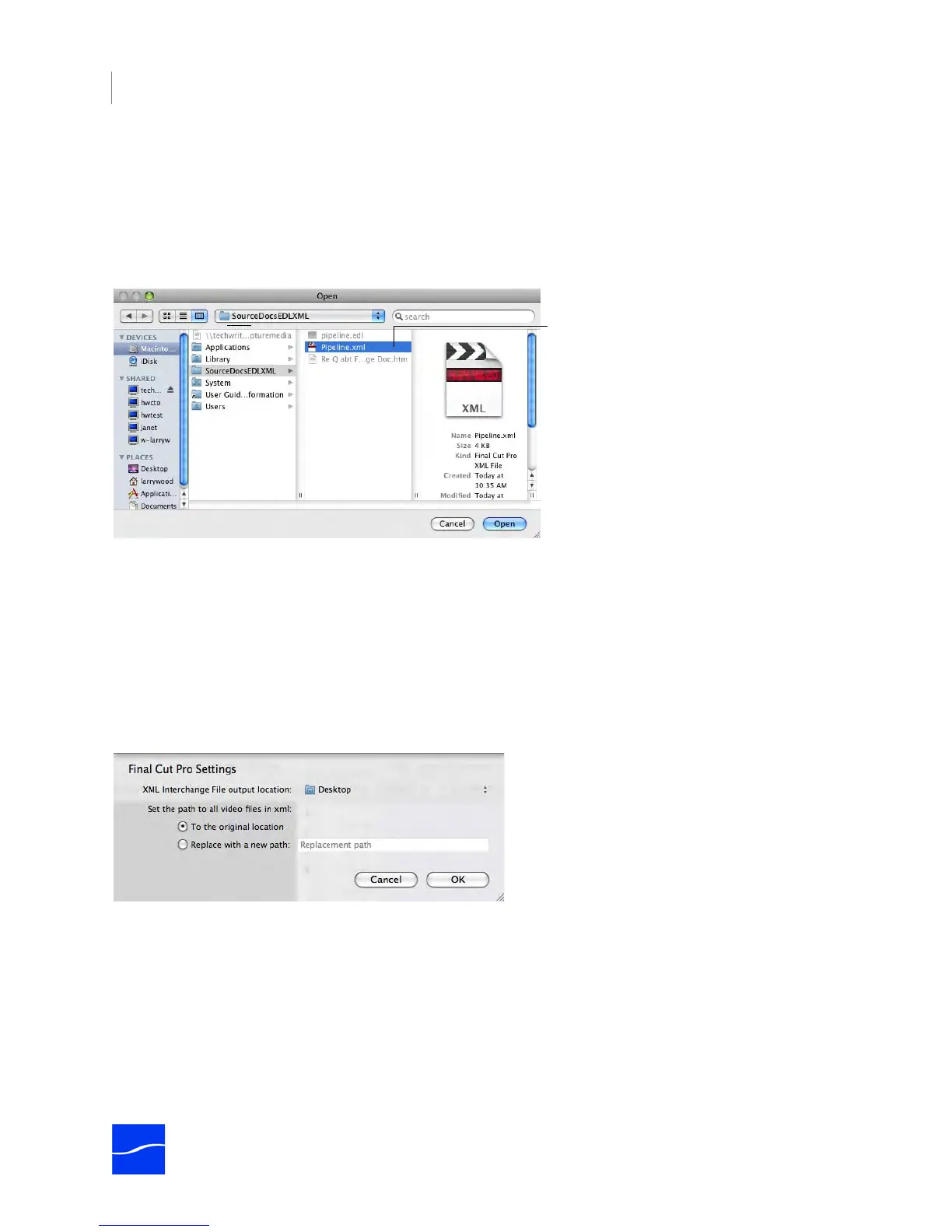
To load the clip list from an XML file, click Load XML.
Click Load XML to locate a clip list XML file and load it. You can load a Clip List from an XML file that
has been saved in Final Cut Pro, the Pipeline Plugin, Pipeline Control, or any other application that
supports Final Cut Pro XML Interchange format.
Figure 6–17. Click Load XML to locate a clip list file and load the entries into the Clip list.
When you click Load XML, Pipeline Plugin displays a File Open dialog, which you can use to browse and
locate the XML file you want to load. Select the file (only files with the xml extension are available), and
click Open to load the clips in the list into your Clip list.
Save the Clip List as an XML File
To save the clips in the list as entries in a Final Cut Pro XML Interchange Format XML file, first set up your
Final Cut Pro settings. In your Pipeline document window, select Final Cut Pro in the Publish dropdown
menu. The Pipeline Plugin displays the following settings dialog:
Figure 6–18. Set up XML settings in Final Cut Pro.
XML Output Location. Click to select the desktop, or another drive and/or folder location where you want
the output to be delivered.
Next, choose how to set the path to all video files in the XML file:
Original Location. Select Original Location when you want to leave the videos at the original location
where it was created. You might choose this option while you’re editing while encoding, for example.
Replace with New Path. Select another location to move it after being created.
With you settings adjusted for your workflow, click OK to update the settings and close the dialog.
Use the Open window to browse and open XML
files you’ve saved previously.



 To Next Page