Chapter 7
Using Pipeline Control
98
March, 2009
Before you start working on a specific window tab, make sure the active window tab is actually the one you
want to update. This is particularly important when more than one is open at a time.
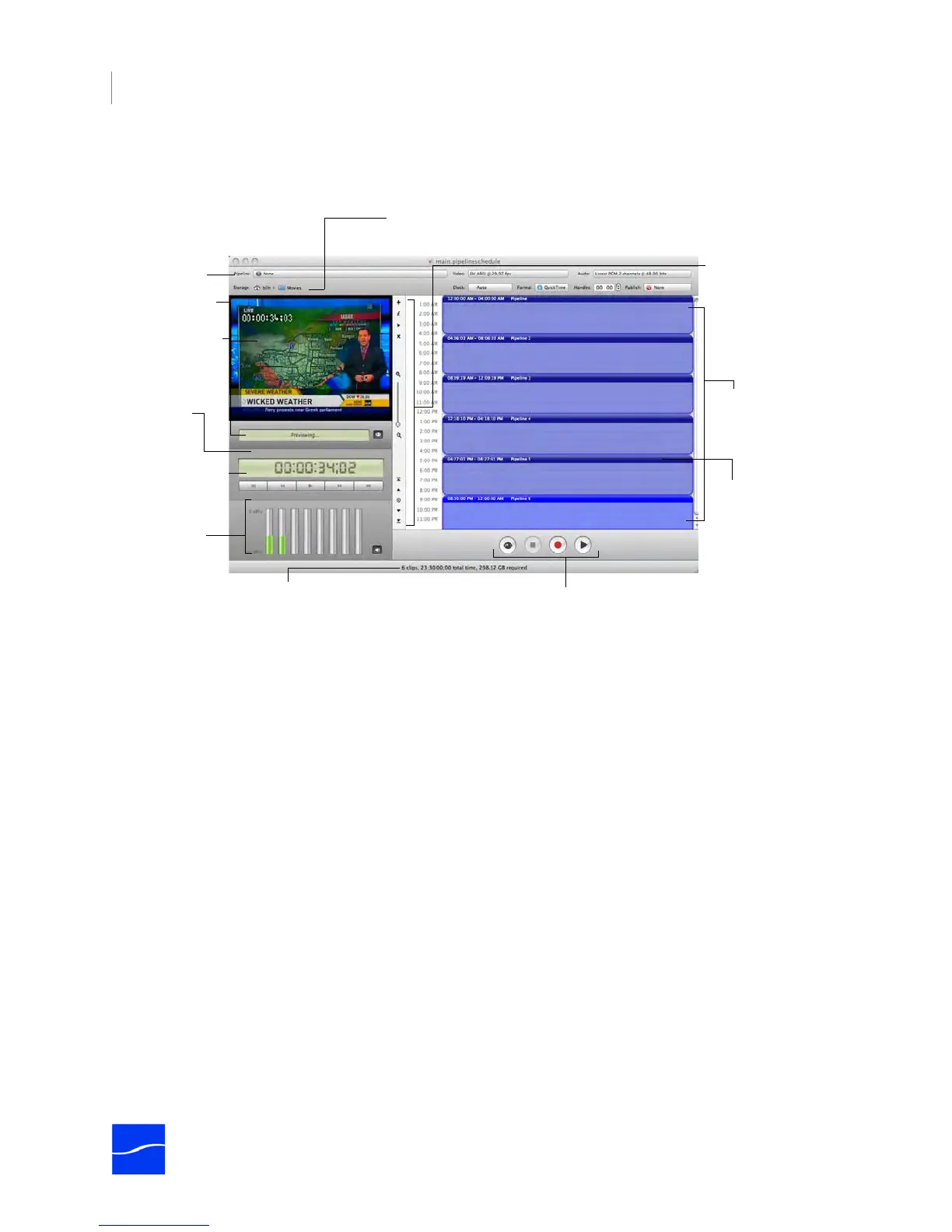
Figure 7–4. Window panels and toolbars (Mac OS X – schedule panel shown).
Each window displays several toolbars and panels, each designed to help you perform log and capture
tasks, or to create schedules to capture or play out clips. Each panel, toolbar, and feature is described
below.
Preview panel.
Displays video.
Status/Scrubber.
Displays status.
Scrubber displays
for local clips.
Time Code.
DIsplays when
connected.
Preview Controls.
Controls local clip
file playback.
Schedule panel.
Displays all clips in
a timeline.
Schedule Mode Toolbar. Controls
how you use the schedule.
Schedule Toolbar.
Provides buttons for
frequently used
functions.
Audio Meter.
Displays volume
by channel.
Storage Location. Displays the current folder
where files to be captured will be stored.
Clip Event. Add
these clip events to
capture or play out
video on schedule.
Settings. Use to
configure Pipeline
for use in this
schedule.
Schedule Details. Displays number of clips, total
capture hours, and approx. space required.



 To Next Page