Configuring Publishers
Pipeline User’s Guide
111
74-0085-05
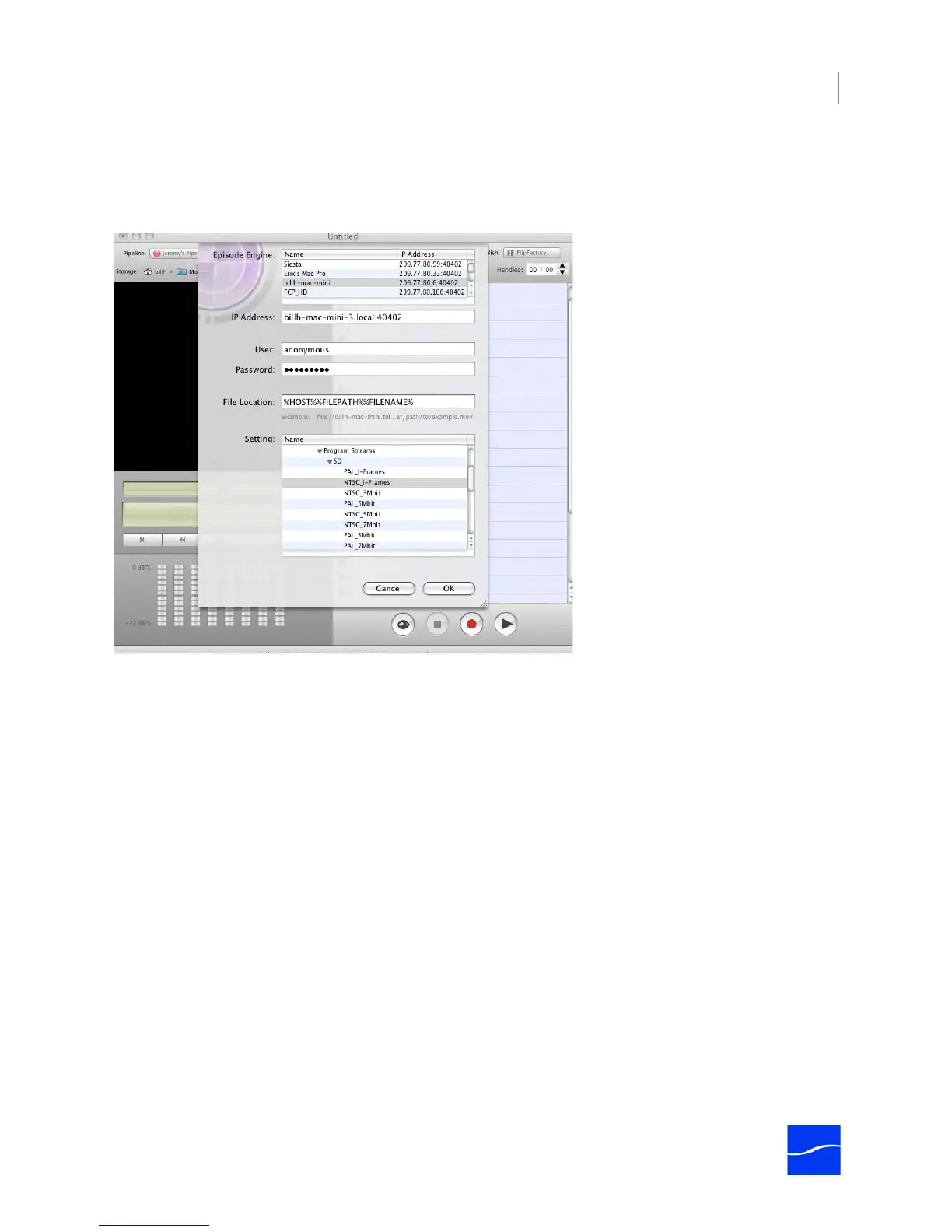
To select Episode Engine as a publisher, select Publish > Episode Engine. Pipeline Control displays the
following edit panel. Complete the panel and click OK. Make sure you test your configuration before putting
the schedule into production.
Figure 7–12. Episode Engine publisher allows you to submit media to a specific Episode Engine.
Episode Engine Address/IP Address. Click to select the target Episode Engine from the list or enter the
IP address of the target Episode Engine manually in the IP Address field.
User. Enter the user name.
Password. Enter the password (default: anonymous).
File Location. Enter a path or URI to the file, including the host, path, and file name or use permitted
tokens, including slashes but without spaces between them, to form a valid path to the source file being
ingested. The path must be valid from the Episode Engine server’s view.
%HOST% Token: The %HOST% token resolves to the name of the Mac OS X Platform where Pipeline
Control is running. When the source file is on the same computer as Pipeline Control, you can use the
%HOST% token to supply the name of the computer. When the source file is on another Mac OS X
platform (a server, or an Xsan, for example), do not use the %HOST% token. Enter the host name
manually.
%FILEPATH% Token. When the source file is on the same Mac OS X platform as the Episode Engine
server, you can use the %FILEPATH% token and %FILENAME% tokens, which provide the fully-qualified
path to the file. Be sure to add the remaining / before the %FILENAME% token. If the file is not on the
same platform as the Episode Engine, do not use this token, because the fully-qualified path is not valid
when it is used on another computer.
%FILENAME% Token. The %FILENAME% token resolves to the name of the file, including the extension.



 To Next Page