Chapter 9
Using Log and Capture
140
March, 2009
USING THE PREVIEW PANEL
In addition to the panels and controls described in (The Preview Panel on page 116), the Preview panel in
Log and Capture window has additional controls to support log and capture activities.
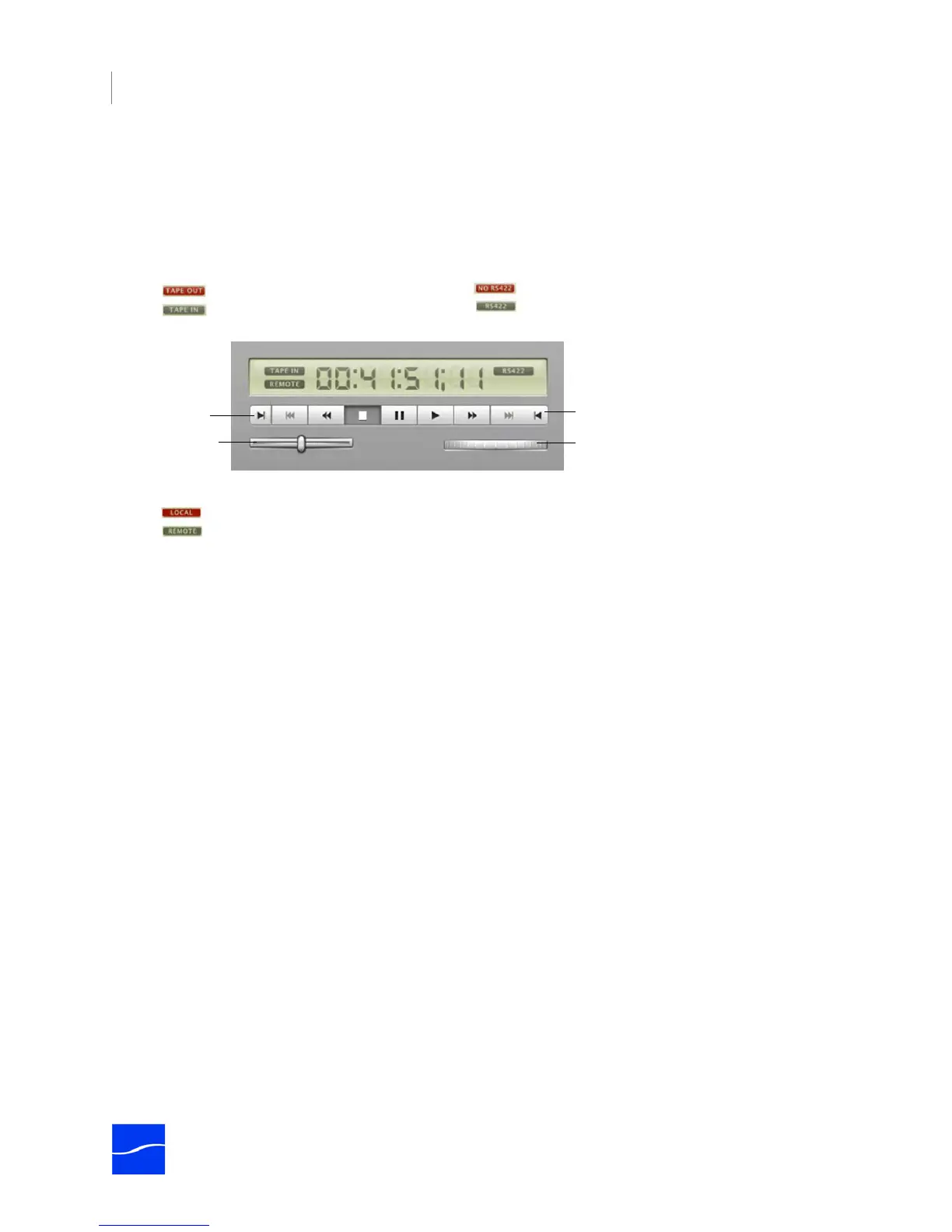
Figure 9–2. Timecode, VTR, Jog and Shuttle in the Log and Capture window.
VTR Tape Status
Tape In. Displays when a tape is in the attached VTR.
Tape Out. Displays when a tape is not in the attached VTR.
Deck RS-422 Control Status
NO RS422. Displays when Pipeline does not have control over the attached VTR.
RS422. Displays when Pipeline has control over the attached VTR.
Mark In/Out Buttons
Mark In. Click to update the Mark In point to the tape’s current timecode for the selected clip.
Mark Out. Click to update the Mark Out point to the tape’s current timecode for the selected clip.
Jog and Shuttle Wheels
Jog. Click and drag to roll the tape forward or reverse, frame by frame.
Shuttle. Click and drag to roll left and right, moving the tape reverse and forward, increasing in speed the
farther from center you go. When you release the wheel, it returns to center and stops the tape. You can
also click on the shuttle wheel to left or right of center to shuttle in small increments and then return to
center. The further from center you click, the more frames you’ll play, in either direction.
VTR Remote Status
LOCAL. Displays when VTR is in Local mode.
REMOTE. Displays when VTR is in Remote mode.
VTR Tape Status Indicator
Deck RS-422 Control Status
Displays when tape is out
Displays when tape is in
Displays when Pipeline does not have control
Displays when Pipeline has control
Displays when VTR is in Local mode
Displays when VTR is in Remote mode
VTR Remote Status Indicator
Mark In
Mark Out
Jog Wheel
Shuttle Control



 To Next Page