Using the Live Panel
Pipeline User’s Guide
49
74-0085-05
USING THE LIVE PANEL
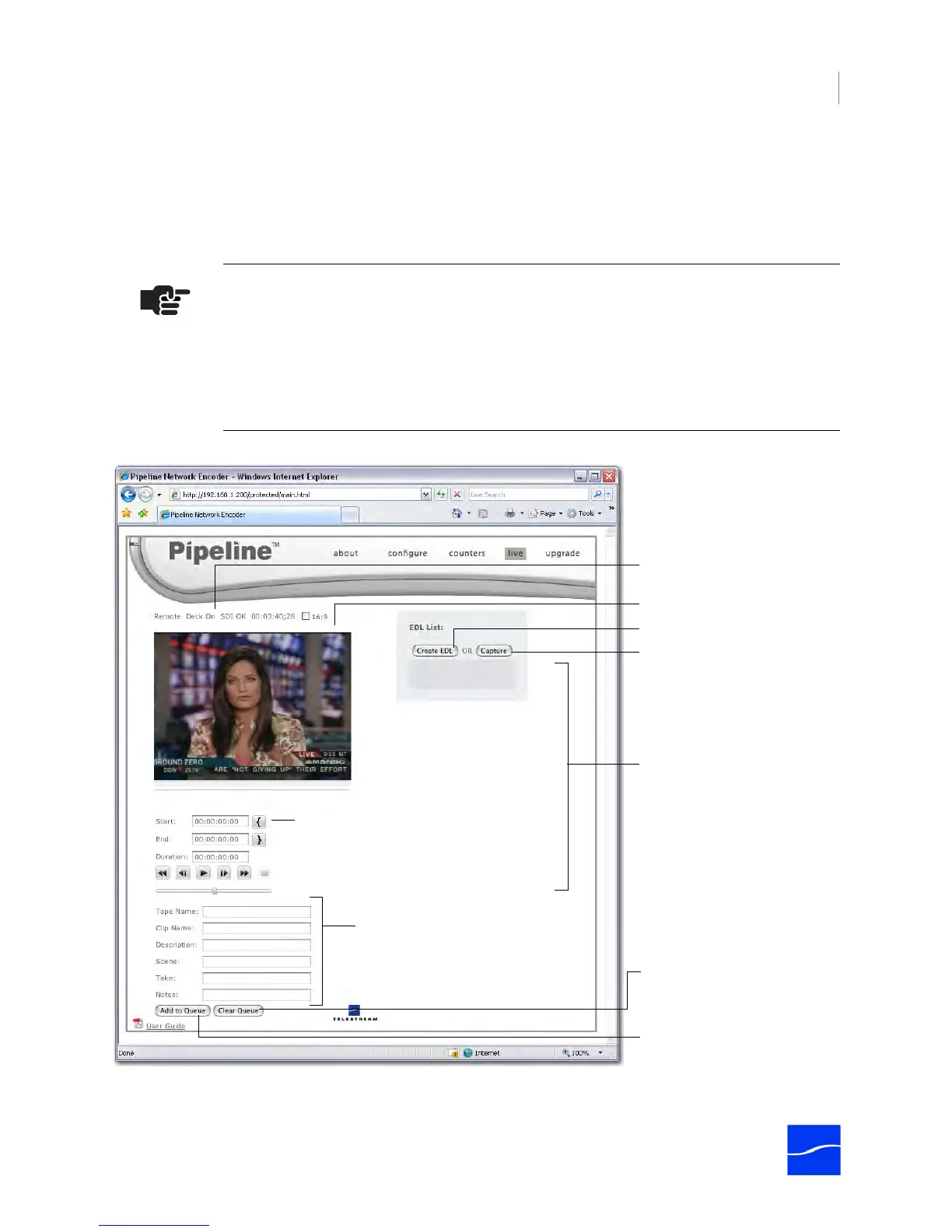
To display the Live panel, click live in the menubar at the top of the window.
You’ll spend most of your time here, especially when you’re producing digital media with Pipeline for
processing by applications including Final Cut Pro, FlipFactory, and others.
Figure 4–10. Live panel allows you to control the VTR and create EDLs
Note
You can only use the Live panel to capture SD media. If you want to capture HD media,
you must use Pipeline clients, including Pipeline Control and FlipFactory.
When capturing or crash recording from channels 1 through 3 on a Pipeline Quad, you
can perform confidence monitoring of the decoded SDI input to qualify your video. See
Confidence Monitoring (page 45).
VTR/Pipeline Status Bar with
16 x 9 Preview check box
Video Preview region
EDL Clip panel – where clips
display each time you add one
to the queue. Drag to re-
arrange, drag up to the Pipeline
graphic heading to remove it
from the queue.
Mark-in/Mark-out and
VTR controls
Click to create an EDL file.
After setting mark-in and mark-
out points and adding
metadata, click to add to list.
Metadata fields – enter data for this
clip before adding it to the queue.
Click to crash record or
capture a single clips of SD
media into a TIFO file.
Click to empty the EDL queue
of all clips.



 To Next Page