Chapter 7
Using Pipeline Control
114
March, 2009
• Double-click the Final Cut Pro XML Interchange file
• Drag the Final Cut Pro XML Interchange file to the Final Cut Pro icon on the desktop or in the Dock
• Drag the Final Cut Pro XML Interchange file into a Final Cut Pro bin
• Select File->Import->XML in Final Cut Pro.
The XML file is created when the clip event occurs. Files referenced by the XML file may already be
complete and closed when the XML file is opened in Final Cut Pro. Or, the file may still be in the process of
being captured. Creating the XML file immediately permits Final Cut Pro to open QuickTIme MOV files (not
TIFO files) and begin editing them, while they are in the process of being created by Pipeline.
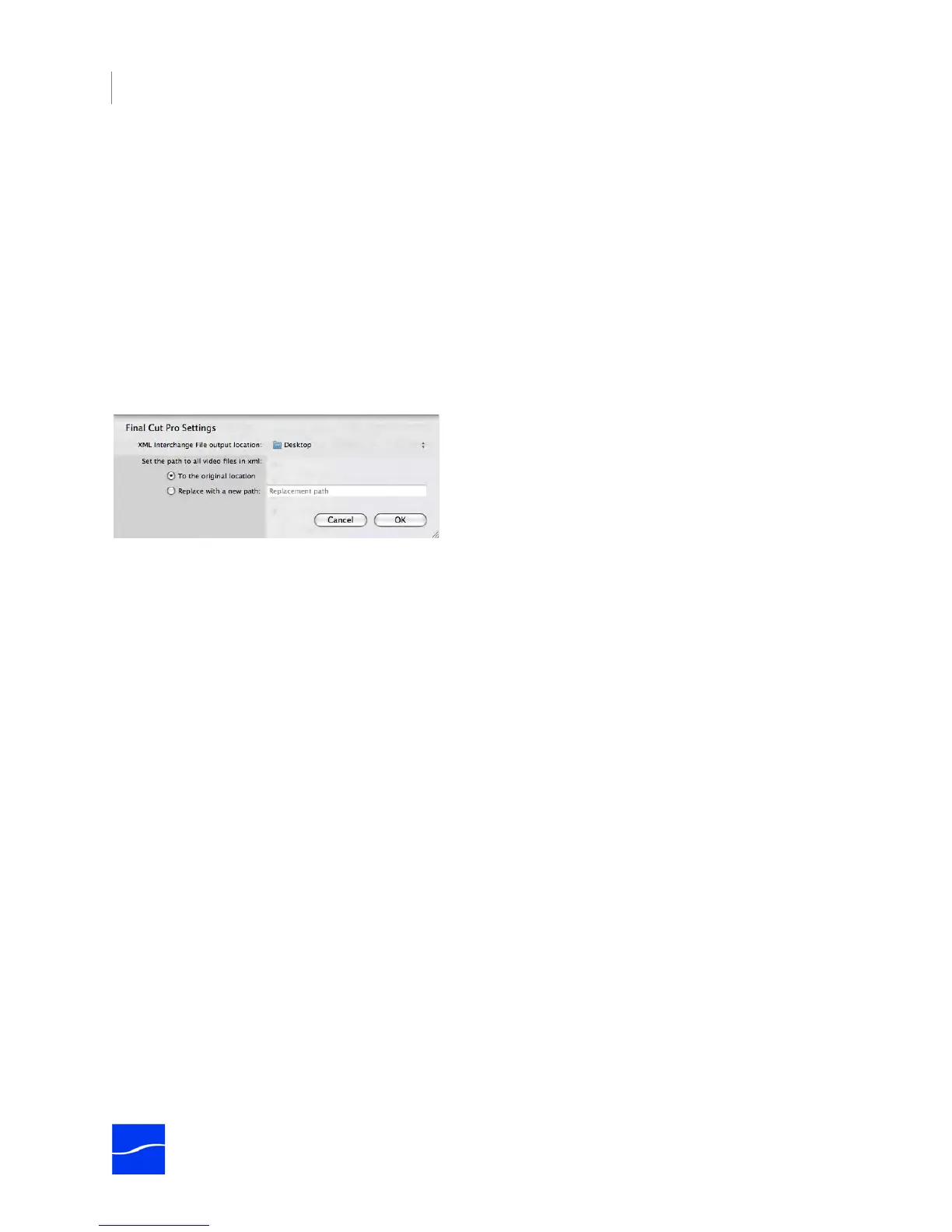
To select Final Cut Pro as a publisher, select Publish > Final Cut Pro. Pipeline Control displays the
following edit panel:
Figure 7–14. Final Cut Pro publisher allows you to create an FCP XML Interchange file.
Complete the panel and click OK to save these settings and close the dialog. Make sure you test your
settings in Final Cut Pro or Final Cut Server before putting the schedule into production.
XML Interchange File Output Location. Click to display the File System dialog, and select the server
and folder where you want these FCP Interchange XML Interchange files stored. This location is used in
FInal Cut Pro to import the referenced file, or in Final Cut Server’s watched folder to automatically ingest
the referenced file.
Next, choose how to set the path to all video files in the XML file (Set Path to files in XML):
Original Location. Select Original Location when you want to reference the videos in the location
specified in Storage (Storage Location for Captured Media (page 104)) where it was created. You might
choose this option when you plan to capture and edit while encoding, for example.
Replace with a New Path. Use Replace with New Path to specify a network path to the media file when
the Final Cut Pro system accessing them is on a system other than the one running Pipeline Control.
Copy File Publisher
The Copy File publisher can be used to copy a captured clip to another local or network location.
Configuration settings include the destination of the copied file, options for when a file of the same name
already exists and whether to append the date/time to the file name.



 To Next Page