Chapter 5
Using Pipeline with FlipFactory
70
March, 2009
Displaying Job Status/History
To display the status of a job in progress or the history of a completed job, select the job in either panel and
click the Status/History icon (2nd from left – hover to view name) in the toolbar.
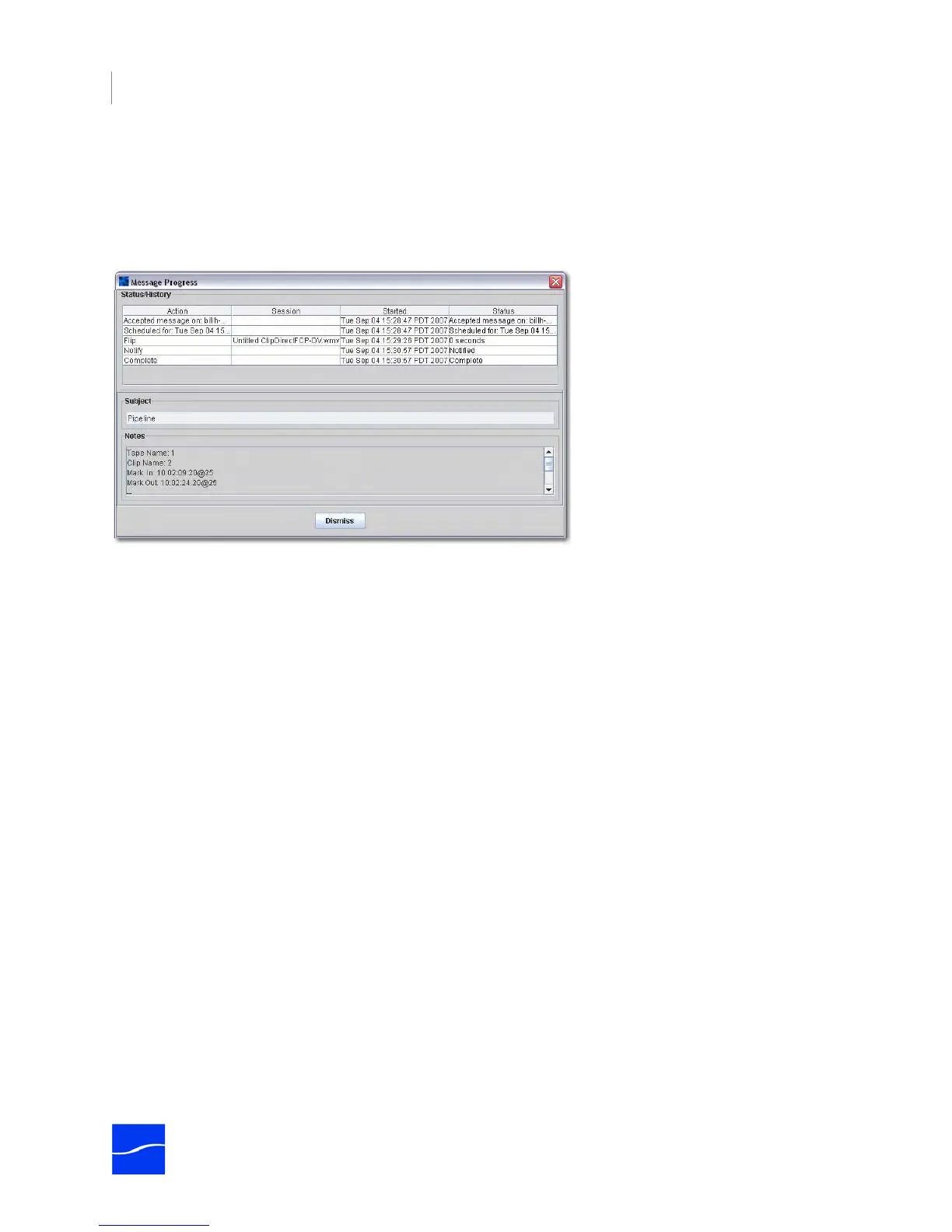
FlipFactory displays the Message Progress window.
Figure 5–11. Status/History Window of job in process
FlipFactory displays each action, the session or action information, start time and status. You can also
view notes to identify a specific Pipeline clip that has been processed.



 To Next Page