Chapter 5
Using Pipeline with FlipFactory
64
March, 2009
Source (required). Click Stream, and then select Pipeline from the Stream type dropdown menu.
FlipEngine. When a load balance group or FactoryArray is established, select from the popup list which
FlipEngine is designated to process this job (see FactoryArray User’s Guide).
Store. Select which store is designated for localization (See Adding Custom Stores in Chapter 4 of the
FlipFactory User’s Guide).
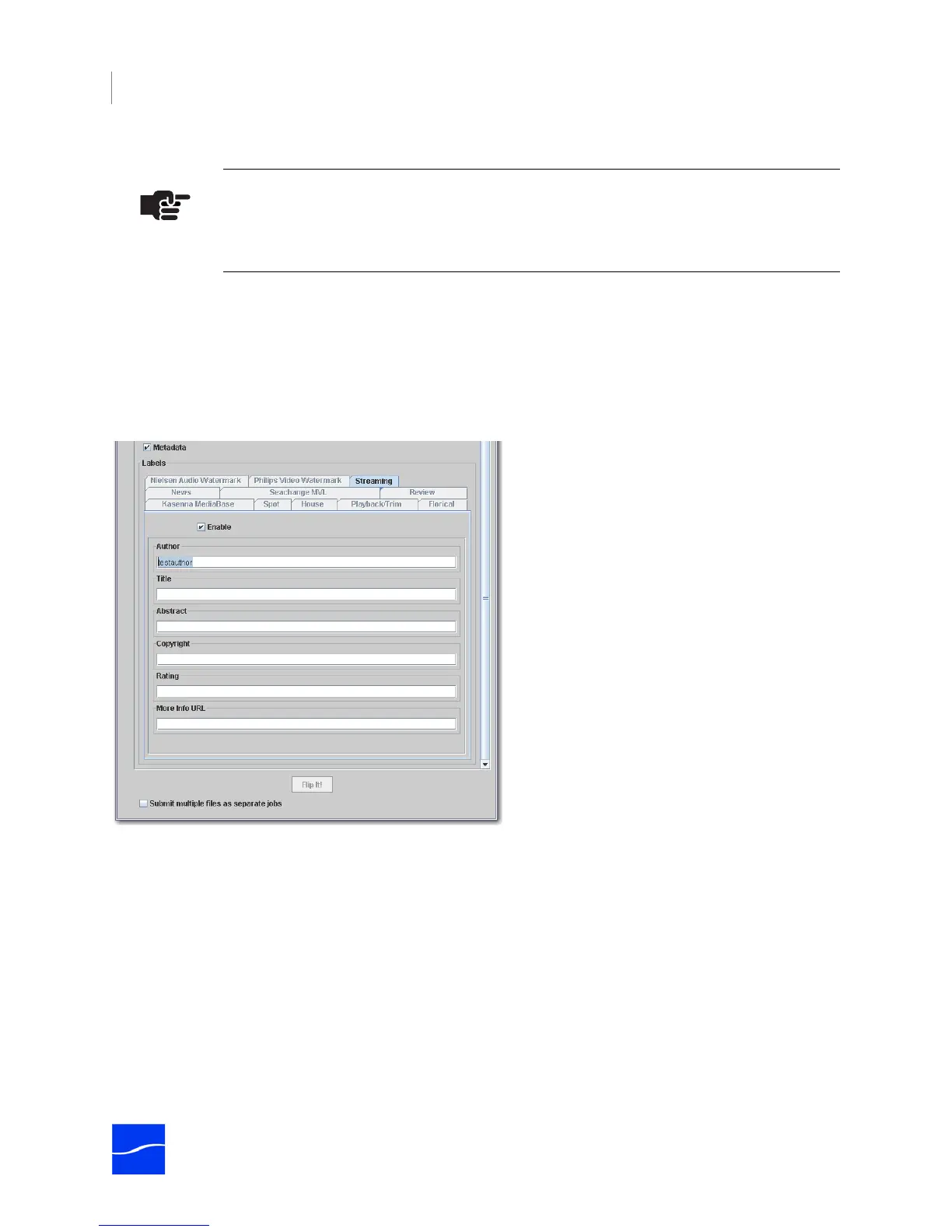
Metadata. To include metadata labels, click Metadata to check the option. Click the tab corresponding to
the label you want to use and complete the fields in the editor panel.
Figure 5–4. Metadata added in Job Submit window is combined with metadata in Capture Editor.
The available labels are determined by the source type, filters, destinations, and notifications specified in
the factory to which the job is being submitted.
Submit Multiple Files as Separate Jobs. Leave unchecked when using with Pipeline jobs.
Pipeline Control. When you’re done configuring the general details of a Pipeline job, click Pipeline Control
to display the Pipeline Capture Editor and continue configuring the media for the job, then submit the job or
jobs from the Capture Editor panel.
Note
Do not click Pipeline Control to display the Pipeline Capture Editor until you have
completed the fields below the Source section.



 To Next Page