Loading and Saving Clip List Files
Pipeline User’s Guide
89
74-0085-05
Now, click the Capture button. The XML file is immediately created in the location you specified.
Then, click Save XML.
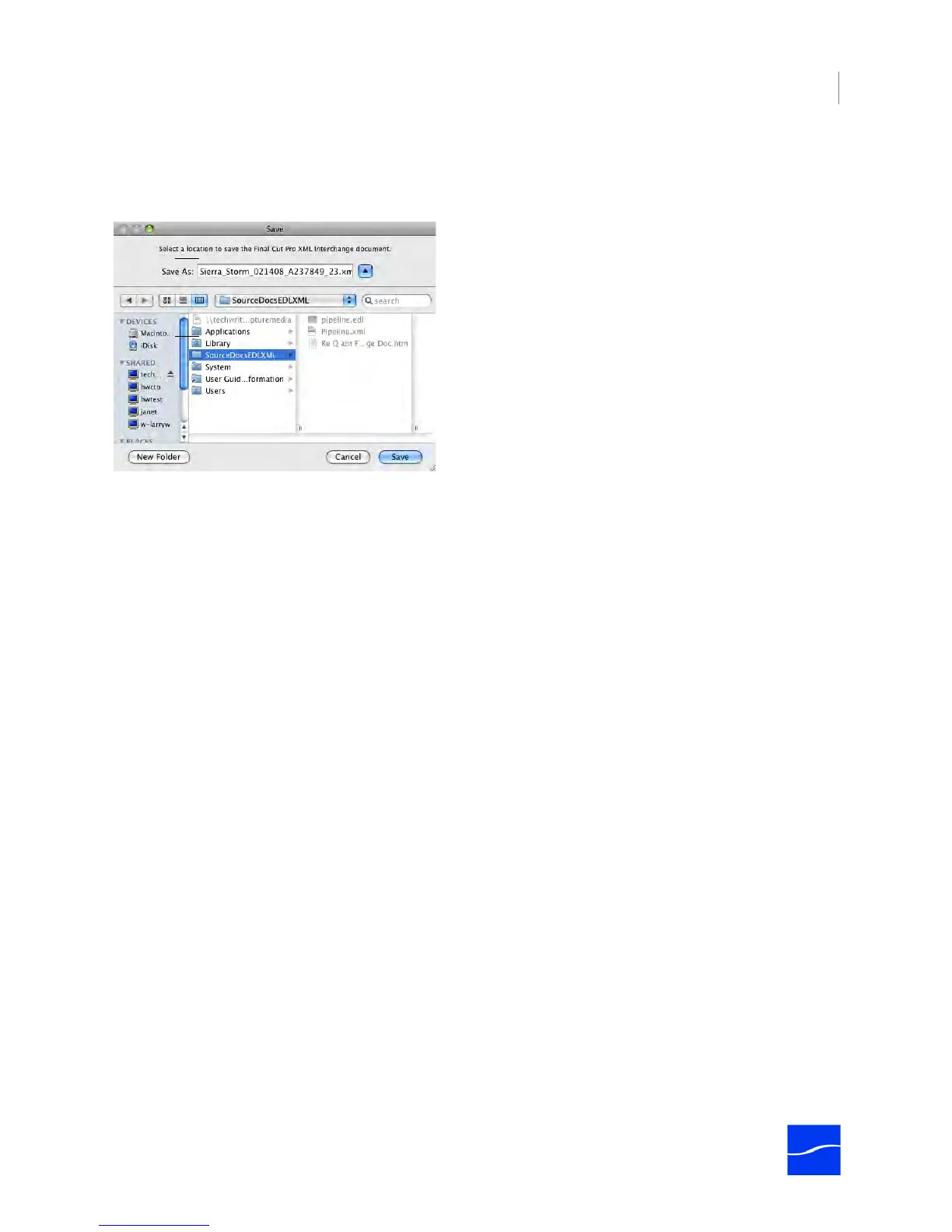
Figure 6–19. Click Saved XML to save the entries in the Clip list as an XML file.
XML Interchange Format can be generated from Final Cut Pro or other application that supports XMLIF.
XML Interchange Format is the format that Pipeline-supported import/export programs load from and save
in, to promote interoperability. Clip list files can also be generated and/or edited manually.
Final Cut Pro XML Interchange files are intended to be imported into Final Cut Pro or other applications
that are compatible. Use one of the following ways to import these files:
• Double-click the Final Cut Pro XML Interchange file
• Drag the Final Cut Pro XML Interchange file to the Final Cut Pro icon on the desktop or in the Dock.
• Drag the Final Cut Pro XML Interchange file into a Final Cut Pro bin
• Use the Import menu.
For further details, refer to Apple’s documentation on Final Cut Pro XML Interchange format:
http://developer.apple.com/documentation/AppleApplications/Reference/FinalCutPro_XML/AboutThisDoc/
chapter_1_section_1.html
Use the Save window to browse to the target directory
and save the clip list as an XML file.



 To Next Page