Submitting TIFO File Jobs
Pipeline User’s Guide
69
74-0085-05
SUBMITTING TIFO FILE JOBS
FlipFactory supports TIFO file format as an input file, along with the other supported formats. TIFO files are
files you’ve captured (Capturing SD Media to a TIFO File on page 53) in Pipeline Direct from Pipeline.
TIFO files can be submitted to any factory you’ve created, and you can submit the media via the Manual
Submit process or you can submit them to a monitor.
CHECKING PIPELINE JOB STATUS
When you submit a Pipeline job, FlipFactory displays extra information in the Job Status window. When
Pipeline jobs are queued, you can check them in the Job status window and click History to view details.
Viewing Job Status and History
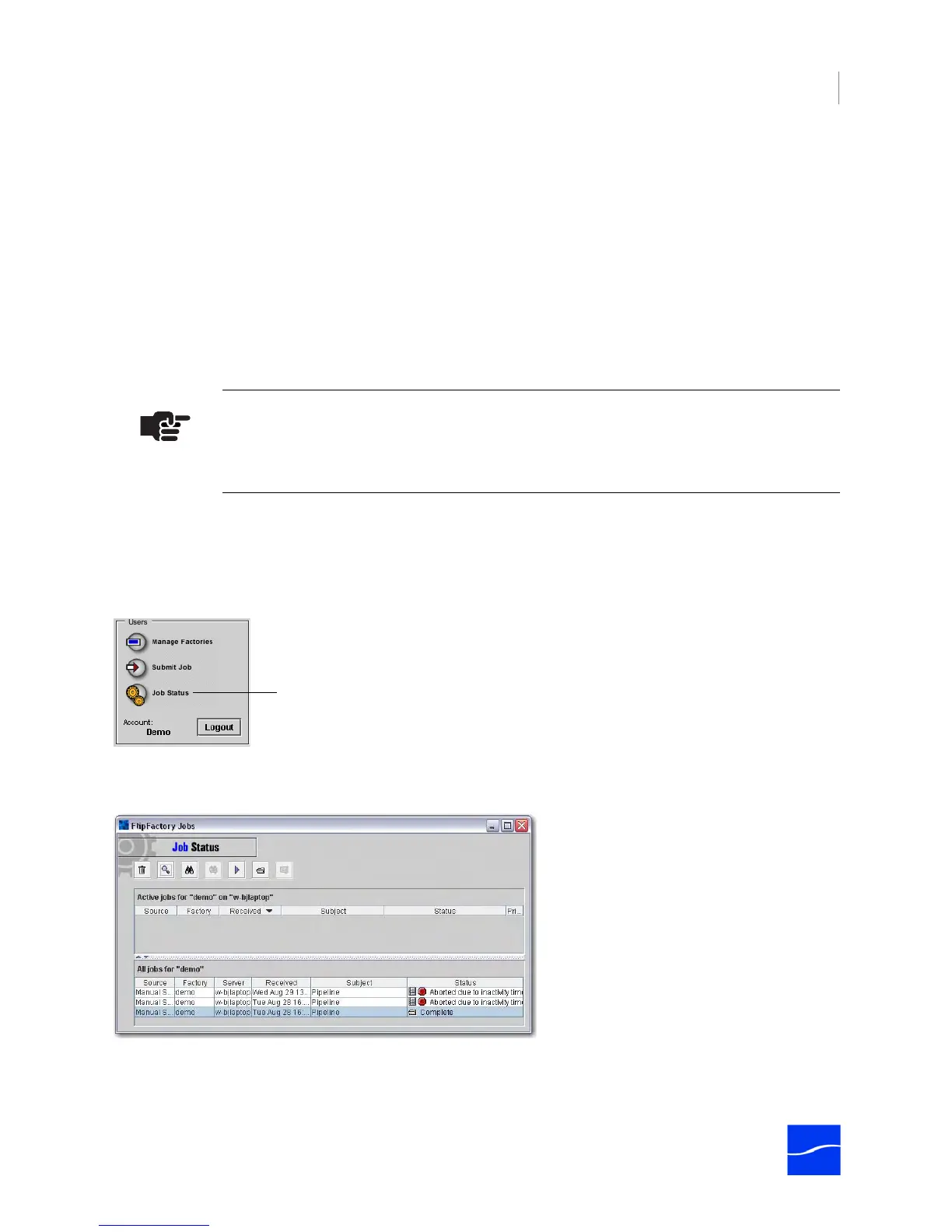
To view Pipeline jobs submitted to each factory in your account, display the FlipFactory console (when
logged on to your account), in the User’s panel on the console, click Job Status.
Figure 5–9. Click Job Status to display Job Status window
FlipFactory displays the Job Status window
Figure 5–10. Job Status window displays active & complete jobs
In the top panel, FlipFactory displays active and scheduled jobs; in the bottom panel, FlipFactory displays
all of the jobs in your account., with details on its status. Select a job to view details.
Note
For complete information on using the Job Status and History windows to manage your
Pipeline jobs, see Viewing Job Status in Chapter 7, FlipFactory User’s Guide.
Click here to display the Job Status window.



 To Next Page