Chapter 6
Using Pipeline in Final Cut Pro & Episode Desktop
80
March, 2009
IMPORTING MEDIA INTO FINAL CUT PRO | EPISODE DESKTOP
You can use the Pipeline Importer to encode and import DV25, DVC Pro, IMX 30/40/50, Pro Res SQ, and
Motion JPEG media directly into Final Cut Pro or Episode Desktop as a QuickTime movie.
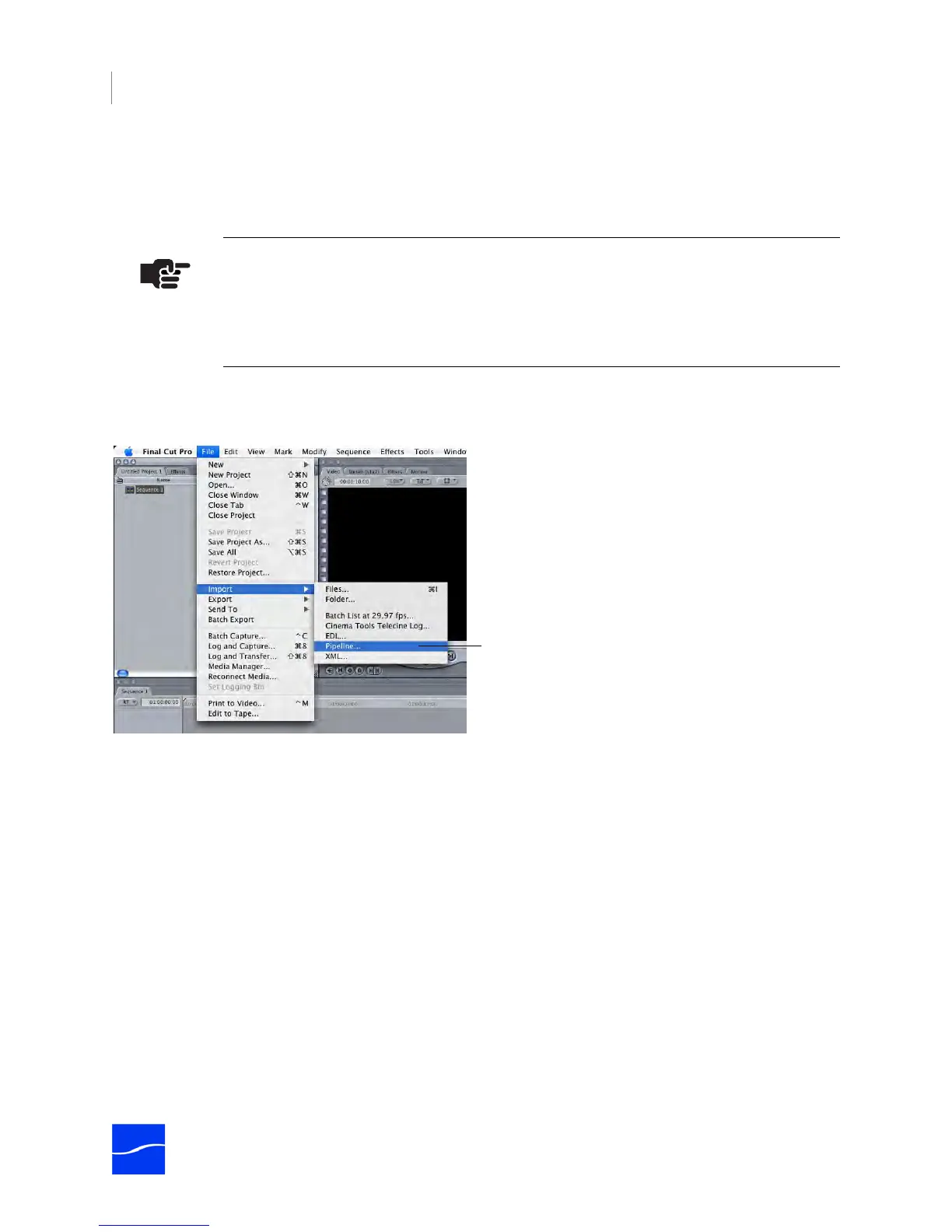
In both Final Cut Pro and Episode, when the Pipeline Plugin installed, a new Pipeline menu item is added
to the Import menu (example shown in Final Cut Pro):
Figure 6–7. Use File > Import > Pipeline to import media from Pipeline in real time.
Here’s an overview of how to encode and import media from a Pipeline (detail follows):
1. Select File > Import > Pipeline to display the Pipeline browser.
2. Select a Pipeline and codec, and connect to the Pipeline.
3. Create your clip list using the VTR controls (for log and capture), or crash record it.
4. Encode and Import the clips into Final Cut Pro as QuickTime movies.
Note
When capturing or crash recording from Pipeline Quad, you can perform confidence
monitoring to qualify your video. See Confidence Monitoring (page 45).
To import Pro Res into Episode, Final Cut Pro must be installed on the same computer.
A new import option displays when you install the
Pipeline Plugin:
Click Import > Pipeline to select a Pipeline and encode
and import media from your Pipeline.



 To Next Page