The Preview Panel
Pipeline User’s Guide
117
74-0085-05
The Timecode, Status/Scrubber and Preview Controls Panel
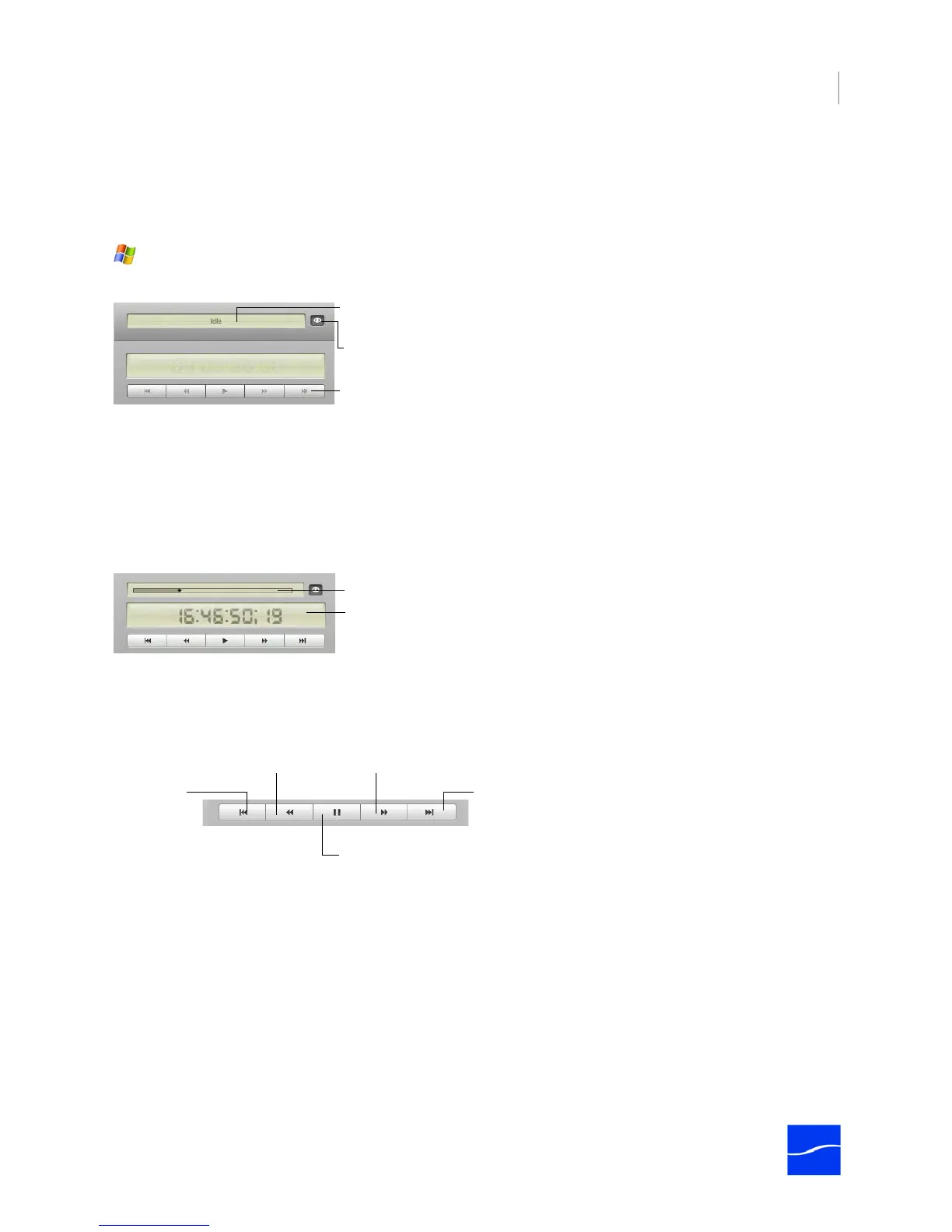
When you’re connected to a Pipeline in Preview, Idle, or Capture mode, the timecode, status, and preview
controls panel (directly below the preview panel) displays a status bar and the current timecode of the
Pipeline video, in HH:MM:SS:FF format.
Figure 7–17. The status window displays current Pipeline activity.
The status bar (directly above the time code) displays the current mode of the schedule: Idle, Closing
connection, Establishing connection, Previewing, Capturing, Preparing, Playing out, etc.
When you play a local clip (roll over the clip event body to display the play icon, and click it), the timecode
panel (directly below the preview panel) displays a scrubber instead of the status bar, and also displays the
current timecode of the selected clip, in HH:MM:SS:FF format. (When you disconnect from a Pipeline, no
timecode displays.)
Figure 7–18. When playing a local clip, you can scrub it.
When you play a local clip attached to an event, a scrubber displays, so that you can use the preview
scrubber to scrub to any point in the clip. You can also use the preview controls to control the video when
playing a locally-saved clip event.
Figure 7–19. You can use preview controls to control playout of local clips.
Start of Clip. Click to reset the clip to play from the beginning.
Fast Reverse. Click to rewind at double speed.
Pause. When playing, click to pause.
Play. When paused, click to play video at normal forward speed.
Fast Forward. Click to roll tape forward at double speed.
End of Clip. Click to go to the end of the file.
Preview Video and Preview Audio buttons display directly under the preview panel.
Status. Displays status messages in Preview,
Idle, Playout, and Capture mode.
Playback Controls. Only active when playing a
local clip from the event schedule.
Video Preview button.
Timecode. Displays in HH:MM:SS:FF format.
Scrubber. When playing a local clip, you can use the scrubber.
Go to End.
Play | Pause.
Fast Reverse. Fast Forward.
Go to Start.



 To Next Page