Chapter 5: Settings
Bluetooth Setup
109
Psion EP10 Hand-Held Computer User Manual
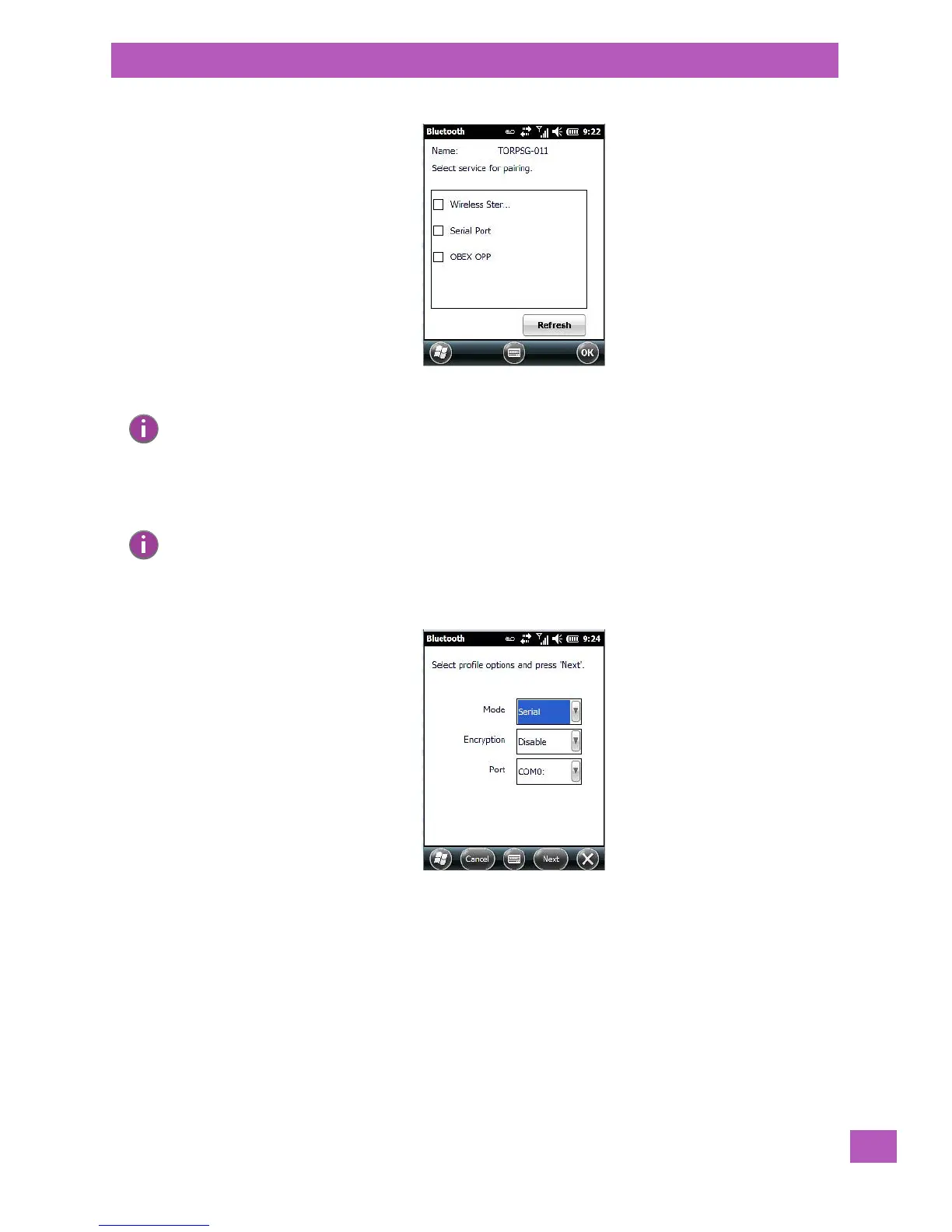
• Click in the checkbox to the left of the service to activate it.
• Click on Done.
The sample dialog box below is an example of a service requiring additional information – in this case, the
Serial Port Service.
This dialog box offers a number of additional options such as enabling Encryption and selecting three dif-
ferent modes: Serial, ActiveSync and Scanner.
• Serial is used for simple serial port communication.
• ActiveSync is for ActiveSync-over-Bluetooth.
• Scanner is used to create a seamless connection between the incoming Bluetooth bar code and
the EP10.
• Printer Port is for connection to a printer over Bluetooth.
Once you’ve completed the information:
• Tap on Next and then in the Services screen, tap on OK.
Note: Keep in mind that this screen is dynamically populated to reflect the services offered by the remote
(discovered) device. The sample screen above may differ from your own depending on the services
you have available on your remote device.
Note: If you choose a service requiring additional information, a dialog box is automatically displayed
where further details can be completed.


 To Next Page