Chapter 4: Programs
The Phone Keypad
Psion EP10 Hand-Held Computer User Manual
50
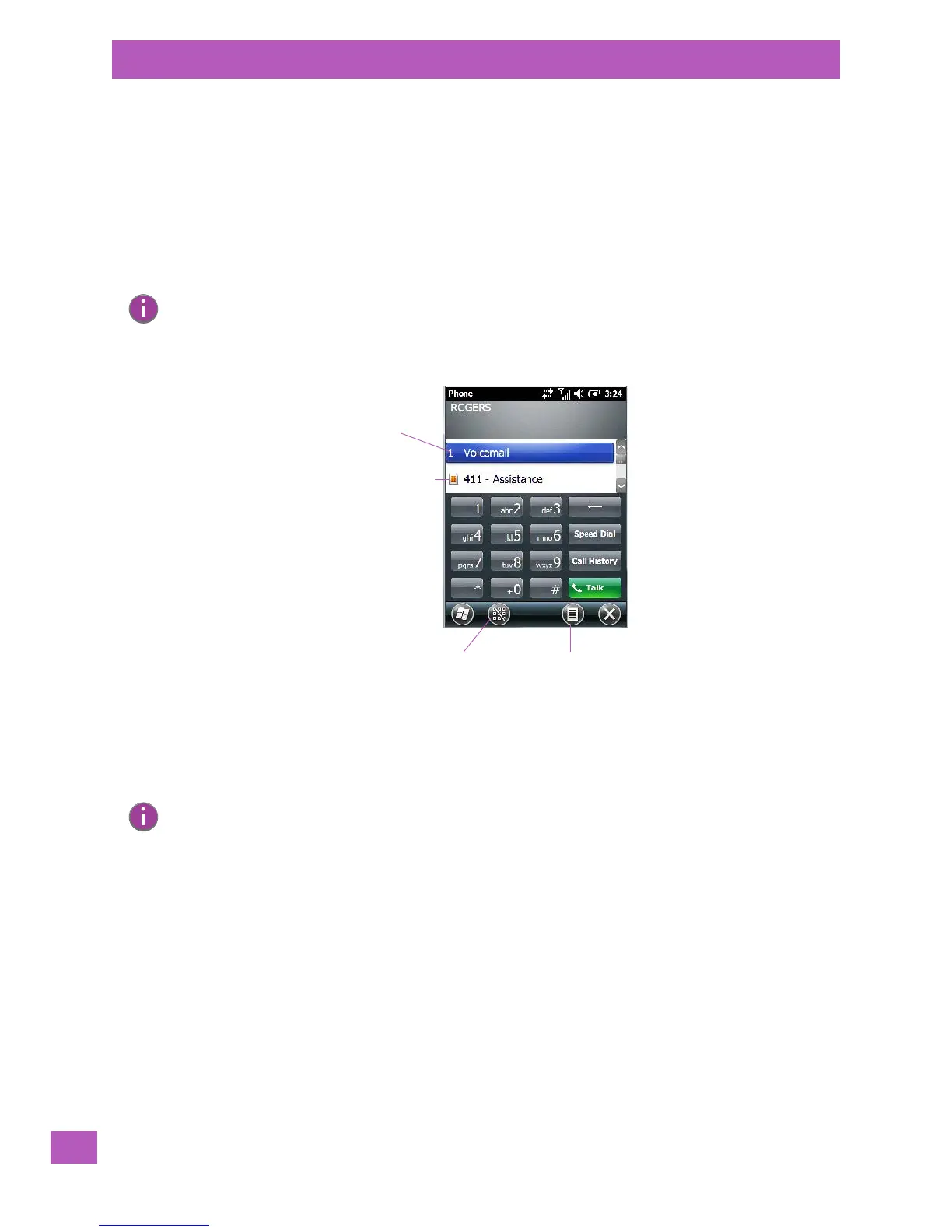
4.3.1 The Phone Keypad
The phone keypad provides phone services like those you may find on your cellular phone. You can use the
phone keypad provided with your EP10 to, for example, send and receive phone calls, make conference
calls, view your call history, set up speed dial numbers, etc.
4.3.1.1 Sending & Ending Phone Calls using the Phone Keypad
To display the phone keypad:
•Tap on Start>Phone icon.
To dial a phone number:
• Use the phone keypad to enter the phone number, and tap on [Talk] to dial the phone number.
To end a phone call:
•Tap on [End] on the phone keypad.
4.3.1.2 Making a Conference Call
To set up a conference call between yourself and two or more other parties:
• In the phone keypad, type the first phone number. Tap on [Talk].
• While you are connected to the first number, tap on Menu>Hold.
•Type the second number. Tap on [Talk].
•Tap on Menu>Conference.
• To add another party, tap on Menu>Hold, type the number, and then tap Menu>Conference.
•Tap on [End] to disconnect all calls.
Note: You can also press the [Talk] key on the EP10 keyboard to display the phone keypad providing
it has been activated. The [Talk] key is labelled with a green telephone receiver icon. Refer to
“Sending & Ending Calls using the EP10 Keyboard” on page 53 for details.
Phone settings
Directory assistance
Hide/show keypad Menu
Note: You can also tap on the [End] key on the physical keyboard of the EP10 to end the call. The
[End] key is labelled with a red phone receiver. Refer to “Sending & Ending Calls using the
EP10 Keyboard” on page 53 for details.


 To Next Page