Chapter 3: Getting to Know the EP10
Locking the Touchscreen
25
Psion EP10 Hand-Held Computer User Manual
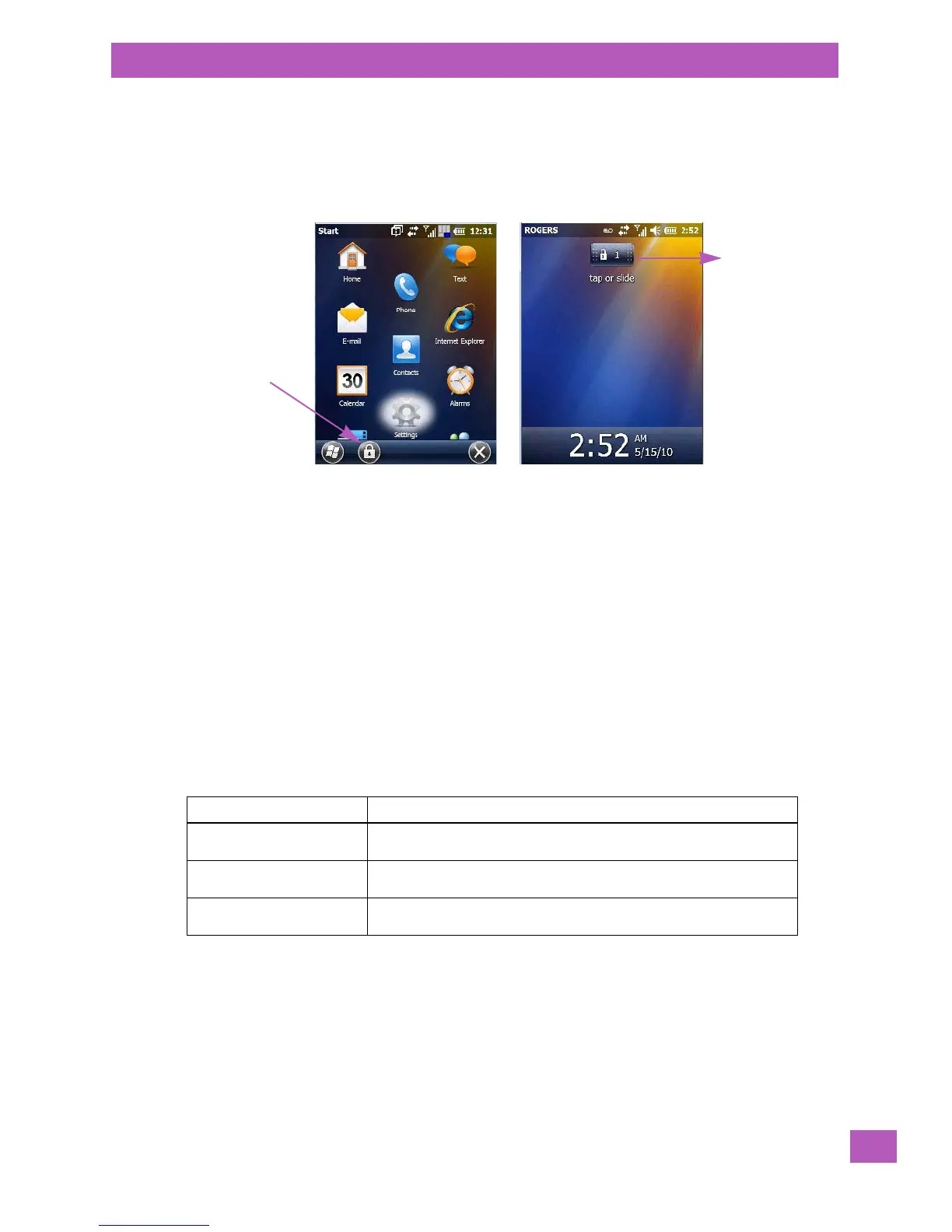
3.4.4 Locking the Touchscreen
If you need to lock your touchscreen to protect against accidental actions:
•From the Tod ay screen, tap on the Start icon.
• Tap on the Lock icon in the taskbar at the bottom of the screen. A sliding lock is displayed on the
screen.
• Tap and hold the stylus on the sliding lock, flick it to the right and release to unlock the touchscreen
and display the screen options. You can also tap on the sliding lock.
3.5 EP10 Indicators
The EP10 uses LEDs (Light Emitting Diodes), onscreen messages and audio tones to indicate the various
conditions of the EP10, the batteries, the scans and so on.
3.5.1 LEDs
Three LEDs are located on the upper-right side of the EP10, just above the display. When you press the
[Power] button, the LED flashes yellow to indicate that the EP10 has been powered up. The LED table fol-
lowing outlines the behaviour of the LED while the EP10 is docked in a charger.
Keep in mind that the application running on the EP10 can dictate how the application LED operates.
Review the documentation provided with your application to determine LED behaviour.
If the EP10 is attached to an external power supply, the charge LED (the left-most LED) reflects the battery
charge status.
Table 3.1 Function of EP10 LEDs
LED Function
Green Charge LED
(left-most LED)
Charge indicator. See the table below for descriptions of Charge LED
behaviour.
Yellow Application LED (centre
LED)
Application LED. The behaviour of this LED is application dependent.
Blue Radio Power LED
(right-most LED)
Radio power indicator.


 To Next Page