Chapter 5: Settings
Screen Rotation
Psion EP10 Hand-Held Computer User Manual
182
5.11.23 Screen Rotation
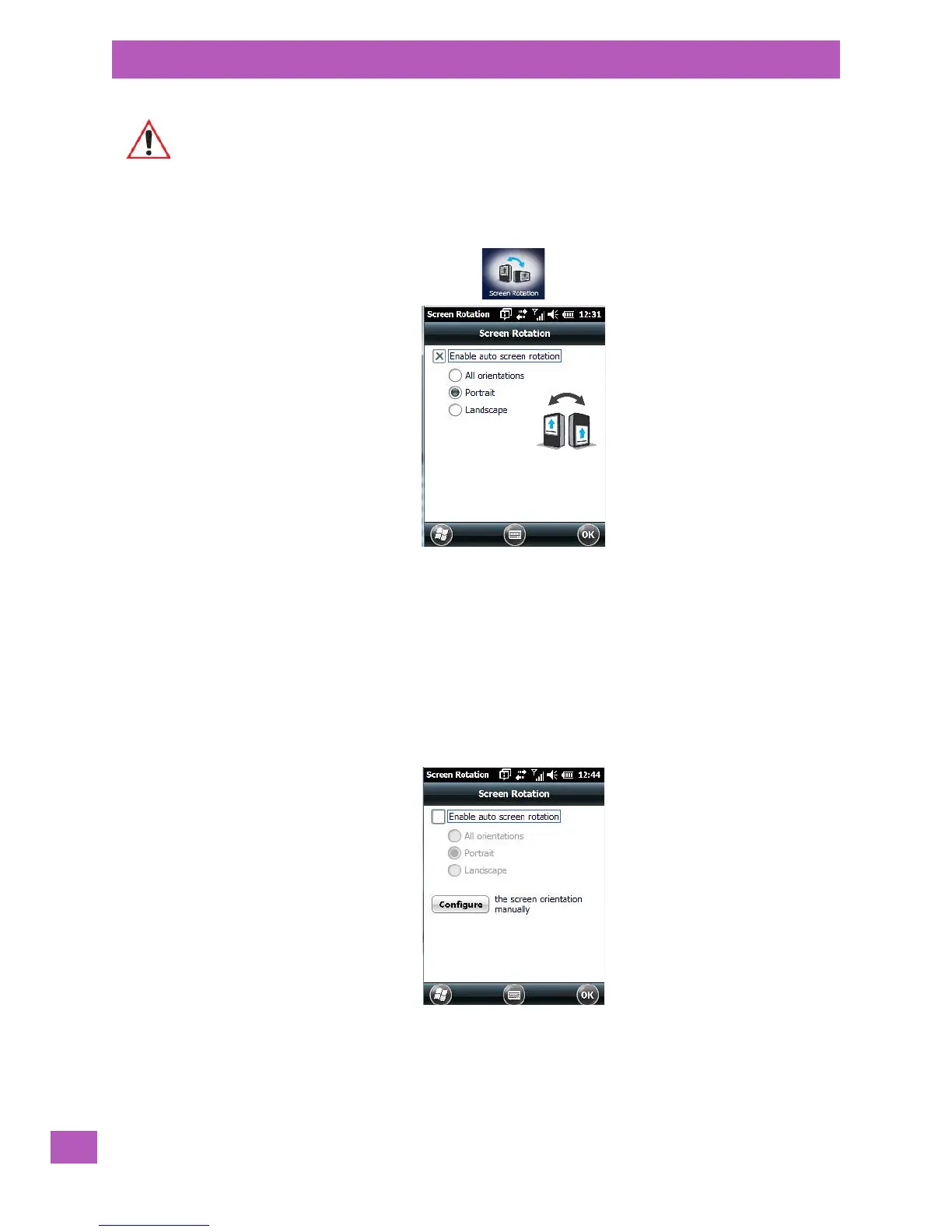
•Tap Start>Settings. Tap on the System icon, and then tap on the Screen Rotation icon.
This screen allows you to determine how your EP10 screen will behave depending on how the unit is ro-
tated.
All orientations: screen rotates to portrait or landscape to match the orientation of the actual EP10.
Portrait: screen does not rotate regardless of the orientation of the EP10. The screen will always be dis-
played as portrait.
Landscape: screen does not rotate regardless of the orientation of the EP10. The screen will always be dis-
played as landscape
Enable auto screen rotation is enabled by default. If you prefer to set screen rotation manually, you can
disable this option. A Configure button is displayed on the screen.
Tapping on the Configure button displays the Screen dialog box.
Important: Refer to “Aligning (Calibrating) the Touchscreen” on page 24.


 To Next Page