Chapter 5: Settings
Total Recall
185
Psion EP10 Hand-Held Computer User Manual
time), or a clone (the administrator can store different configurations for different uses to clone to other
hand-held computers).
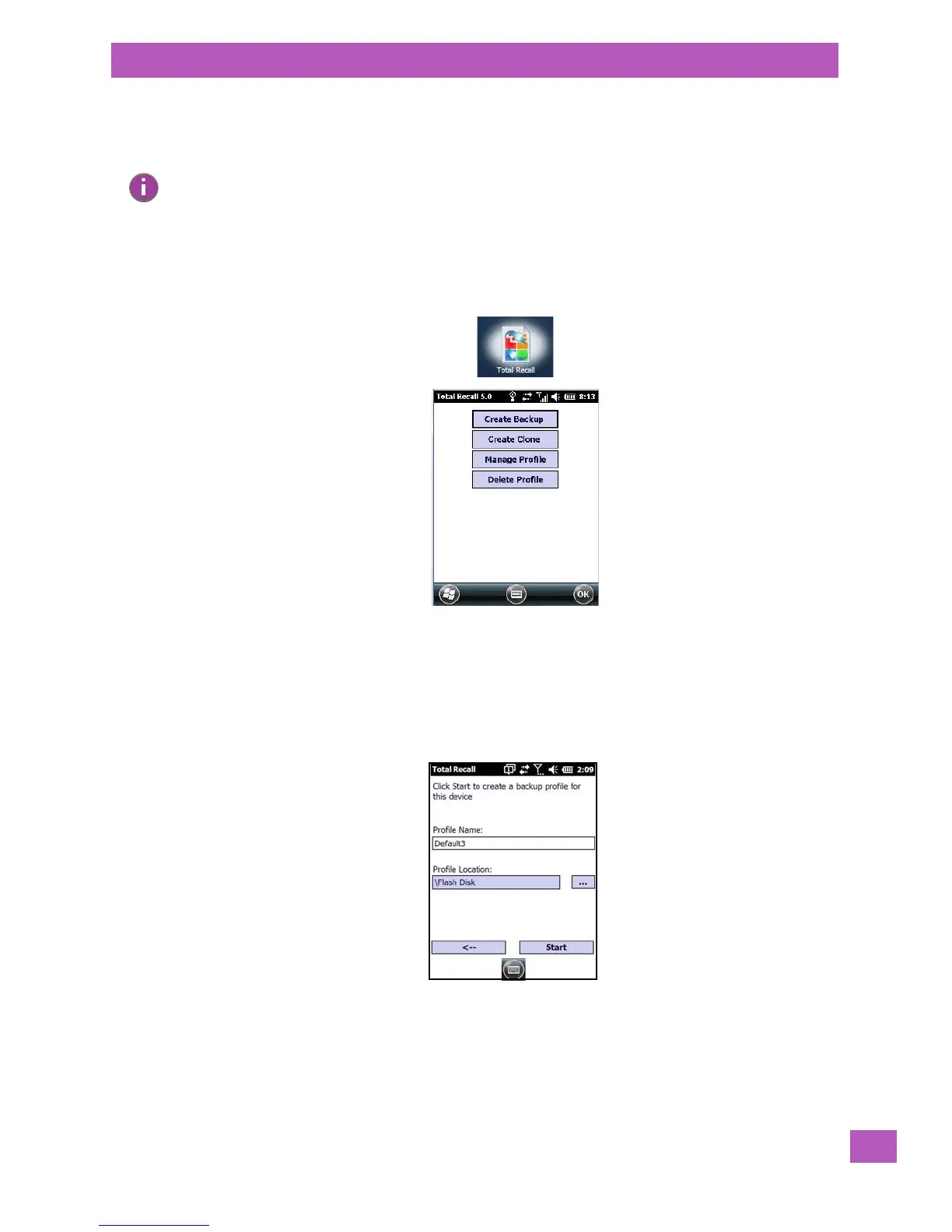
• Tap on Start>Settings>System. Tap on the Total Recall icon.
In the start up screen, you can choose from four options: Create Backup, Create Clone, Manage Profile, and
Delete Profile.
5.11.26.1 Creating a Backup
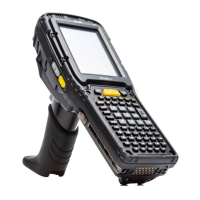
• Tap on the Create Backup button to begin the process.
This dialog box displays the Profile Name and the storage destination for the profile file.
•In the Profile Name field, type a name for a profile.
• If you want to choose another location for your backup file (optional), tap on the [...] button to the
right of the Profile Location field and choose one of a number of folders.
Note: Total Recall works differently (e.g. restore on cold boot or on clean boot) on different OS
platforms and versions (e.g. Windows CE 5.0, 6.0, Windows Mobile, Windows Embedded
Hand-held). For detailed information and other updates on Total Recall information, please
go to the Ingenuity Working website at:
http://community.psion.com/knowledge/w/knowledgebase/total-recall.aspx


 To Next Page