Chapter 5: Settings
Buttons
Psion EP10 Hand-Held Computer User Manual
138
Macro keys can be programmed to replace frequently used keystrokes, along with the function of executa-
ble keys including [ENTER], [BKSP] and [DEL] ([BLUE/FN]-[BKSP]), function keys, and arrow keys.
Recording and Saving a Macro
You can program up to 15 macro keys.
•In the Macro list on the left side of the screen, highlight a macro key number – for example, 1. Tap on
the Record button in the softkey bar at the bottom of the screen.
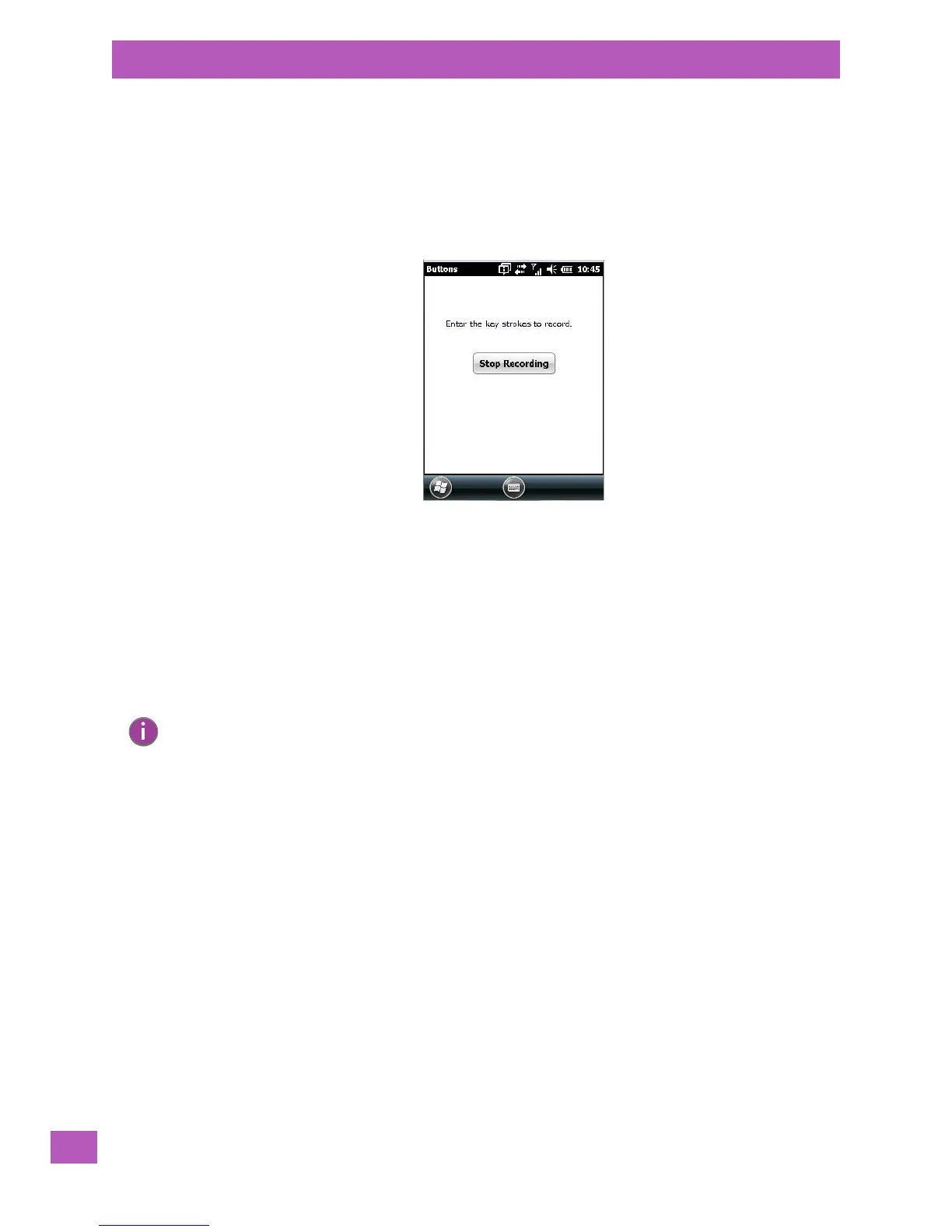
A Record Macro screen is displayed.
• Key in the macro sequence you want to assign to the Macro. You can type text and numbers, and you
can program the function of special keys into a macro.
• When you’ve finished recording your macro sequence, tap on the Stop Recording button.
A new screen displays the macro sequence you created.
•Tap on the Save button to save your macro. Your macro key sequence is listed in the Macro screen.
•Tap on OK to save your macro key assignment.
Executing a Macro
To execute a Macro, you must use Scancode Remapping to map the macro to a specific key.
Deleting a Macro
•In the Macros tab, highlight the macro number you want to delete.
•Tap on the Delete button at the bottom of the screen.
5.9.2.5 Unicode Mapping
•Tap on the Unicode Mapping tab to display this screen.
Note: Refer to “Scancode Remapping” on page 140.


 To Next Page