Chapter 4: Programs
File Explorer
79
Psion EP10 Hand-Held Computer User Manual
Editing a Task
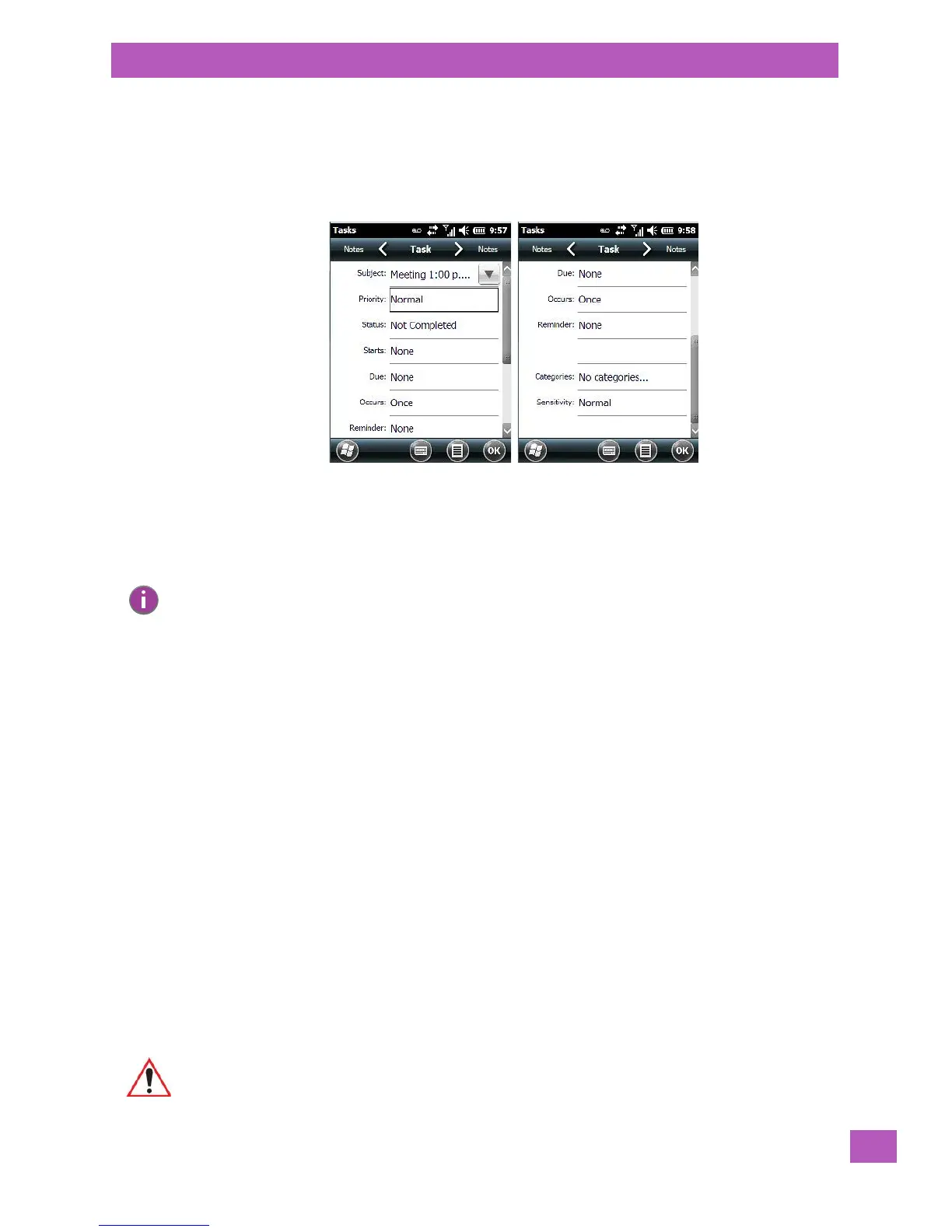
• Tap on a task in the task list to highlight it. Tap on the Edit softkey in the softkey bar to display a
detailed task screen where you can define task characteristics.
Figure 4.1 Task Details Screen
Each of the nine items in this screen, when tapped, displays a drop-down menu where you can choose from
a list of options.
• Once you’ve completed all the appropriate fields, tap on OK to save your changes.
Deleting a Task
• Press and hold the stylus on a task until a pop-up menu is displayed.
• Tap on Delete Task.
Marking a Task as Completed
•In the Ta sks list, tap the checkbox next to the items that are completed.
Sorting Tasks
• Tap on the Menu softkey, and tap on Sort By.
You can choose from Status, Priority, Subject, Start Date or Due Date. The tasks are arranged in the list
according to the criterion you chose.
Limiting the Tasks Displayed in the Task Screen
• Tap on Menu in the softkey bar, and tap on Filter.
You can choose All Tasks, Recently Viewed, No Categories, Active Tasks or Completed Tasks. The tasks
are displayed on the screen according to the preference you chose.
4.16 File Explorer
Windows Embedded 6.5 files are stored in folders and sub-folders that are accessible through File Explorer.
You can open, save, rename, copy and paste files in the same manner as you would on any desktop PC.
Note: You can also tap on the Notes tab to add additional information about the task you are
defining.
Important: Refer to “Managing Files and Folders” on page 82 for details about this feature.


 To Next Page