Chapter 5: Settings
Network Cards
Psion EP10 Hand-Held Computer User Manual
118
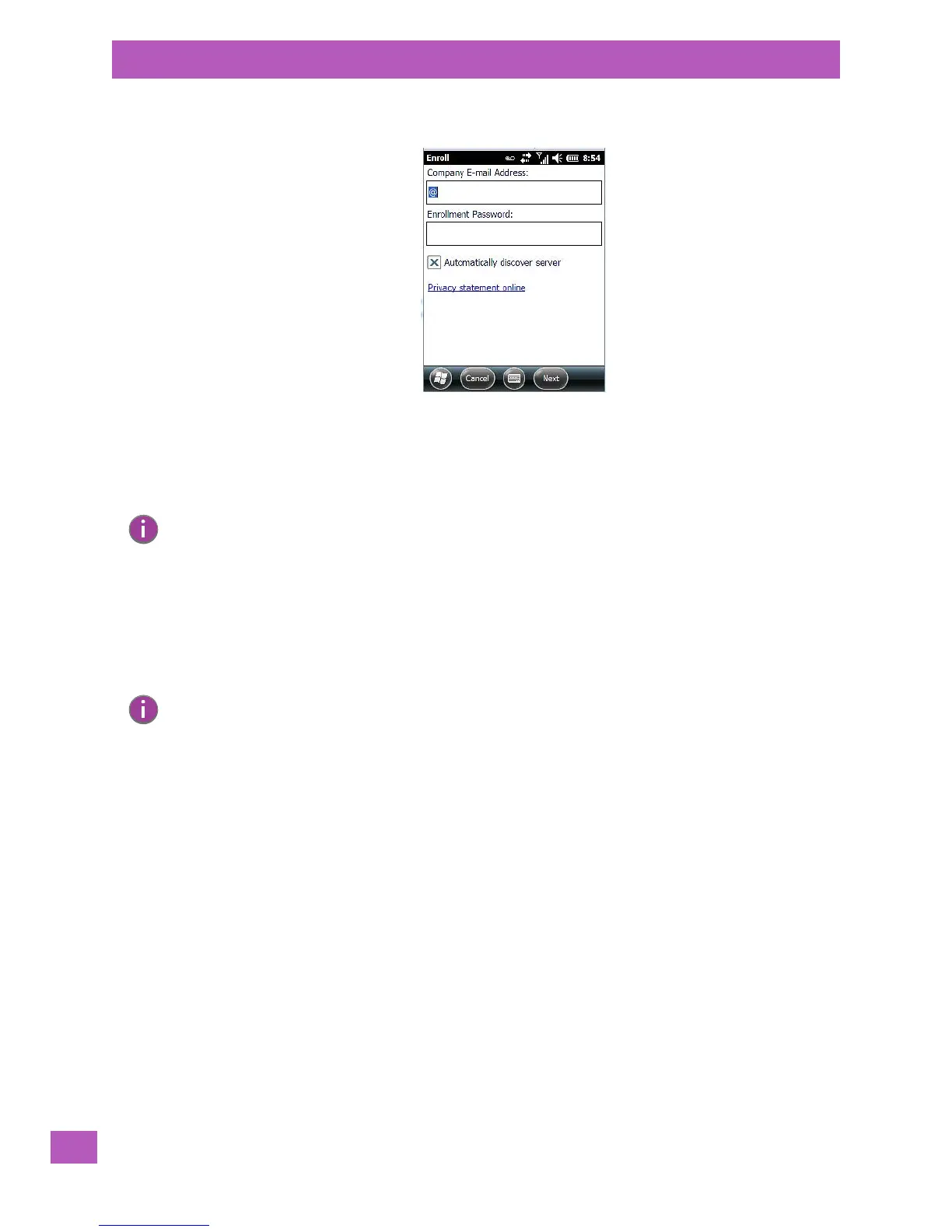
•Tap on the Enroll button.
• Enter your enrollment password – supplied by your company's network administrator or generated
from your company pre-enrollment wizard.
•Type your company e-mail address and the enrollment password provided by your network
administrator.
Allow a few minutes for your EP10 to sync and enroll in your company domain. You may need to restart
your unit after the enrollment process is completed.
5.8.7 Network Cards
When the network card is inserted in your unit for the first time, the Network Settings screen is displayed
automatically so that you can configure the card. If it does not appear, or if you want to change settings:
•Tap on Start>Settings>Connections.
•Tap on the Network Cards icon.
Note: If you uncheck Automatically discover server, a Server field is displayed where you must manually
enter the server name.
Note: The Network Cards icon is only visible when Windows Zero Config is enabled. Refer to “Wireless
Zero Config” on page 131 for details.


 To Next Page