Appendix C: Imagers Applet
Removing a Custom Preset
C-13
Psion EP10 Hand-Held Computer User Manual
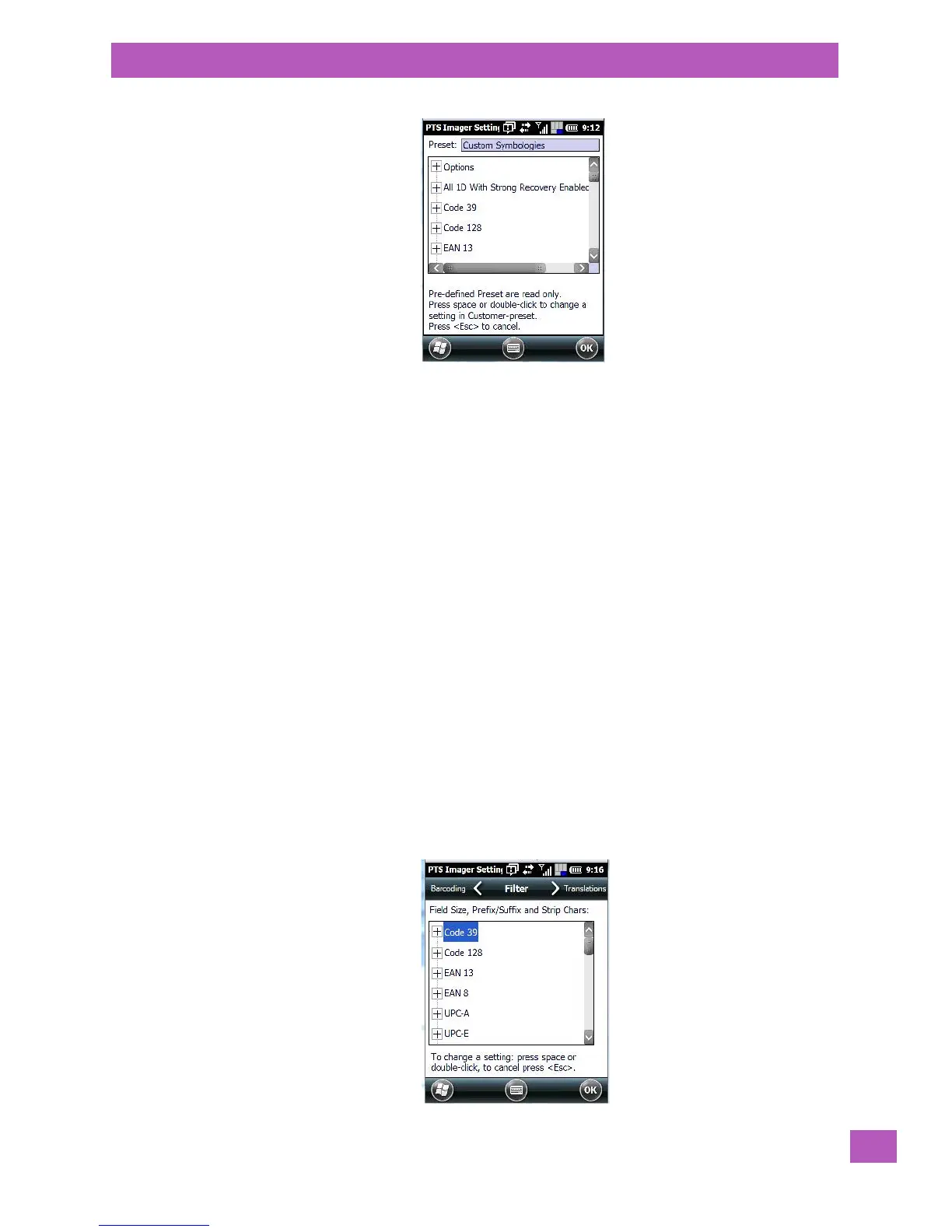
• Tap on the + symbols to expand the lists and view the parameter settings.
• Scroll through the parameter list until you reach the parameter that you want to change.
• For a parameter that can take a range of values:
- Highlight the parameter, and then press the [SPACE] key or double-click the parameter.
- An associated dialog box containing the valid range of values for the parameter and the current
setting is displayed.
- Type a value in the field provided.
• For a parameter that toggles between two values such as on or off and enabled or disabled:
- Highlight the parameter and then press the [SPACE] key, or double-click on the parameter. Either
method toggles between the two available values.
• When you’ve completed your edits, tap on OK.
The parameter list is displayed; the new value for the changed parameter is shown.
• Tap on OK to exit to the preset list and save the changes.
C.4.12 Removing a Custom Preset
• Highlight the custom preset you want to delete, and tap on the Remove button.
A window is displayed warning you that you are about to remove a preset.
• Tap on Yes to remove the preset or No to cancel the operation.
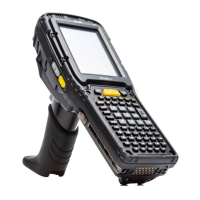
C.4.13 Filter Tab – Manipulating Bar Code Data
To configure rules for manipulating bar code data:
• Tap on Start>Settings>System tab.
• Tap on the Imagers icon, and then tap on the Filter tab.


 To Next Page