Chapter 4: Programs
Managing Phone Settings
Psion EP10 Hand-Held Computer User Manual
56
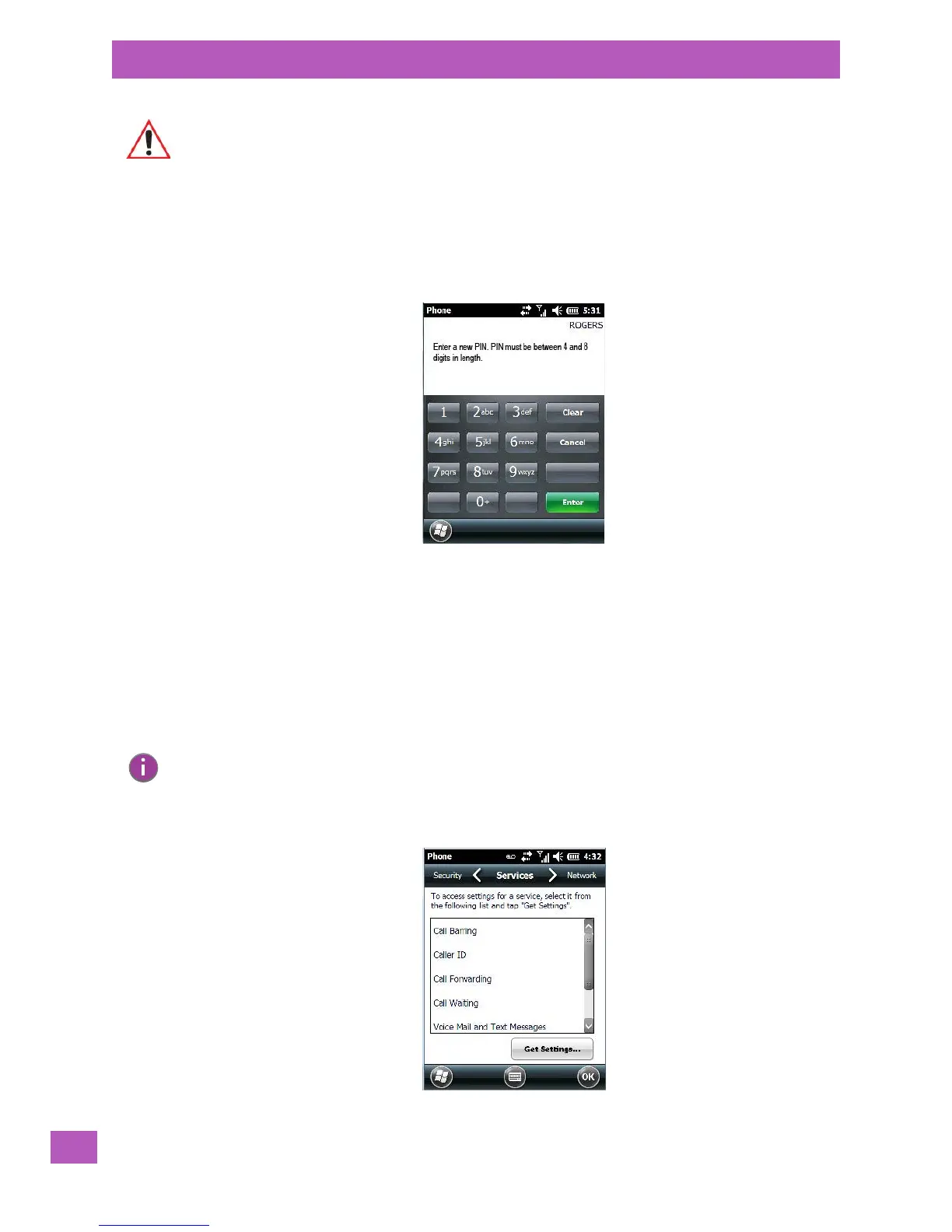
Once you’ve entered the correct PIN, a new screen appears asking that you enter your new PIN.
•Type your new PIN – a number consisting of between 4 and 8 digits in length. Tap on Enter.
A new message lets you know that you need to confirm your new PIN.
• Retype your new PIN. Tap on [Enter] when you’re finished.
Enabling PIN Security
To activa te PIN securi ty:
• Tap in the checkbox to the left of Require PIN when phone is used.
When security is enabled, you will be prompted to enter a PIN before you are allowed to use the phone.
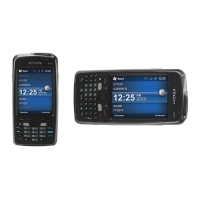
4.3.3.3 Phone: Services Tab
Important: If you enter an incorrect PIN, a message is displayed letting you know that you’ll
need to reenter the correct value.
You have a limited number of chances to enter the correct PIN. The number varies
for different services. If you exceed this number, the SIM will be disabled automati-
cally. You will be asked to enter a PUK (Personal Unlocking Key). In some cases. the
PUK is printed somewhere on your SIM package. If this is not the case, you will
need to call customer support.
Note: Whenever this option is enabled or disabled, you will be asked to enter your PIN.


 To Next Page