Chapter 5: Settings
Manage Triggers
Psion EP10 Hand-Held Computer User Manual
158
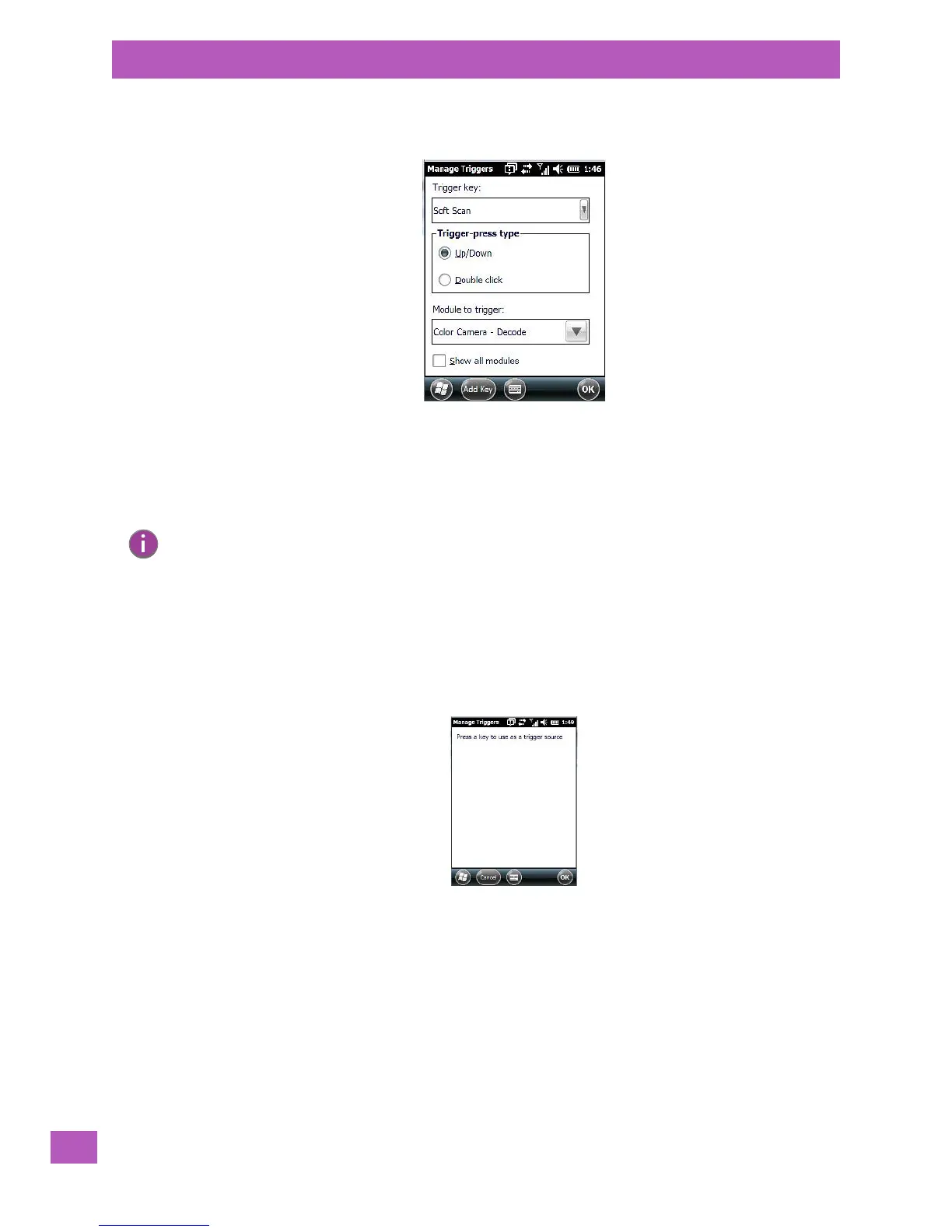
5.11.13.1.1 Add and Edit Trigger Mapping
•Tap on Add to add a new trigger map, or tap on Edit to edit an existing trigger map.
Trigger Key
This drop-down list allows you to specify the source of the trigger events, such as the Grip Trigger, Left
Scan, etc., for the trigger module selected.
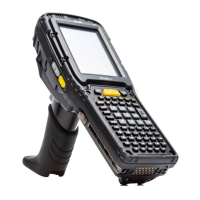
Add Key
Only existing trigger sources are shown in the Source combo-box. To add a new source to this list, tap
on the Add Key button. A dialog box pops up, allowing you to select the keyboard key to use as a
trigger source.
Trigger Press Type
You can enable either an Up/Down or Double Click response to a trigger press. Normally, when a trigger
(keyboard key, etc.) is pressed and released, a “trigger down” event is sent to the “owner” – that is, the ap-
plication receiving the trigger press information – followed by a “trigger up”. If Double Click is chosen in this
menu, when the trigger is pressed, released, and then pressed again, a “double-click” event will occur. If a
mapping with the Up/down type has also been configured for the same source, it will only receive the first
set of trigger events.
Module to Trigger
This identifies the driver or application receiving the trigger presses.
Note: It is possible to map the same source to different modules (trigger consumers) – for example, to
both the Imager and Non-Decoded Scanner. If so, both devices/operations will occur simultane-
ously. This is not recommended in most cases, especially with devices such as Imagers.
It is also possible to map different sources to the same module (trigger consumer).


 To Next Page