Chapter 3: Getting to Know the EP10
Calendar of Upcoming Appointments
Psion EP10 Hand-Held Computer User Manual
38
•In the Subject field, name the appointment.
• Complete the remaining fields to reflect your appointment details.
Adding Reminders
If you want to be reminded in advance of an appointment:
•Tap on the Reminder field, and choose Remind me from the drop-down menu.
• Tap the field below the Reminder field, and tap on the number in the field to display a drop-down menu
where you can define a numeric value of 1, 5, 10, 15, 30. Tap on minute(s) to display a drop-down menu
from which you can choose the time unit for your reminder – minute(s), hour(s), day(s) or week(s).
•Tap OK to finish. You are returned to the view you were in before adding the reminder.
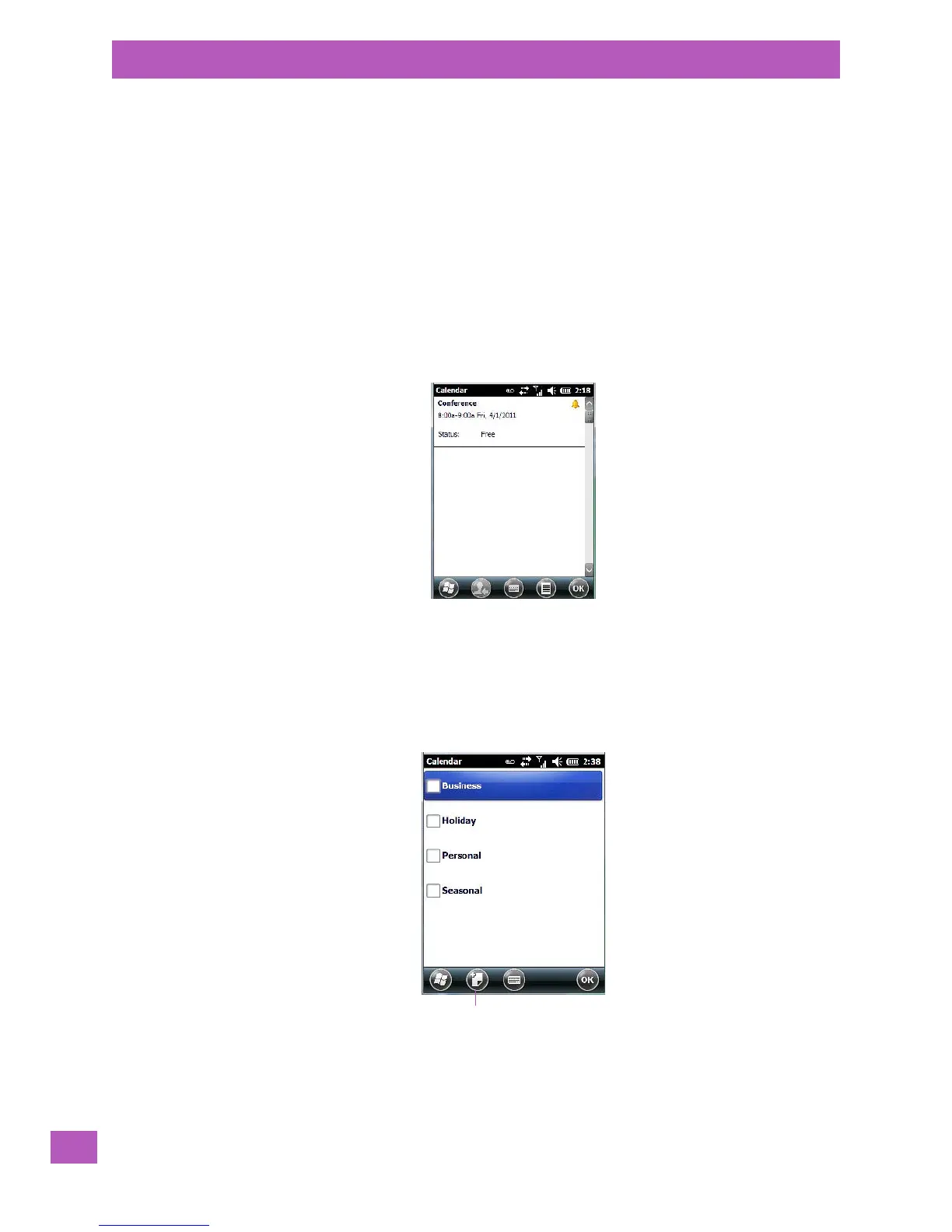
• Tap the appointment in the Calendar screen to display it in a summary screen. The reminder is indi-
cated by the small, bell icon.
• If you’ve no further additions for the appointment, tap on OK. Otherwise, move to the Categories
section following.
Using Categories
Categories help you organize and track the different types of data you keep on your EP10.
To assign an appointment to a category:
•Tap on the Menu softkey, and choose Edit.
The Appointment tab is displayed.
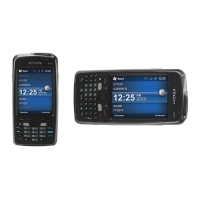
• Scroll down to the Categories field, and tap on it to display your options.
• Tap in the checkbox next to the category to which you want to assign the appointment.
•Tap OK. Your appointment is assigned to the category or categories you chose.


 To Next Page