Network and Remote Operation
R&S
®
FSPN
295User Manual 1179.4363.02 ─ 01
► In the web browser, open the http://<instrument-hostname> or http://
<instrument-ip-address> page, e.g. http://10.113.10.203.
The default password to change "LAN" configurations is LxiWebIfc.
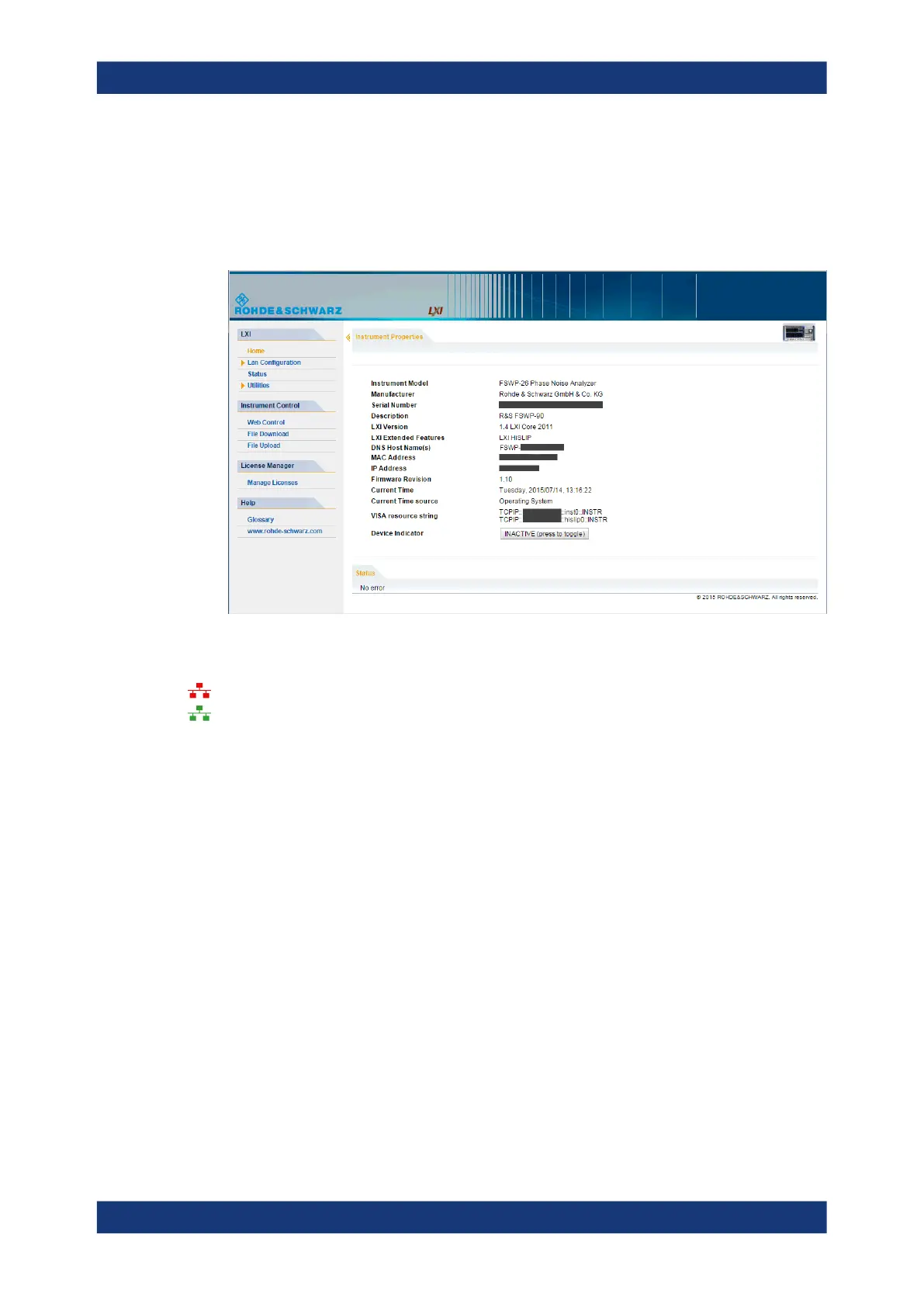
The "Instrument Home Page" (welcome page) opens.
The instrument home page displays device information, including the VISA resource
string, in read-only format.
► Press the "Device Indicator" button on the "Instrument Home Page" to activate or
deactivate the "LAN" status icon on the status bar of the R&S FSPN. A green
"LAN" status symbol indicates that a LAN connection has been established; a red
symbol indicates an error, for example, that no LAN cable is connected. When a
device is connecting to the instrument, the "LAN" icon blinks. The "Device Indica-
tor" setting is not password-protected.
The most important control elements in the navigation pane of the browser interface
are the following:
●
"LAN Configuration" opens the menu with configuration pages.
●
"Status" displays information about the "LAN" status of the instrument.
LAN Configuration
The LAN configuration consists of three parts:
●
"IP configuration" provides all mandatory LAN parameters.
●
"Advanced LAN Configuration" provides further LAN settings.
●
"Ping Client" provides the ping utility to verify the connection between the instru-
ment and other devices.
How to Set Up a Network and Remote Control


 To Next Page