Common Analysis and Display Functions
R&S
®
FSPN
162User Manual 1179.4363.02 ─ 01
Remote command:
MMEMory:LOAD<n>:TRACe on page 422
Destination Trace
The "Destination Trace" dropdown menu becomes available when you select to import
a single trace only.
In that case, you can select the trace number you want to write the trace data to.
If you select a trace that already exists, the trace import overwrites the currently dis-
played trace. Imported traces always get the trace mode "View".
Example:
You have selected trace "1" as the trace you want to import from the "Source Trace"
dropdown menu.
If you select "1: Clear Write" ("Clear Write" indicates the trace is currently displayed)
from the "Destination Trace" dropdown menu, the import overwrites the trace. The
trace mode for trace 1 is replaced by trace mode "View".
If you select "5: Blank" ("Blank" indicates that the trace is currently not displayed) from
the "Destination Trace" dropdown menu, the imports adds a new trace to the diagram
(with trace mode "View". All other traces remain in the diagram.
Remote command:
MMEMory:LOAD<n>:TRACe on page 422
Import
The "Import" button imports the selected trace(s).
THe R&S FSPN does not import numeric results associated with the imported trace
(spot noise, values from the spurious list etc.)
Remote command:
MMEMory:LOAD<n>:TRACe on page 422
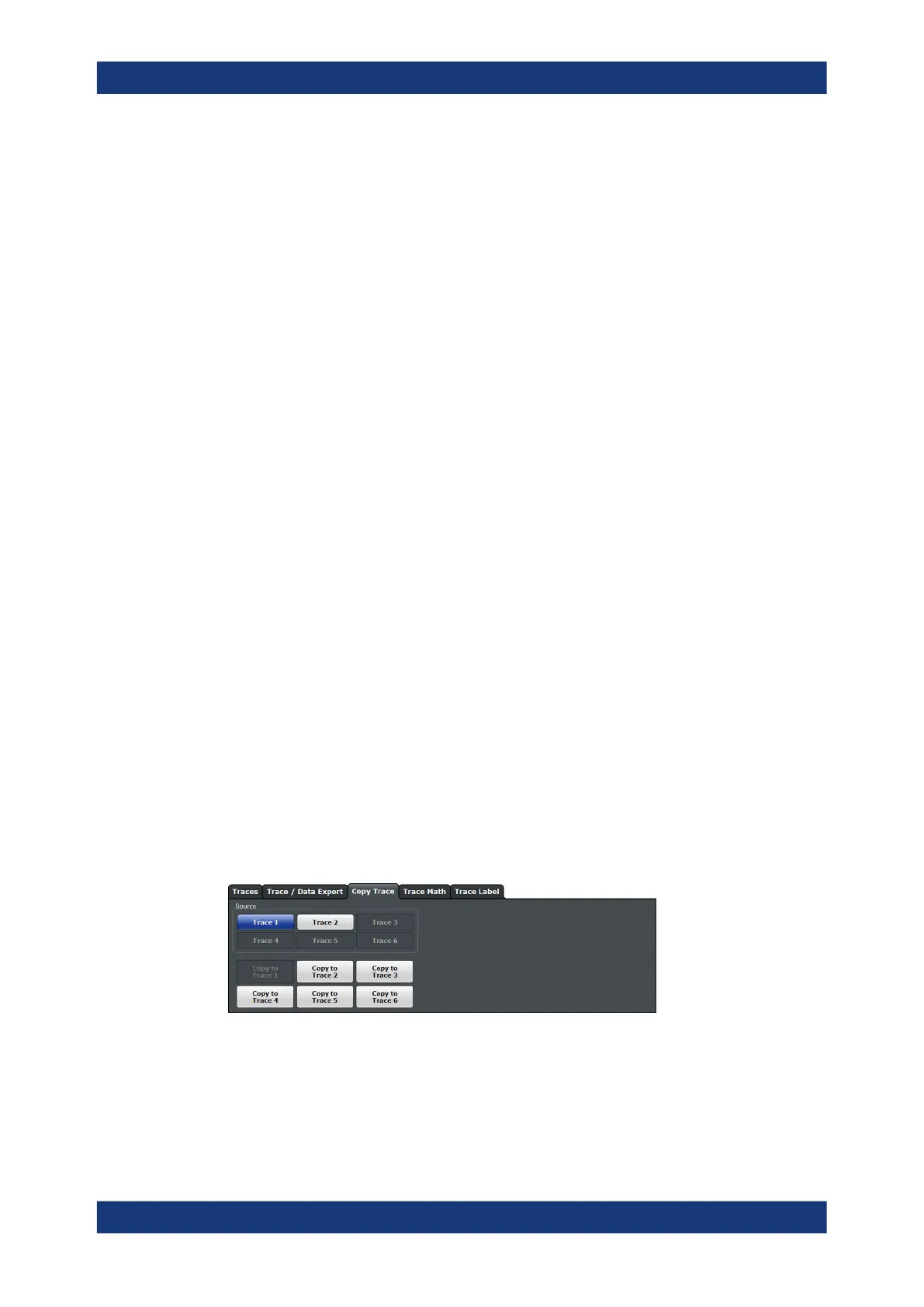
7.3.4 Copying Traces
Access: "Overview" > "Analysis" > "Traces" > "Copy Trace"
The remote commands required to copy traces are described in Chapter 11.7.3.2,
"Trace Copy", on page 419.
Copy Trace .................................................................................................................163
Trace Configuration


 To Next Page