120 Menu System Description ODIN Intercom Matrix
Resource Usage Table
The Resource Usage table displays resource usage information for the system. There are two columns that display Existing and
Proposed usage.
Existing column Displays the percentage of the RAM or flash that is used by the current system configuration.
Proposed column Displays the percentage of RAM or flash that would be used in the new system size configured above.
Operation Memory Field
The Operation Memory field displays the amount of RAM used.
Configuration Memory Field
The Configuration Memory field displays the amount of flash memory (permanent storage) used.
Remote Alpha Pool Field
The Remote Alpha Pool field displays how much space is used to store remote alphas (alphas from a trunk system). The amount
of RAM available in the remote alpha pool may be limited by the amount of Operation Memory required. For large systems, more
RAM is required for Operation Memory, reducing the amount of RAM available for the Remote Alpha Pool.
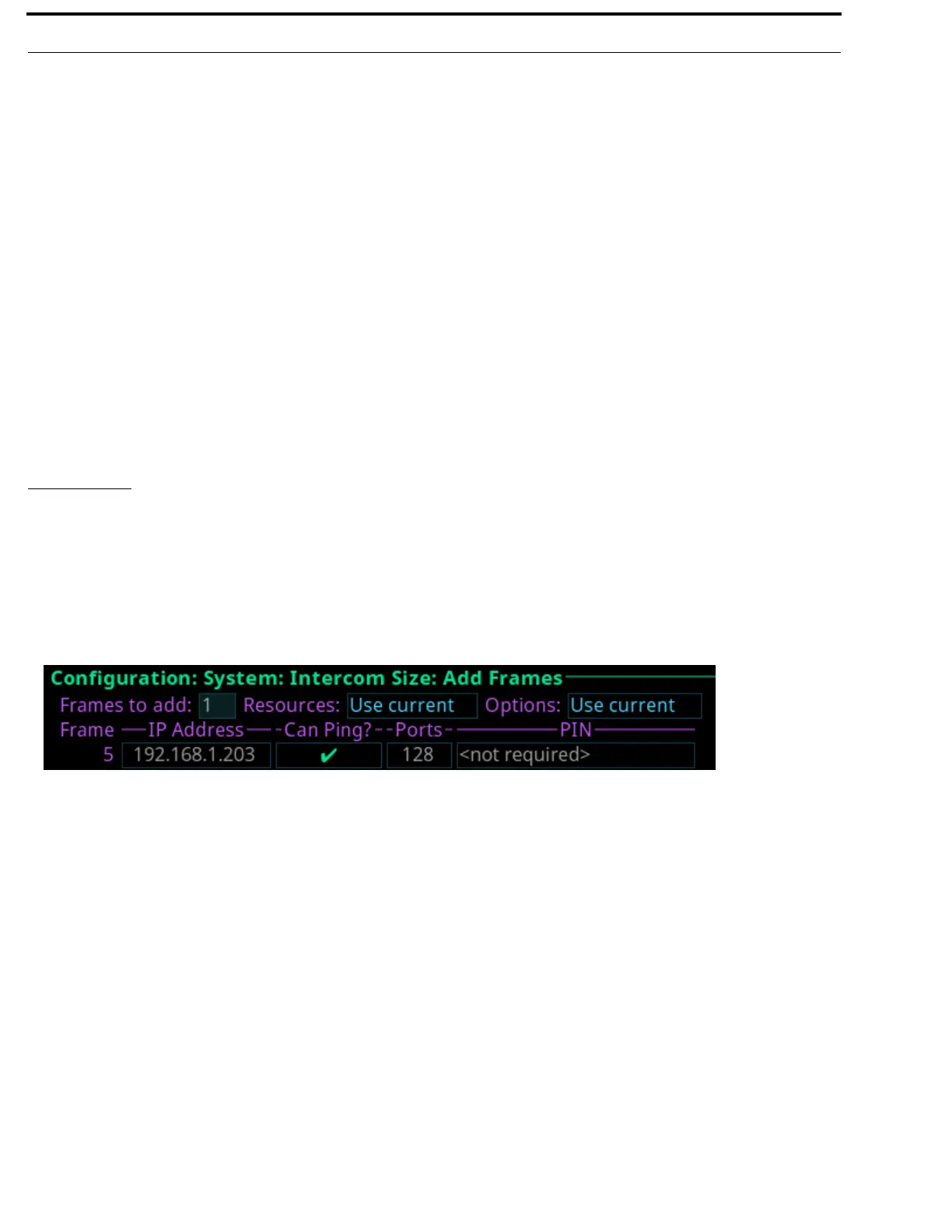
Add Frames
The Add Frames menu is used to combine two or more frames that are connected via the IFL connection into a single unified
intercom. See “IFL Inter-Frame Linking (Multi-Frame Only)” on page 41.
Up to eight frames can be connected via IFL.
NOTE: Only the last frame in a system can add frames to the system. For example, in a 4-frame system, Add Frames is only
available on frame 4.
Frames to Add Field
The Frames to Add field displays the number of frames to add to the intercom. Initially, this number is set to the number of new
frames detected via the IFL. However, this field can be modified.
Resources Field
The Resources field is used to select what resource set to use.
Available options are:
Use Current Use the current resource set from the frame performing the Add operation.
Use Largest Use the largest value for each resource item.
Customize Customize the resource set to use. (See “Reconfigure” on page 116.)
FIGURE 50. Configuration | System | Intercom Size | Add Frames


 To Next Page