ODIN Intercom Matrix Installation and Maintenance 55
NOTE: If the Use Static check box is not selected, DHCP/Link-local is used. Some of the remaining fields are
automatically populated.
4. In the IP Address field, enter the IP address used by the port to access the network.
5. In the Netmask field, enter the netmask address for the management port.
6. In the Gateway field, enter the gateway address for the management port, if applicable.
7. In the DNS Server field, enter the DNS (Domain Name Server) Server.
NOTE: The Device field cannot be modified for the management port. The device name is the same as the OMNEO
name with -MGMT appended to the end of the name.
Intercom Configuration
Port Allocation
The Port Allocation Table is used to assign port types (OMNEO, RVON, AIO, 2W, etc...) to each intercom port, and to map the
physical hardware (for analog ports) to specific intercom ports. Analog port devices, such as AIO and 2-wire devices, and network
port devices, such as OMNEO, can be mapped to any port in the intercom.
• To allocate ports from the front panel of ODIN, see “Allocate Ports from the Front Panel of ODIN” on
page 38.
• To allocate ports in AZedit, see “Allocate Ports in AZedit” on page 40.
Port Configuration
Connecting 2W Devices to ODIN
To connect a 2W device to ODIN, do the following:
1. Using the Port Allocation table, assign the device channel to CH A or CH B. “Allocate Ports from the Front Panel of
ODIN” on page 38.
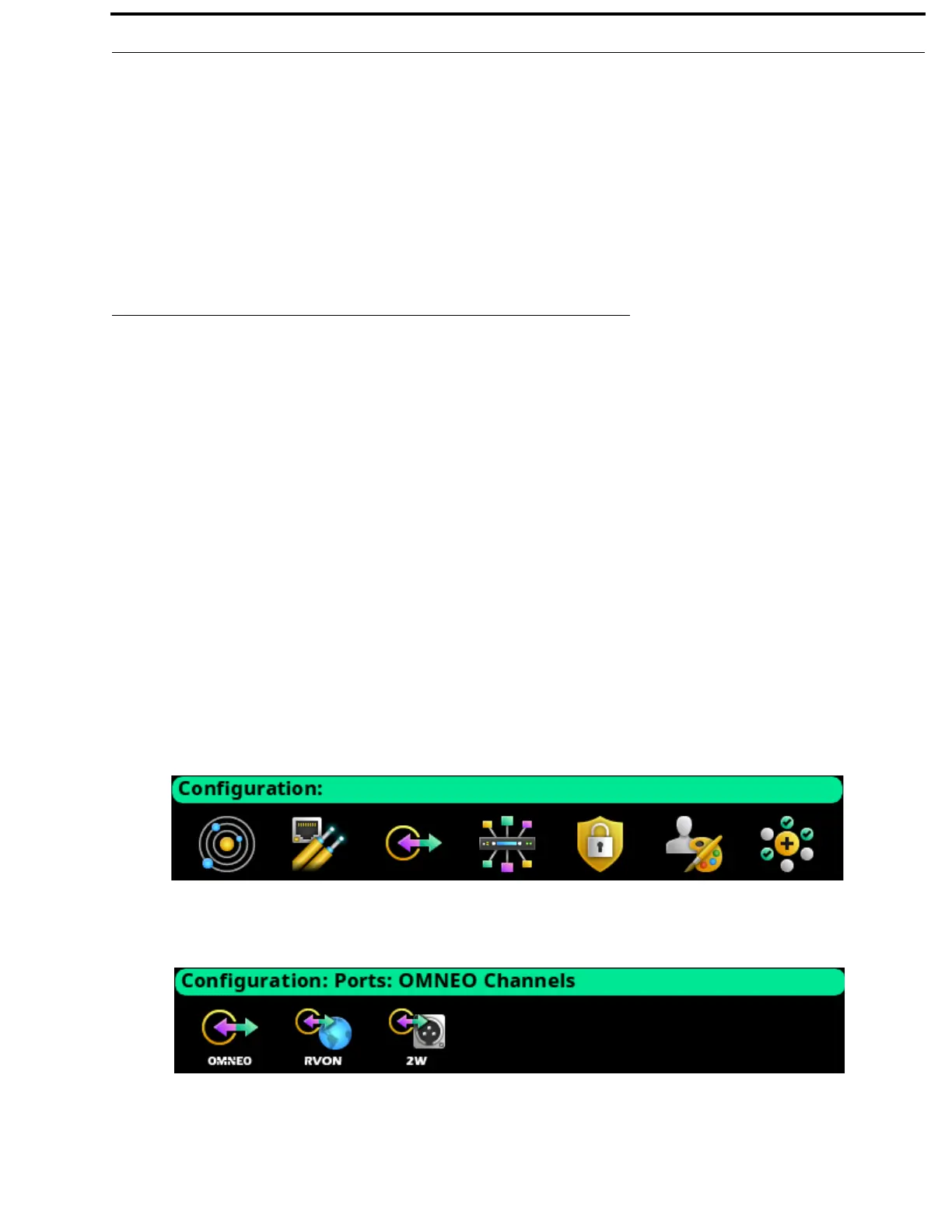
2. Rotating the right encoder knob, navigate to the Configuration icon.
3. Click the right encoder knob.
The Configuration Menu appears.
4. Rotating the right knob, navigate to the Ports menu icon.
5. Click the right encoder knob.
The Ports menu appears.
6. Rotating the right encoder knob, navigate to the 2W menu icon.


 To Next Page