54 Installation and Maintenance ODIN Intercom Matrix
3. Select the Use Static check box to enable Static IP addressing.
NOTE: If the Use Static check box is not selected, DHCP/Link-local is used. Some of the remaining fields are
automatically populated.
4. In the Audio IP field, enter the IP address used to transmit and receive audio across the network.
NOTE: The Audio IP address and the Control IP address should be in the same subnet. ODIN displays a warning
message if these addresses are not on the same subnet.
5. In the Control field, enter the IP address used by the OMNEO controller to access the network.
6. In the Netmask field, enter the netmask address for the OMNEO interfaces.
7. In the Gateway field, enter the gateway address for the OMNEO interfaces, if applicable.
8. In the DNS Server field, enter the DNS (Domain Name Server) Server address to which OMNEO has access.
9. In the Device field, enter a recognizable name for the OMNEO network connection.
10. Rotating the right encoder knob, scroll to the first character of the device name.
11. Click the right encoder knob to advance to the next character.
12. Repeat step 9 and step 10 until the device name is entered.
13. When finished entering the Device Name, double-click the right encoder knob.
The Device field turns yellow (modification made).
14. In the Domain field, enter the domain. By default, the domain is left blank.
15. Click the left encoder knob to exit the OMNEO screen.
The Network Menu Icons appear.
Configure the RVON Interface
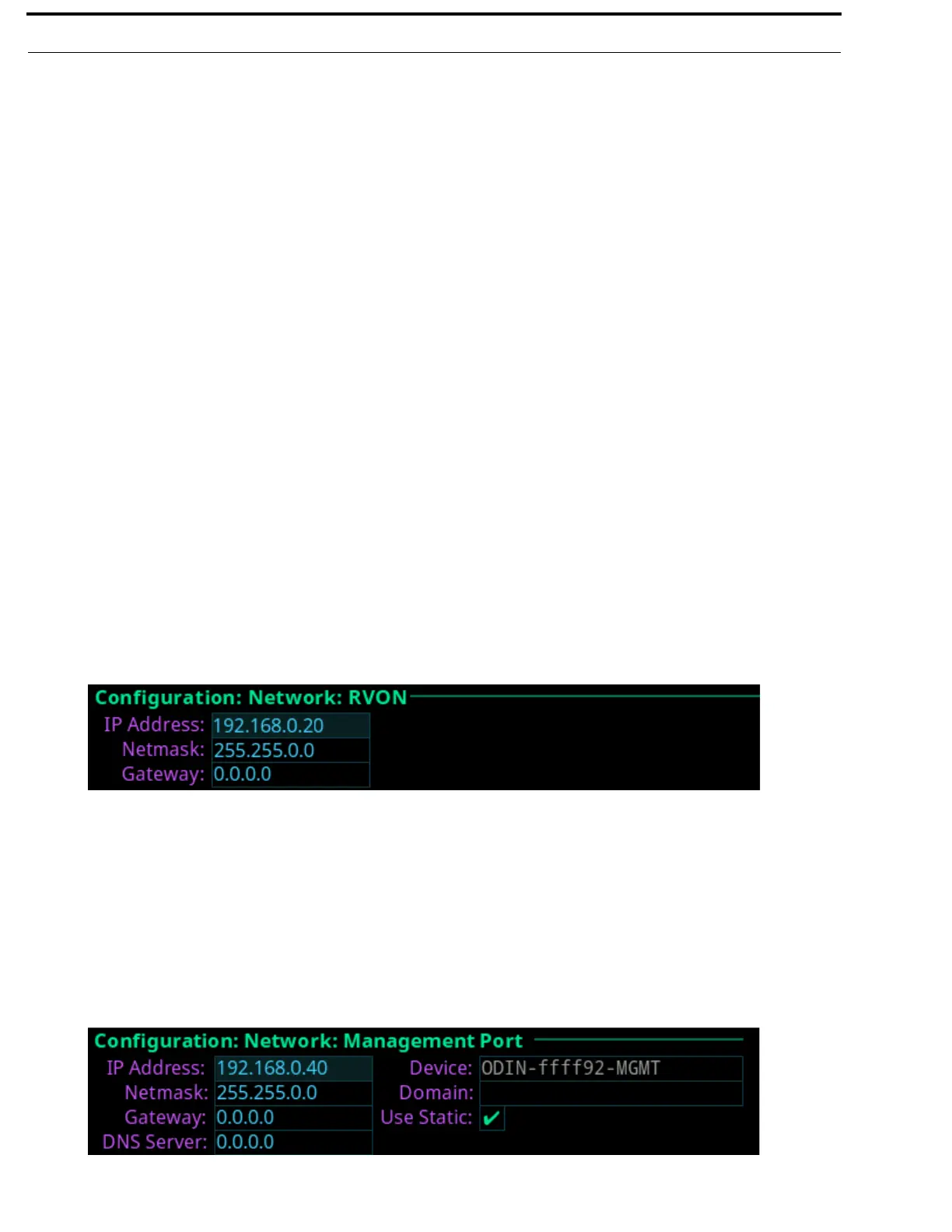
To configure the RVON interface from the front panel, do the following:
1. Rotating the right encoder knob, navigate to the RVON icon.
2. Click the right encoder knob.
The RVON Configuration Screen appears.
3. In the IP Address field, enter the IP address used by the RVON controller to access the network.
4. In the Netmask field, enter the netmask address for the RVON interface.
5. In the Gateway field, enter the gateway address for the RVON interface, if applicable.
Configure the Management Port
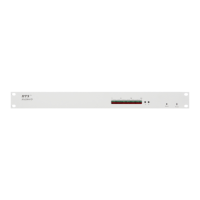
To configure the management port, do the following:
1. Rotating the right encoder knob, navigate to the Management Port icon.
2. Click the right encoder knob.
The Management Port Screen appears.
3. Select the Use Static check box to enable Static IP Addressing.


 To Next Page