CHAPTER 2
Basic Operation
Navigating the Menu
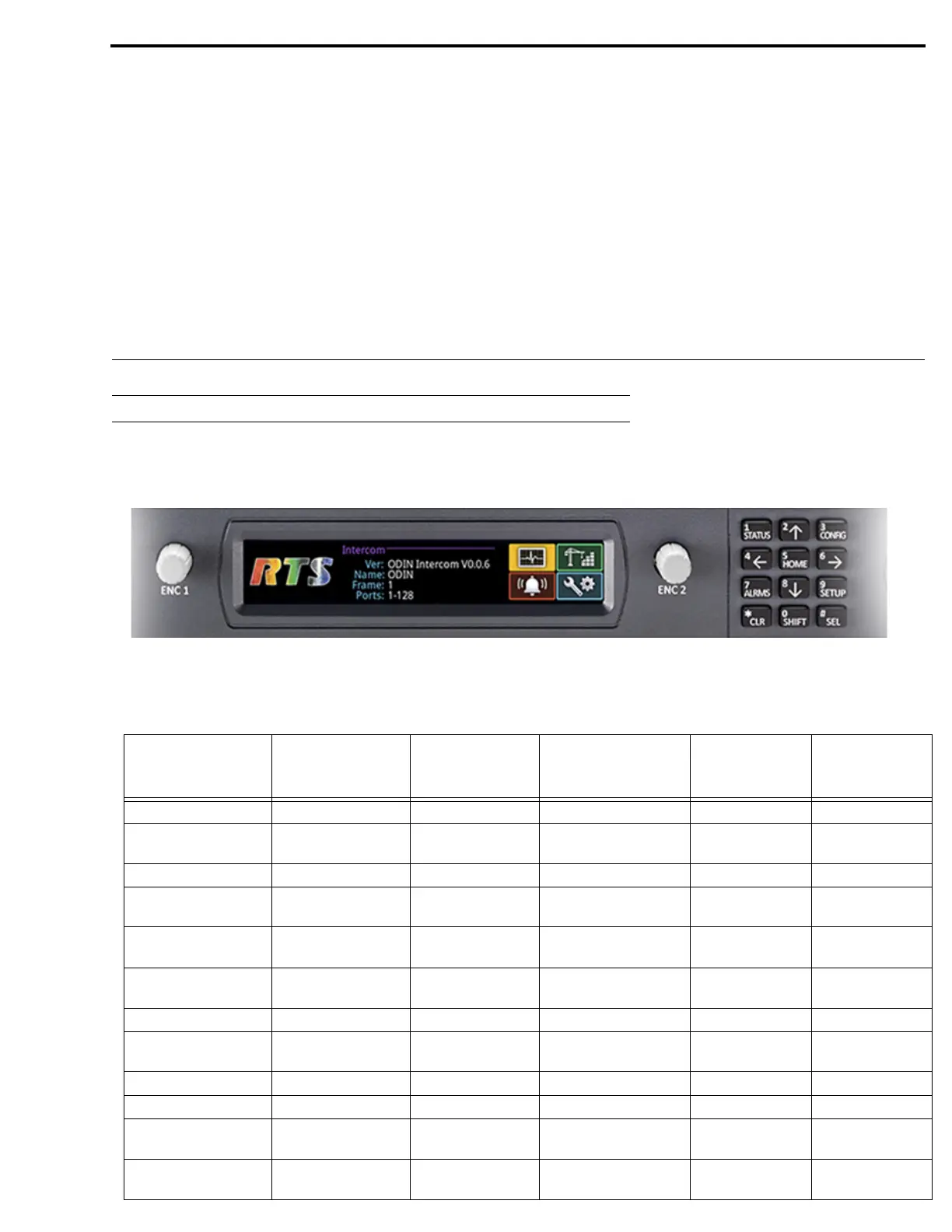
The ODIN menu structure is separated into four logical sections: Status, Configuration, Intercom Setup, and Alarms. The menu is
accessible using the keypad, the shaft encoder knobs, or a combination of both.
Keypad Operation
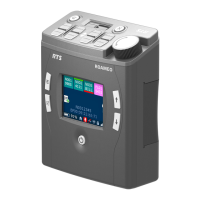
FIGURE 5. ODIN Keypad and Encoders
Keypad Character/
Mode
Home Port Status
Overview
Menu Form
(navigating)
Form
(navigating) +
SHIFT)
1/STATUS Go to STATUS menu Go to STATUS menu Go to STATUS menu
2/UP Scroll info up Scroll info up Move to previous sibling
in menu
Move to previous
field (up)
3/CONFIG Go to CONFIG menu Go to CONFIG menu Go to CONFIG menu
4/LEFT Rotate icon highlight
CCW
Move icon highlight left Move to prev field
(left)
5/HOME Go to Port Status
Overview
Go to HOME screen Go to HOME screen Go to field (top/left)
6/RIGHT Rotate icon highlight
CW
Move icon highlight right Move to next field
(right)
7/ALRMS Go to ALARM menu Go to ALARM menu Go to ALARM menu
8/DOWN Scroll info down Scroll info down Move to the next sibling
menu
Move to next field
(down)
9/SETUP Go to SETUP menu Go to SETUP menu Go to SETUP menu
0/SHIFT Toggle SHIFT state Toggle SHIFT state Toggle SHIFT state Toggle SHIFT state
*/CLR Move to info top Go to HOME Move up one menu level Exit form (prompt if
changes)
Exit form (abort
changes)
#/SEL Invoke highlighted
icon
Invoke highlighted icon Initiate edit on
selected field
Exit form (save
changes)



 To Next Page