142 Menu System Description ODIN Intercom Matrix
Options
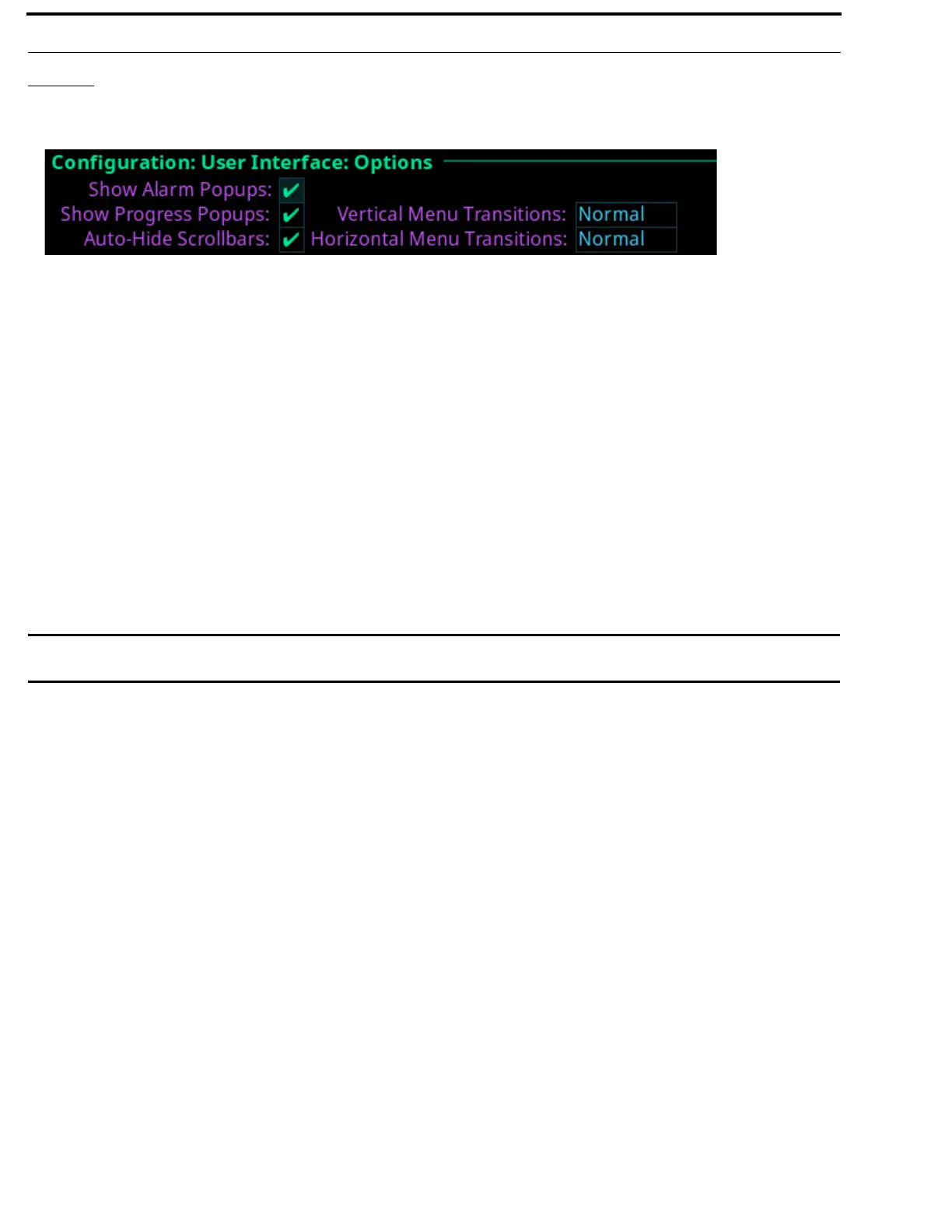
The Options screen is used to configure advanced user interface options.
Show Alarm Popups Check Box
The Show Alarm Popups check box determines whether or not popup messages display when an alarm is triggered.
By default, Show Alarm Popups is enabled.
Show Progress Popups Check Box
The Show Progress Popups check box determines whether or not progress bars are displayed on the front panel when writing new
firmware, fonts, or resources to the intercom.
By default, Show Progress Popups is enabled.
Auto-Hide Scroll Bars Check Box
The Auto-Hide Scroll Bars check box determines whether or not a scroll bar located on the right side of some screens auto-hides
after a few seconds or if it is always visible.
IMPORTANT: Not all screens have scroll bars. Only screens with more information than can fit on one display have the
scroll bar capability.
By default, Auto-Hide Scroll Bars is enabled.
Vertical Menu Transitions Field
The Vertical Menu Transitions field is used to set the speed of or disable the vertical menu transitions. Vertical menu navigation,
or sibling menu navigation, is used to navigate a menu structure by moving between branches of the menu without having to go up
one level and then back down again. For example, if the menu structure is at the top level Configuration menu screen, turning the
left encoder knob to the right one notch moves the menu structure to the top level Intercom Setup menu.
If the focus of the menu is within a top level menu structure, turning the left encoder knob to the right one notch moves the menu
structure to the next menu item within the same top level menu. For example, if the menu focus is at Configuration | Network,
turning the left encoder knob to the right one notch moves the menu structure to Configuration | Ports.
Available options for this field are:
Disabled No vertical transitions allowed.
None No transition animation is seen. Navigation is seen as jumps.
Normal The entire menu rolls up and down smoothly to reveal a new sibling.
Fast The entire menu rolls up and down faster than normal; however, it may not be as smooth.
The default for this field is Normal.
FIGURE 79. Configuration | User Interface | Options


 To Next Page