40 Basic Operation ODIN Intercom Matrix
Allocate Ports in AZedit
To allocate ports using AZedit, do the following:
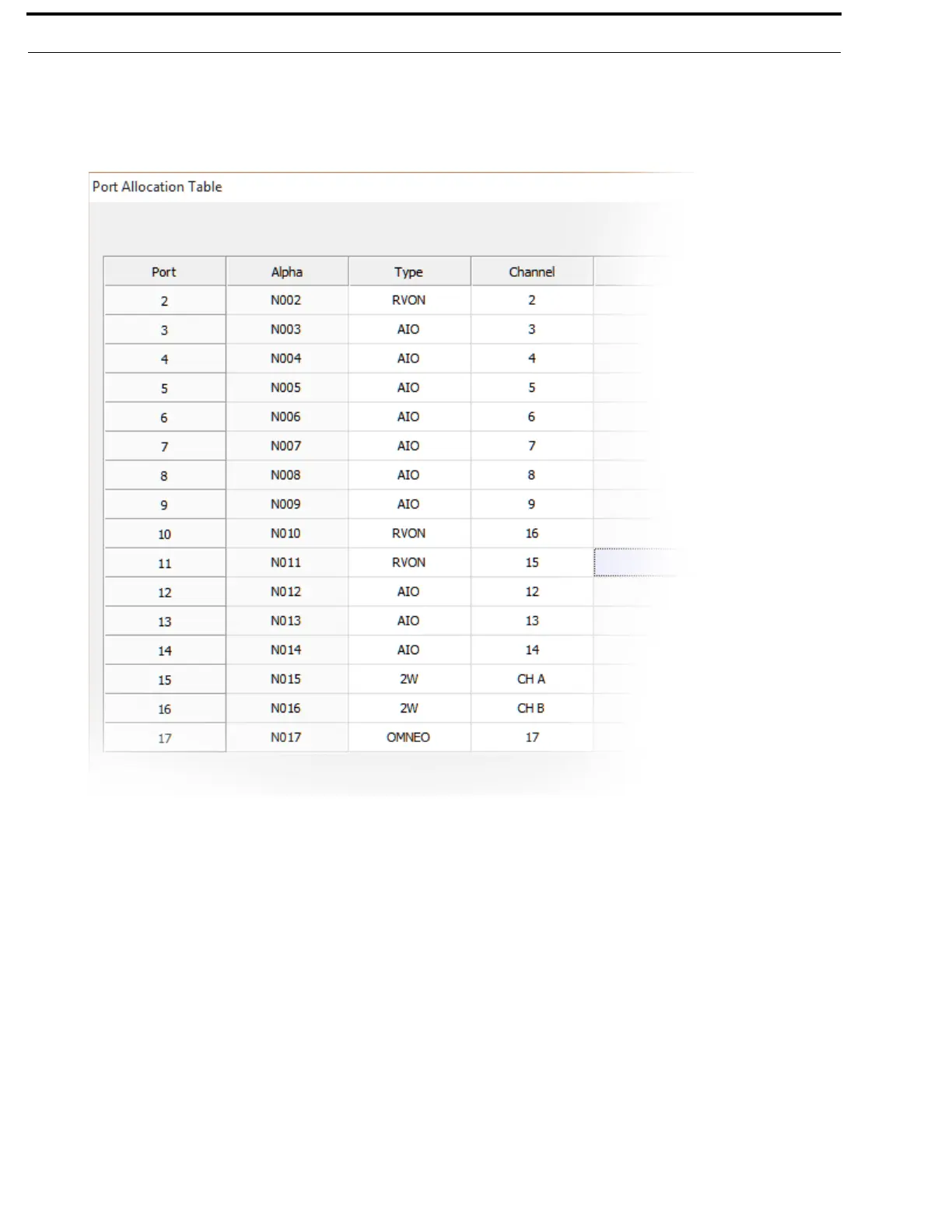
1. From the Options menu, select Port Allocation Table.
The Port Allocation Table window appears.
NOTE: When Port is unlicensed is seen in the port allocation table, it means the port is not licensed for use and cannot be
configured. For more on licenses, see “Licensing” on page 16.
2. From the Type column drop down menu, select the device type assigned to the port (for example, OMNEO, RVON, AIO,
2W, or <none>).
3. From the Channel column drop down menu, select the channel assignment for the device.
4. Once finished allocating the ports, click Apply.
The Send Port Allocation Table to Intercom window appears.
5. Click Proceed.
The Port Allocation Table is sent to the intercom.
NOTE: Duplicating channel assignments displays a highlighted warning that a Duplicate Channel Allocation has
occurred. This must be fixed before proceeding.


 To Next Page