DOC-06810 Rev. A 5–83
Objet1000 Plus User Guide
SchedulingJobs
Youcanschedulejobstobeprintedatafuturetime.Forexample,youcan
configureObjetStudiotostartlongprintingjobsinthelateeveningand
earlymorninghours.
To schedule a job:
1. SelectajobintheJobsQueue,andclickonthepop‐uptoolbar.
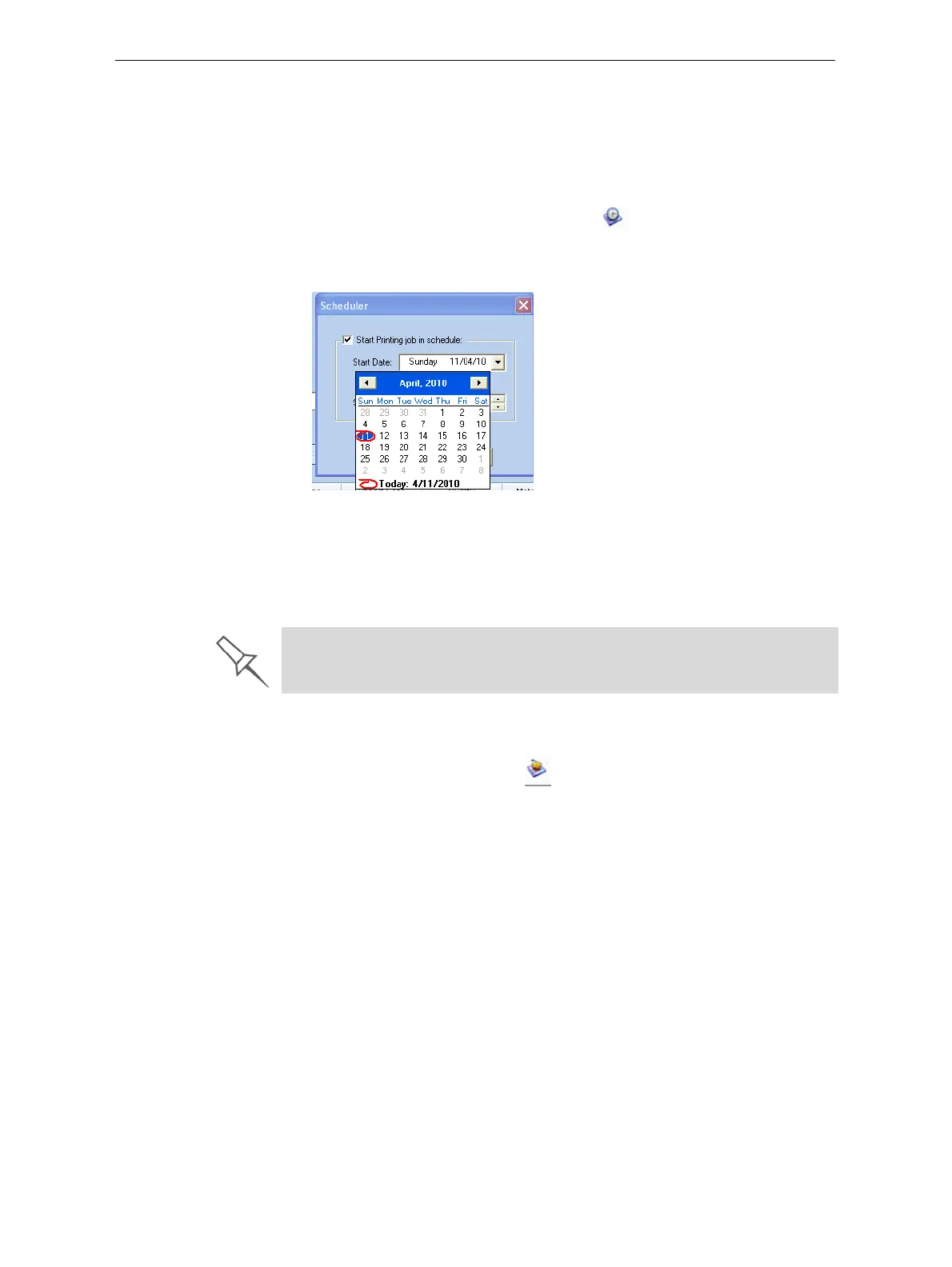
2. IntheSchedulerdialogbox,settheStartDateandStartTimeforthejob.
ClickontheStartDatearrowtoopenacalendar.
Figure 5-120: Scheduler with calendar displayed
3. ClickOK.
ExportingJobs(objzf)
Youcansaveprintjobsascompressedfiles.
Toexportaprintjob:
1. Selectajob.
2. Onthepop‐uptoolbar,click .
3. IntheSaveAsdialogbox,selectafolder.
4. Click
Save.
ModifyingtheJobManagerScreen
YoucanchangethesizeofthesectionsoftheJobManagerscreen,by
draggingthepaneledges.Thisappliesto:
• theJobsQueuepanel
• theTimepanel
• theHistorypanel
Similarly,youcanchangethewaythescreenareaisdividedbetweenthe
mainsection(JobsQueue/Time/History)andthepanelsontherightsideof
thescreen.
Youcancollapse(hide)therightpanels(AvailableResources/Mater ial
Consumption/TrayView)byclickingthetopof
thepanel.
• Clickagaintodisplaythepanel.
For an explanation of objzf files, see “Exporting and Importing Objet Build
Trays” on page 58.













 To Next Page