Operating & Maintaining the Objet1000 Plus 3D Printer
6–36
DOC-06810 Rev. A
13. Continueasfollows:
• Tomakethealignmentchangesintheprinter,makesurethatYesis
selected,andclick
Next.
• Torecheckthealignmenttestresultsbeforemakingthealignment
changesintheprinter,click
Previous.
• Ifyoudonotwanttomakealignmentchangesintheprinteratthis
time,selectNoandclick
Next.
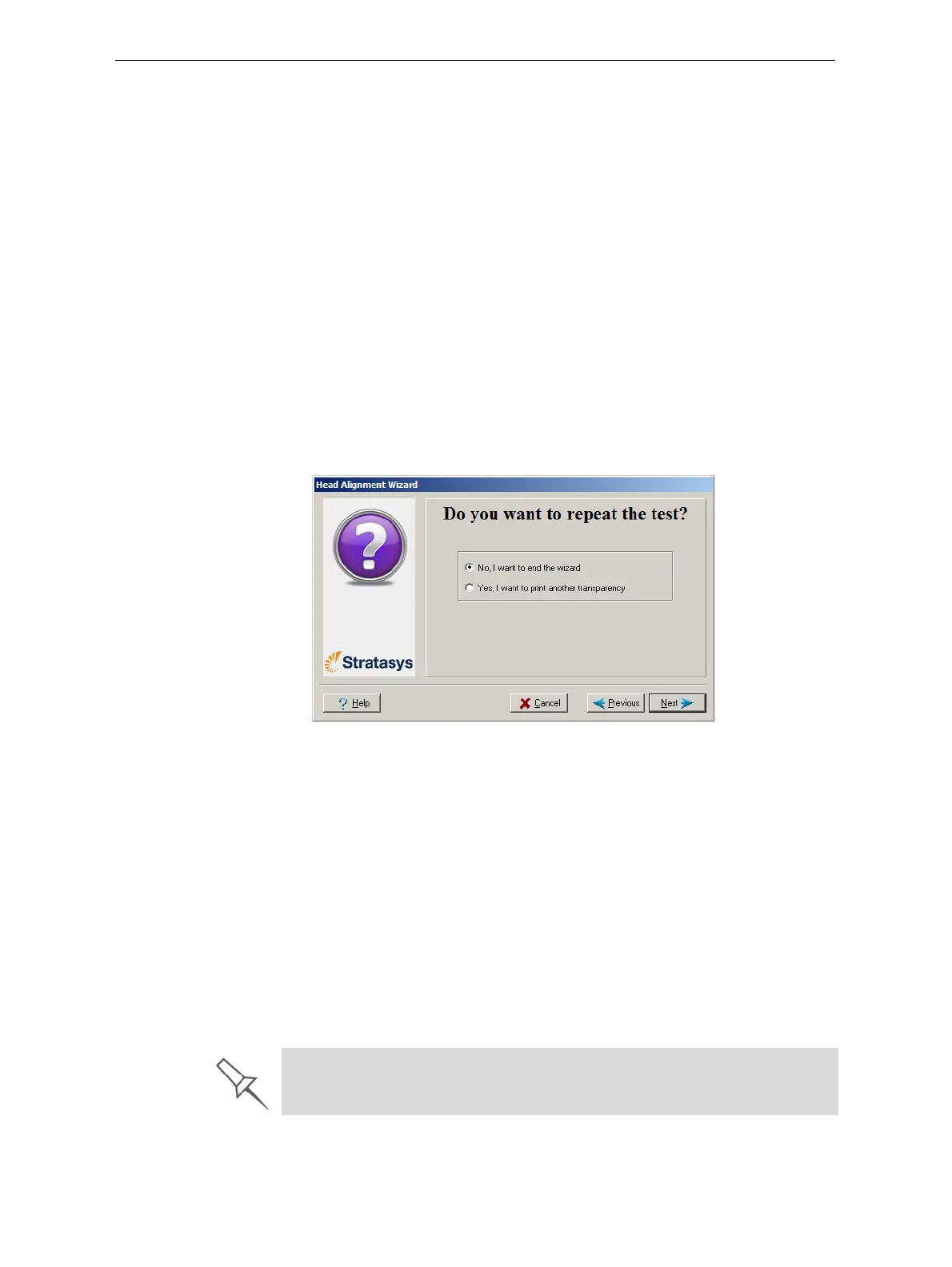
14. Inthefollowingscreen,youcanchoosetoeitherrepeatthehead
alignmentprocedureorclosethewizard.
• Ifthemostcloselyalignedverticallinesforaprintheadwereat
eitherextreme—thefirstorseventhlines—chooseYe storunthe
HeadAlignmentwizardagain,thenclick
Next.
Thetransparencytestwillshowiftheheadsarenowproperly
aligned,and—ifnot—thewizardwillallowyouto“finetune”the
alignment.
• Iftheverticallinesfortheprintheadswerenotaligned ateither
extreme,chooseNotoclosethewizard,thenclick
Next.
Figure 6-47: Repeat head alignment option
Optimizing
(Calibrating)
Print Heads
Theconditionoftheprint headsdirectlyaffectsthequalityofprinted
models.Tomaintainoptimumprinting,youshouldroutinelytesttheprint
headsandcalibratethemtothebestworkingconfigurationpossible.Todo
this,runtheHeadOptimizationwizardevery300hoursofprinting.
Duringthisprocedure,youplace
ascaleonthebuildtrayandconnectitto
theprinter.Theweightsofprintedsamplesareanalyzedbythewizardto
determinehowtooptimizetheprintheads.
If,duringtheoptimizationprocess,thewizarddeterminesthataprinthead
isfaulty—orthatitisnegativelyaffectinglayeruniformity
withthecurrent
headconfiguration—thewizardinstructsyoutoreplaceit.Ifthishappens,
youhavetheoptiontoreplacetheprintheadortoabortthewizardand
replacetheheadatanothertime.
Run the Head Optimization wizard whenever the condition of print heads is
negatively affecting the quality of printed models, or if you suspect that there
is a problem with one or more of the print heads.













 To Next Page