DOC-06810 Rev. A 5–17
Objet1000 Plus User Guide
Copying and
Pasting
Objects
Ifyouneedtoduplicateobjectsonthebuildtray,youcaninsertthesame
objectfromitsfilemorethanonce.Aneasierway,however ,istocopyand
pastetheobject.Youcan copyobjectsfromthebuildtrayorthemodel
tree—individualormultiplepartsorassemblies.The
objectscopiedremain
intheWindowsclipboarduntilyoupastethemontothebuildtray.
Youcanalsocopyobjectsfromonetrayandpastethemontoanother,inthe
samewayasyoucopytextfromonedocumentandpasteitintoanother
one.However,ObjetStudioallowsonly
onetraytobeopenatatime.For
eachbuildtrayyouneedtoworkwith(atthesametime),youmustopena
separateObjetStudiowindow,byrunningtheapplicationagain(fromthe
WindowsStartmenu).
YouperformtheCopyandPastecommandsasinotherWindows
applications:
• fromtheright‐clickcontextmenu.
• byusingkeyboardshortcuts(Ctrl+CandCtrl+V,respectively).
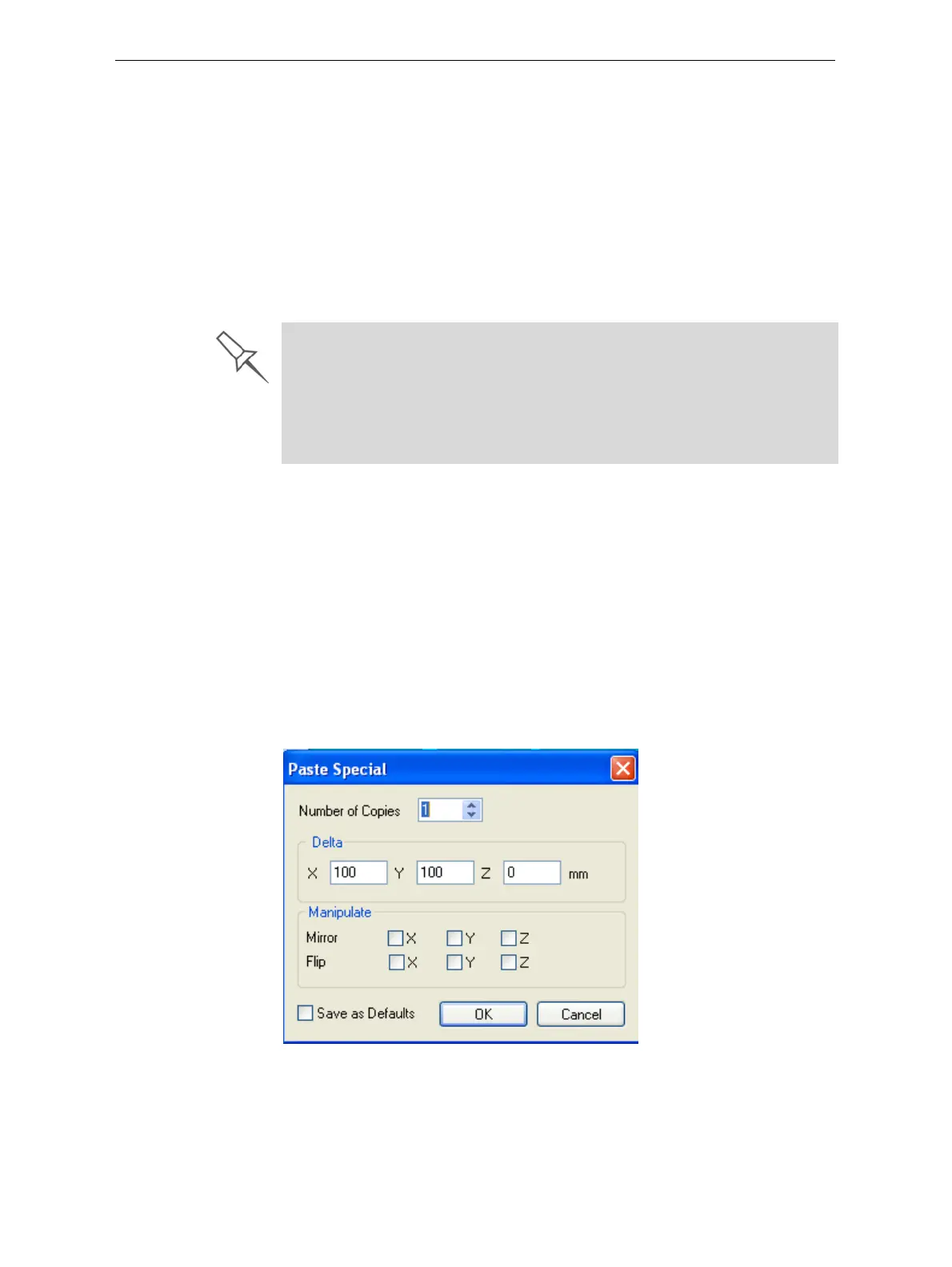
ThePasteSpecialcommand(fromtheobject’sright‐clickcontextmenu)
enablesyoutoplaceduplicateobjectsevenmoreefficiently:
• Youcanspecifythenumberofduplicatestoplaceonthebuildtrayat
once.
• Youcansetthedistance,oneachaxis,betweentheduplicateobjects.
• Youcanmanipulatemirrorimagesoftheoriginalobject,andflipthem
onselectedaxes.
Figure 5-18: Paste Special dialog box
Having multiple Objet Studio windows open can be convenient when you
need to manipulate or configure objects before inserting them in your
production build tray. For example, if you need to change the model material
of an object (saved as an objdf file) to match the model material already
used in the production build tray, you must do so before inserting the
object—on another tray. Copying and pasting also allows you to use objects
already configured on previously-used build trays for newer projects.













 To Next Page