Using Objet Studio
5–30
DOC-06810 Rev. A
Other Z-axis options (in the Automatic Lay On section):
• When under the tray—Thedisplayofobjectsthatarebelowthebuild
trayisautomaticallychangedsothattheobjectisattraylevel.
• Never—Thedisplayofobjectsthatareaboveorbelowthebuildtrayis
notchanged.
Valid Object
Placement
Youcanensurethatmodelsdonotoverlapwhenyoupositionthemonthe
buildtray,andthattheydonotextendbeyondthetray.
To ensure valid object placement:
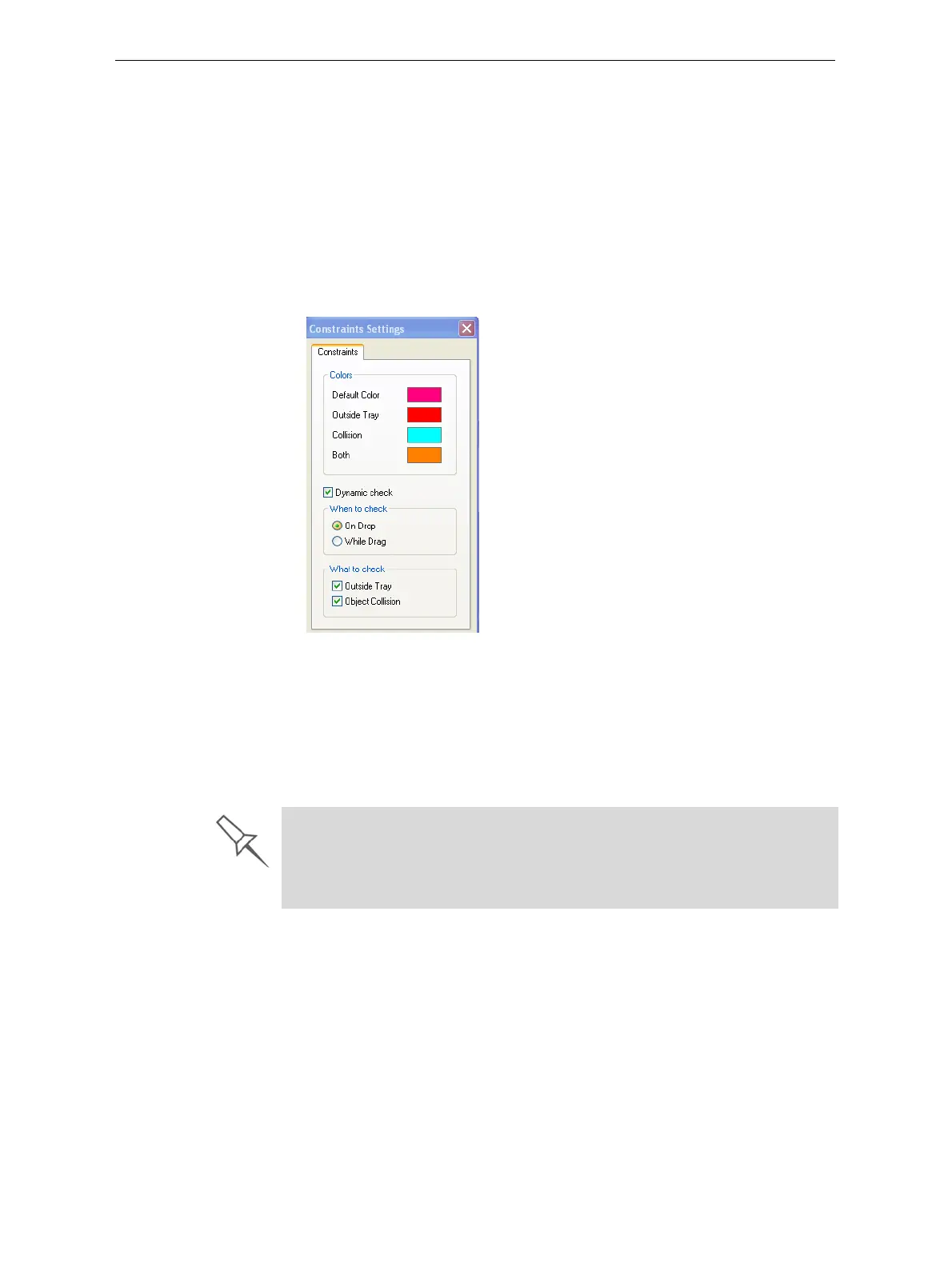
1. FromtheToolsmenu,selectConstraints Settings.
Figure 5-37: Constraints Settings dialog box
2. SelectDynamic checktoidentify—
• invalidobjectplacementwhileplacingobjects—OnDropselected.
• invalidobjectplacementaftermovingobjects—WhileDragselected.
• objectsplacedbeyondthetray’sboundaries—OutsideTrayselected.
• objectsthatoverlap—ObjectCollisionselected.
Note: Because of the unique characteristics of each type of model material
and finish, always check valid placement after changing the material/
finish. Remember that Objet Studio calculates the space occupied by
an object including the “bounding box” surrounding it (see
figure 5-52 on page 39).
Even if you do not use Dynamic Check when placing objects on the build
tray, Objet Studio automatically checks if there is a problem with the
positioning of objects on the tray before sending it to the printer. You can
also manually check for problems after positioning objects (see “Tray
Validation” on page 46).













 To Next Page