144
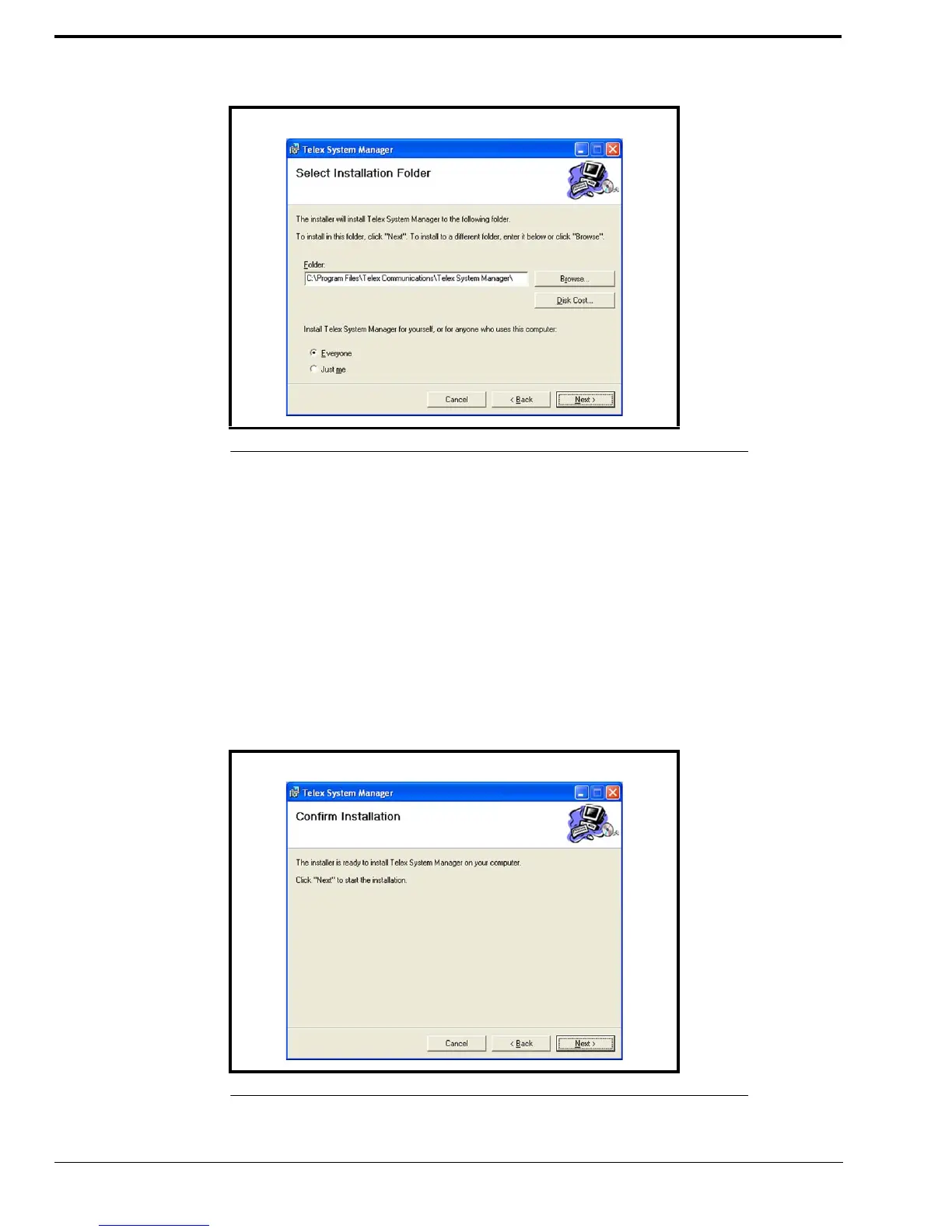
4. To specify an installation path for TSM, click Browse.
OR
To accept the default folder location, leave the path entered in the Folder field
By default, TSM is installed at C:\Program Files\Telex Communications\Telex System Manager\.
5. To allow any user to access TSM, select Everyone.
OR
To allow only one user to access TSM, select Just Me.
6. Click Next.
The Confirm Installation window appears, see Figure 79.
7. Click Next.
A Please Wait message appears. Once TSM is installed, a success message appears on the Confirm Installation
window.
8. Click Close.
FIGURE 78. Select Installation Folder
FIGURE 79. Confirm Installation



 To Next Page