3.3 Operation Procedure (Link Analyzer)
39
3.3 Operation Procedure (Link Analyzer)
3.3.1 Step 2. Creating Connection to DUT
If you want to view higher protocol data; L2CAP, RFCOMM, SDP, and Profile,
use the Host Analyzer screen to create connection to DUT. In the Link Analyzer
screen, higher protocols do not use to make a connection to DUT.
“ 3.2 Basic Operation Procedure” should be performed before following steps.
1. Selecting the Link Analyzer Screen: Link Analyzer screen can be accessed by pressing
the Menu hard key. Press Menu Rotary Knob or Select “Link
Analyzer” from the pop-up menu on the screen Press ENT .
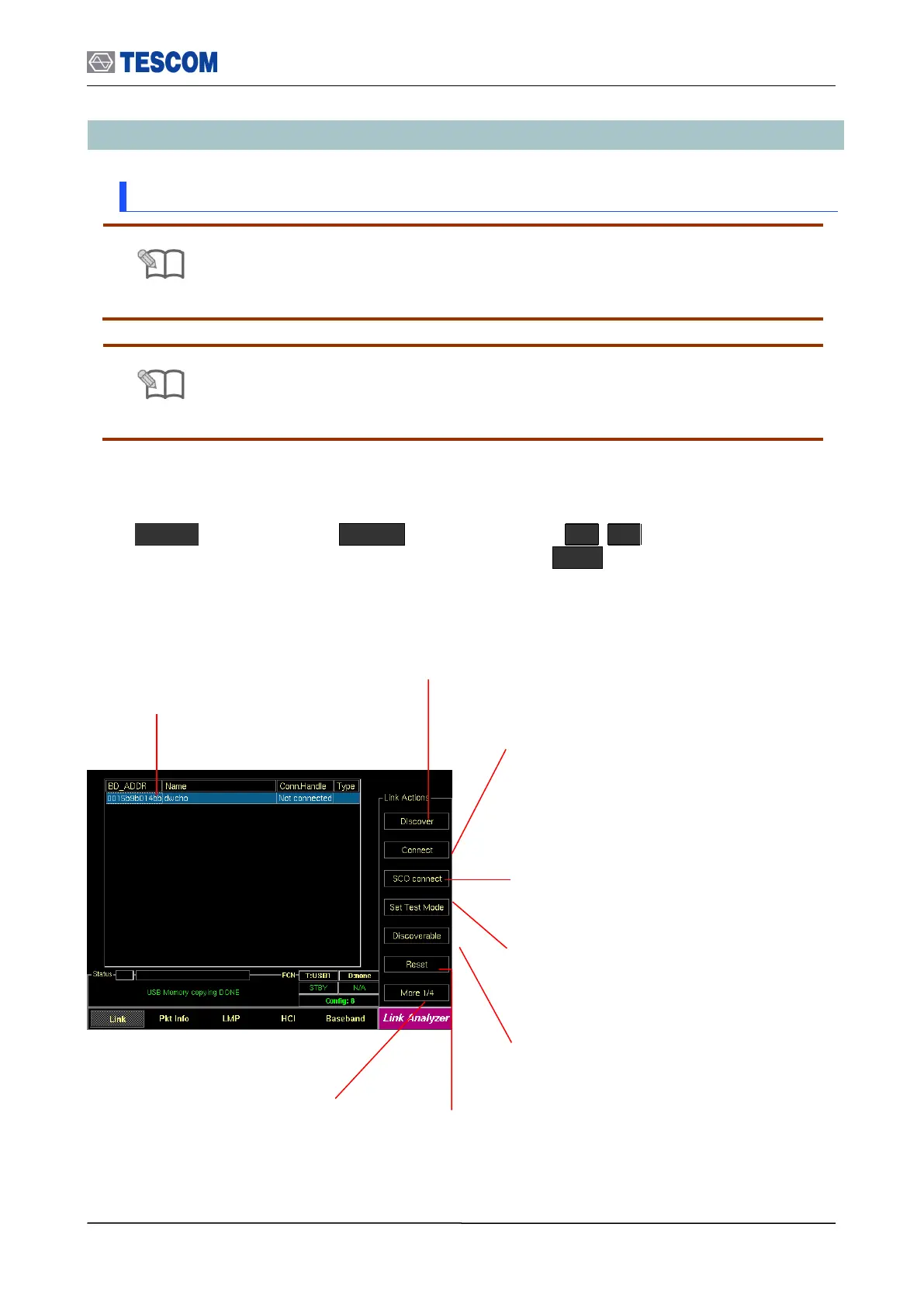
Show Devices Found: This
window display details about the
found devices.
Discover: Searches for all Bluetooth
devices that are in range and in
Inquiry Scan Mode through the Inquiry
procedure.
Connect/Disconnect: Creating connection to
highlighted DUT on the screen through the Page
procedure or disconnecting. This menu is
displayed when a DUT is discovered and listed on
the screen. If the highlighted DUT is connected,
this menu is changed to “Disconnect”.
SCO connect: Create SCO connection
to a highlighted DUT on the screen.
Discoverable: Enables the TC-3000C to
the Inquiry/Page Scan Mode.
Reset: Resets the TC-3000C. In case
DUT is connected to the TC-3000C with
HCI, the DUT is reset simultaneously.
Change submenus: For setting
up Inquiry, Page, and test mode
parameters.
Set Test Mode: Activate Baseband link
with a DUT in test mode



 To Next Page