3.8 Operation Procedure (Bluetooth Conformance Test)
72
Changing test parameters:
1) Move the box-shaped cursor to a test case that you want to change test parameters
using Rotary Knob or keys.
2) Press F2 soft key to expand parameter menus.
3) Move the box-shaped cursor to a parameter using Rotary Knob or keys.
4) Push Rotary knob for data input mode. The input cursor indicates data input position or
a drop down menu is driven.
5) Enter the value using keypad or choose the new setting from the drop down menu.
6) Press ENT key.
7) BS key can be used, if necessary during keypad entry.
3.8.3 Step 5. Running the Test Cases and Viewing the Test Results
Pass or fail in results are displayed on the status window related to the test case as soon
as tests are finished. The details of measurement can be shown by two methods,
pressing Result or Report . While the Result screen shows the measures of each test
case, the Report screen displays the measures of all test case performed and test logs
(test conditions, test time, and so on) in a screen. The test report can be copy to 3.5”
diskette by pressing F7 soft key.
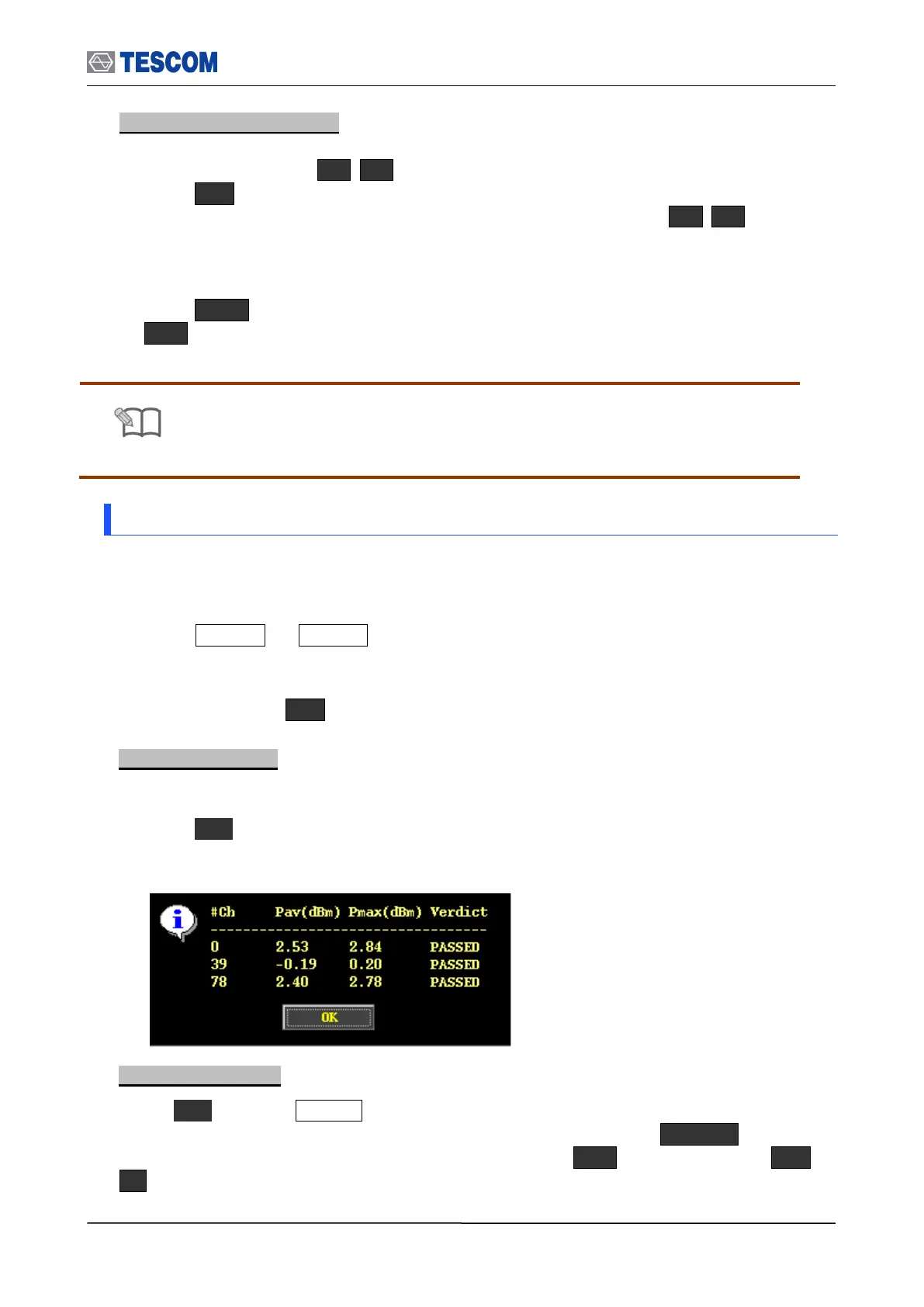
Test Result screen:
1) Move the box-shaped cursor to a test case that you want to see results using Rotary
Knob.
2) Press F5 soft key ( Result ), to display the pop-up screen including test results as
below.
Test Report screen:
Press F6 soft key ( Report ), to display the report screen. The report format and mode
can be changed in the Test Configuration screen. (Press Menu Select
“Configuration” from the pop-up menu on the screen M1 (Tester) Press F6 or
F7 .
To apply the changed values to test, “Use Default” must be unchecked. If
“Use Default” is selected, all of displayed values are ignored and the default
values will be assigned automatically.



 To Next Page