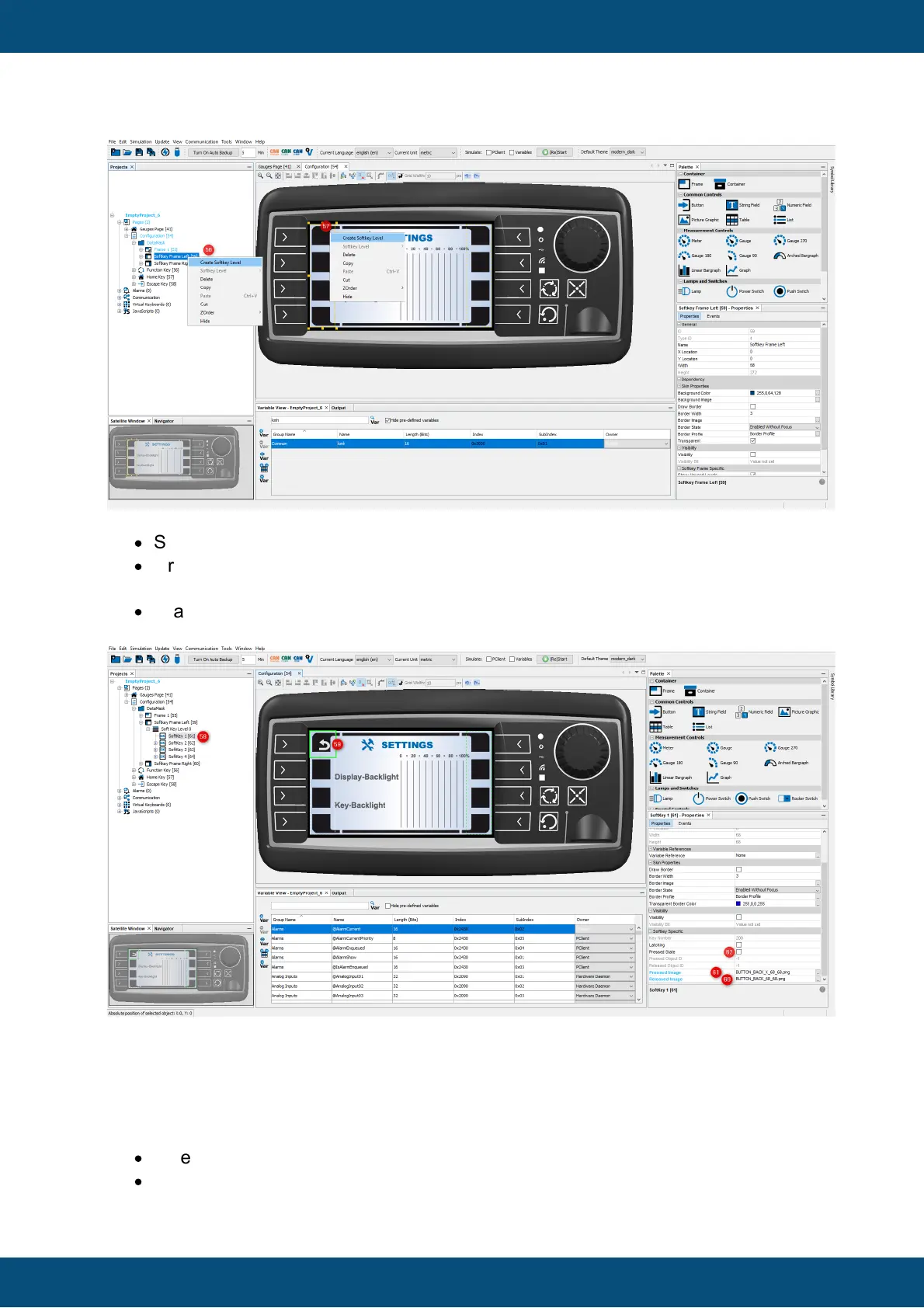
Now we can start configuring the softkeys:
·
Select the first Softkey in the project tree (58)upper left or in the editor (59)
·
Drag & drop the file BUTTON_BACK.png from the Image Library on the Softkey,
and in the context menu, select the softkey and then Released Image.
·
Drag & drop the file BUTTON_BACK_pressed.png from the Image Library on the
Softkey, and in the context menu, select the softkey and then Pressed Image.
By switching the state of the Pressed State check box (62) you are able to view both
softkey states in the editor. Make sure that the property is unchecked at the end.
Next step is to define a softkey event. The event should change to the Gauges page when
the user presses (or rather, releases) the Softkey you just configured graphically:
·
Select Softkey 1 in the Projects tree (63).
·
Open the Events tab by clicking Events in the Properties window (64).



 To Next Page